
nlnhbibaommoelemmdfnkjkgoppkohje

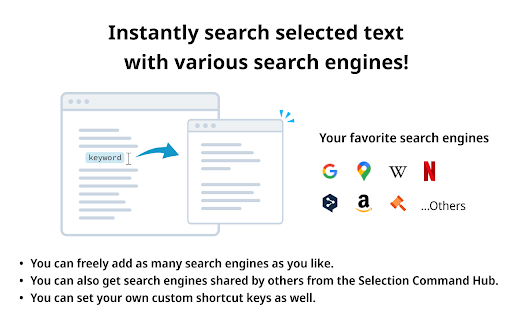


Search, use AI, or run tools with selected text in one click, and speed up your browsing. Say goodbye to tedious copy-paste and repetitive templates!🚀 Selection Command is a Chrome extension that lets you instantly search, chat with AI, autofill forms, and preview links—all with a single click from any text you select on a web page. Perfect for These Scenarios: ・🔍 Instantly search or translate any word or sentence you find online ・🤖 Auto-fill your favorite prompts into AI chat tools like ChatGPT ・👥 Share useful commands and prompt templates with your team Who Should Use This? ・🧑💻 Marketers, creators, business professionals—anyone who wants to gather information or work more efficiently ・🧙♂️ Anyone who wants to make daily tasks like researching, summarizing, or using AI faster and smarter Ridiculously Simple to Use 😆 Just select text on any web page → Trigger a command from the popup menu → Your “usual task” is done in an instant! 🎉 🌟 You can even customize and share commands, making it perfect for boosting team productivity! Key Features: - Instantly search selected text with your favorite search engine - Launch any AI chat (like ChatGPT) with your chosen template auto-filled - Preview links without opening new tabs - Fine-tune style and popup position to fit your workflow - Trigger commands with keyboard shortcuts - Fully customize, share, and download your own command sets Ready to make your browser workflow lightning-fast? Try Selection Command now and transform the way you work!

Selection Menu
Pop-up menu after selection with copying and searching for selected text in Google (or other search engines) Select the text and click on one of the buttons in the pop-up menu (copy or search in Google (or other search engines)). See extension preferences to choose your own search engine.

SearchJumper - Highlight & Selection Search
Instantly search selected text with any engine or AI. Highlight, right-click, or use the toolbar. Open source and privacy-first. *To the guys trying to sell me paid reviews: Knock it off. I've already gotten two mysterious one-star reviews from you. This is a free, open-source project—you can't get blood from a stone. SearchJumper is a selection search and right-click search extension built for fast, accurate web search. Highlight text on any page and run an instant selection search across multiple search engines in one click, without leaving your tab. Use the context menu, right-click search, or keyboard shortcuts to launch multi-engine search with Google, Bing, DuckDuckGo, Yahoo, or any custom engine. This selection search tool is perfect for researchers, students, marketers, analysts, and power users who compare sources, prices, and viewpoints. SearchJumper combines selection search, contextual search, and AI search into a single, lightweight workflow. It is a multi search engine extension that lets you compare results side by side and save time on every query. Key features and benefits: - Selection search and right-click search for instant lookups on any website. - Multi-engine search for fast comparison and verification. - AI-assisted search to summarize, translate, and answer faster. - Batch search to query multiple engines at once. - Find in page for on-page search and quick validation. - Keyword highlighting with regex and fuzzy matching. - Image search and link search for richer discovery. - Full customization: search engines, groups, context menu, and hotkeys. Why SearchJumper: - 100% free and open source search extension. - Privacy-first: no ads, no tracking, settings stored locally. - Lightweight and fast selection search for everyday browsing. If you rely on web search for work or study, SearchJumper helps you search faster and smarter. Install this selection search extension today and build your fastest multi-engine search workflow. Project and community: https://github.com/hoothin/SearchJumper

Selection Search for Google Chrome™
Free! Quickly Search for selected text using the context menu. Save yourself from having to open a new tab when you download our extension today. You can easily search the selected text you copy on any website you want. All you have to do is copy the text you want to search, right click and choose the website to search from. Its extremely easy to use and perfect for saving you time if you do a lot of searches each day. Dont bother having to open a new browser tab each time you want to copy and search for some text on Youtube/Google Images etc. Add in other websites you commonly use the search feature for. By default, our extension supports searching from top websites such as Disclaimer: Please note this extension is NOT made by Google and is made by an independent development team. All copyrights belong to their respective owners. Google doesn’t endorse or sponsor this Chrome extension. Selection Search for Google Chrome™ is not owned by, is not licensed by and is not a subsidiary of Google Inc.

Selection Search
Search for the selected text in search engines With this extension you can easily search for text you have selected. When some text is selected you can left click the selected text to get a popup where you can choose a search engine to search with. In the options page you can customize the look of the menu, which mouse button that should activate the menu, which search engines to show, and a lot of other things. When you install this extension you will get a warning that this extension can: "Access your data on all websites." This is needed because the code for the popup-menu needs to be added to every website for it to work. If you want to report a bug/issue, please use the following site: https://github.com/Pitmairen/selection-search/issues Alternatively you can use the support section on this site (chrome web store), but I get no notifications about new posts, so I may not notice the message. Some people have asked for ways to make donations to the project. If you want to make a donation you can do so by buying me a coffee: https://www.buymeacoffee.com/pitmairen 0.9.7 - Improve support for IME input in toolbar popup (See issue #173) - Change to use a html class to shown/hidden the popup menu to make it easier to override the display property of the popup with custom CSS. 0.9.6 - Fix issue where icons in some cases could fail to load because the fallback icon loading did not work. This may improve the icon loading for some users. 0.9.5 - Add option to trigger "open all" feature on submenus with middle click only. - Make back button in toolbar button go back only one level at the time - Fix issue where "open all" on sub menus could crash if the submenu contained separators - Change default search engines on new installs to use https 0.9.4 - Add ability to customize the toolbar popup with css - Include separators in the toolbar popup. Hidden by default, but can be made visible with custom css. 0.9.3 - Fix issue where some icons failing to load could trigger a loop in the image loading, which could cause high CPU usage and pages failing to load. 0.9.2 - Improvements to icon loading. The icons are now loaded in the background worker, similar to how it was done in the 0.8.* versions of the extensions. This should make the icons load faster and with less chance of icons failing to load. Note: The icons are cached in the sessions store provided by the browser. This storage has limited capacity. If you have a lot of search engines or have many large custom icons, you can hit the limit. This will cause some icons to fail to load. If this happens try to use smaller icons if you have custom icons. If that does not help report the issue as it may be possible to make the usage of the storage more efficient if necessary. You can also hit the limit if you make a lot of changes to your search engines in one go, but this should be fixable by just restarting the browser as this will cleanup old entries in the storage. 0.9.1 - Fix issue with context menu items requiring two clicks to work - Fix issue where the context menu items was not added properly - Fix issue where hitting enter in the toolbar search box would not open the first search engine - Changed icon loading to use the icon urls directly, instead of loading the icons in the background, as the background loading does not work properly with manifest v3. This will probably also fix some issues where custom svg images would not load. 0.9.0 - Major rewrite of internals to migrate the extension to manifest V3, as required by Chrome for the extension to continue to work. - No new features or bug fixes in this release. 0.8.63 - Added new buttons to allow adding new search engines/separators/submenus at specific positions in the search engine list 0.8.61 - Added option to enable the search engine popup blacklist/whitelist to also affect the search engine hotkeys. The options is located under Popup menu -> Advanced -> Blacklist/whitelist. 0.5.58 - Fix issue where the popup could be partially positioned outside the top of the browser window and become unreachable. Mostly an issue for very large popup menus with many search engines. 0.8.57 - Fix mycroft integration. - Add an additional source for search engine icons that is used if the default source does not have an icon. 0.8.56 - Added special search engine marker for sites requiring encodings other than UTF-8. Simply append {SPECIALENCODING} to the end of the search engine url. This enables the feature and the browser should be able to auto detect the correct encoding. 0.8.55: - Possible fix for freezing tabs for searches opened in new foreground tab 0.8.53: - Added option to open search in new window - Make it possible to add search url to the submenu root item. If a search url is added it will open when clicking the submenu root item, unless the openall on click option is checked. - Improved replacement of bracket placeholders ({%s}). If "}" must be used inside the placeholder it can now be escaped using "}". - Improved regexp placeholder replace converter. The old "re:" converter still works for backwards compatibility. The new improved converter is called "replace:", and is documented under "More Variables" at the top of the options page. 0.8.51: - Fix issue with saving changed settings on options page For full changelog see:
