
nkaliaagdnbgadcpnkdbmnigkalbihlb
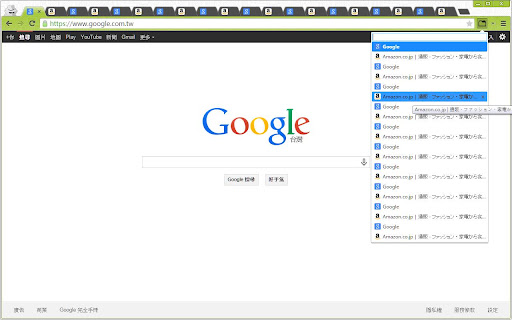

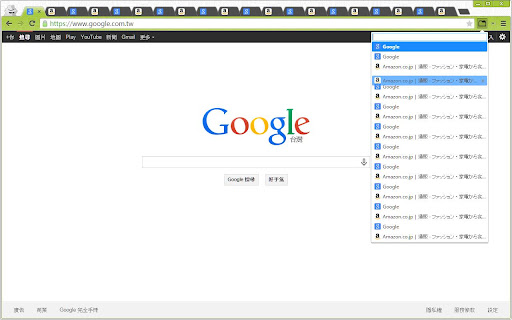
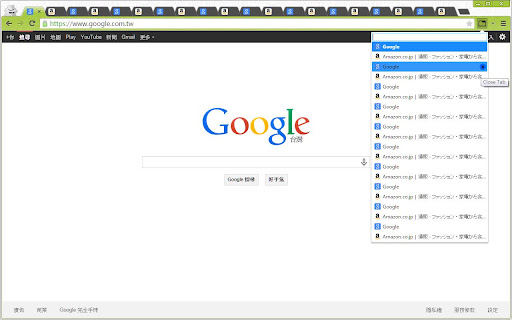
An extension for list, search, rearrange, close tabs and switch to another tab. "List Opened Tabs" is a Google Chrome extension that can let you list, search, rearrange, close tabs and switch to another tab. It's very useful if you opened a lot of tabs in a window. Change log: v1.2.0: TabGroup indicator, remove close button for pinned tabs, favicon issue fixed, 3rd-libs upgrade. v1.1.1: Update to ManifestV3. v1.1.0: Bug fixed, UI fine-tune and add badge to show the number of tabs in current window. v1.0.1: Rearrange Bug fixed.

Tab List
List opened tabs for current window. Tab groups are recognised and displayed. Filter list, focus or close tab, bookmark tab group. It is a simple but effective extension that will help you manage your ever growing number of tabs. If number of tabs you have opened makes it hard to manage, then this extension will help you. When you have tabs grouped, it will open by default in Group View, you can bookmark grouped tabs, your tabs will be in the "Bookmarks Bar/Tab List" folder. You can switch to list view, tabs will be colour coded according to the group it belongs to. Version 1.2.2 12/01/2024 - Show groups of tabs - Provide Group view when appropriate with ability to switch to list view - Bookmark group - Dark/Light theme aware Version 1.1.4 05/01/2024 - Allow for search term (if valid url) to be opened in new tab Version 1.1.3 19/04/2022 - Remove unused permission Version 1.1.2 15/03/2018 - Search bar is now sticky Version 1.0.1 01/11/2017 - When filtered list contains one item then press Enter to highlight this tab.

TabMate
TabMate helps you manage the tab clutter. Easily switch between tabs, save & restore set of tabs or windows, and more. TabMate helps you manage tab clutter and be more productive. Stash a set of tab/windows that you want to save for later and easily restore them when needed. Use quick switcher to search among open tabs and stashes and switch to them. Drag and drop the tabs to rearrange them with in windows or stashes. Name stashes so you can easily remember the purpose for each set of tabs. Easily send tabs to named stashes through right click context menu. Common usages: - Quickly search and switch between all the open tabs and stashes - Save the pages you've visited during your research session and restore all of them later. - Logically group all the pages you visit often and load each group when needed. - Easily manage existing open tabs by saving unnecessary tabs as a session.

Awesome Window & Tab Manager
Displays a list of all windows and tabs open in Google Chrome. Allows filtering, sorting, refreshing, bookmarking, and saving. Awesome Window & Tab Manager does the following: (1) - Tells you how many Chrome windows and tabs are open. (2) - Displays all the windows and tabs. (3) - Allows text filtering (searching) on the windows and tabs. (4) - Allows alphabetic sorting of tabs. (5) - Categorizes tabs by window, domain, or category. (6) - Categories are determined by your own bookmark structure. (7) - Window, domain, or category groups can be refreshed or closed. (8) - All windows and tabs can be saved and restored later. (9) - Window, domain, or category groups can be saved and restored later. (10) - Unbookmarked tabs can be bookmarked. Note: Google Chrome version 16 or higher is required for tab refreshing functionality.

Tab Manager
Easily organize all your open tabs in multiple windows from toolbar popup! This extension is designed to organize tabs from the toolbar popup. The UI for the extension can also be opened in a standalone popup window or a new tab (choose an item from the toolbar button context-menu). Tab Manager add-on supports multi-window and incognito mode. To work with this addon, just open the extension UI and start managing your tabs. Within the UI you can see a search bar at the bottom. Above that, there is the list of open tabs for window #1 (a new section is added for each new window). Within each row (tab item) in the list, there are several buttons. The first is the pin button which can be used to pin a desired tab(s). Next is the HTTP/HTTPS sign which shows if a website supports SSL protocol or not. The third icon is the tab icon which updates automatically depending on the tab URL. You can see the tab title right after the tab icon. There are also two buttons on the right side for editing or removing the current item. Please note that within the extension interface, all tab items are draggable. Once you drag an item, the actual tab will be re-positioned as well. Note: The extension interface supports dark mode. To switch the interface theme to dark, please press the moon icon in the bottom-right toolbar. To report bugs, please fill out the bug report form on the addon's homepage (https://mybrowseraddon.com/tab-manager.html).
