
nfddopbgedlmbjbnpomhcamablpkbpnb

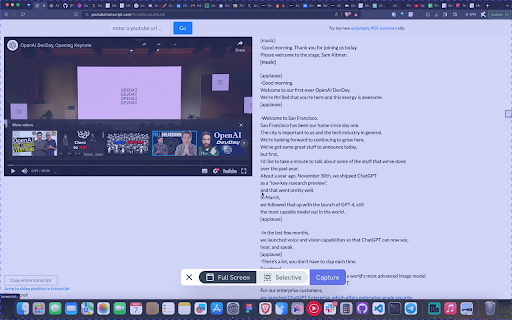
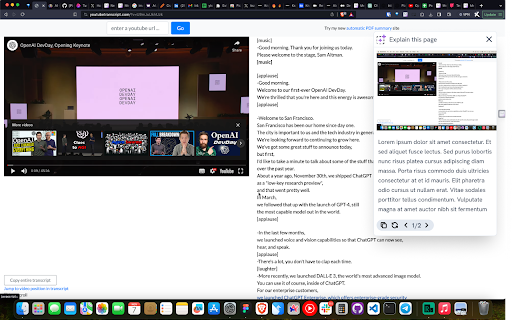
Image to Text Explanation with GPT-4 Vision Take a screen shot or capture part of the screen and ask AI to described it for you, write content on based of it and do anything with it. With this extension you can 1. Ask AI to give explain like I am 5 (ELI5) 2. Ask AI to explain the meaning of complex math formulas or solve equations based on it. 3. Ask AI to explain a presentation in b/w a youtube video 4. Go over complex amazon.com pages and make sense of it. 5. Give you the perfect caption for your Instagram post.

DoSearch. Screenshot to GPT-4 Vision
✨ Unleash the Power of Instant Knowledge ✨ With DoSearch, step into the future of on-screen search. At the press of a shortcut, this tool lets you 🎯 select any area of your screen. Then, simply ask a question and voilà! GPT-4 Vision gets to work, delivering answers straight from your screenshots. 🔍 Smart Selection, Smarter Responses 🔎 Whether it's a graph, a snippet of text, or an intricate design, DoSearch's cutting-edge AI 🧠 analyzes the visual content with remarkable accuracy. Get ready for a lightning-fast, insightful, and interactive experience that transforms the way you access information. This isn't just a tool; it's your personal on-demand knowledge assistant, redefining the search to be as dynamic as your curiosity.

Vision AI
Capture web screenshots and add prompts for instant AI-powered responses with Vision AI. Discover the next level of digital interaction with Vision AI, a Chrome extension revolutionizing how you seek information online. Vision AI seamlessly blends the power of screenshots with AI-driven insights, offering an intuitive and dynamic way to interact with the web. 1. Effortless Screenshot Capturing: Instantly grab any part of your web page – images, text, or data. Vision AI makes it easy to capture the essence of what you're viewing. 2. Interactive AI Prompts: Attach your questions or prompts to the screenshots. Vision AI's sophisticated AI algorithms interpret your query in the context of the captured image, providing richer, more accurate responses. 3. Seamless Integration: Vision AI fits smoothly into your browser experience, ensuring that powerful AI assistance is always just a click away. 4. Versatile Usage: Whether you’re a student needing quick explanations of complex concepts, a professional analyzing market data, or simply exploring the internet, Vision AI enhances your search and discovery process. 5. Privacy and Security: Your online privacy is paramount. Vision AI handles your data with the utmost security, ensuring that your browsing remains private and secure. 1. Academic Learning: Take snapshots of educational content and ask for detailed explanations or further information. 2. Business Intelligence: Capture market charts or business data and inquire for in-depth analysis or forecasts. 3. Creative Exploration: Snap photos of artwork or designs you encounter online and ask for insights or similar style suggestions. With Vision AI, you're not just browsing the web – you're engaging with it in a more meaningful, intelligent way. Turn every screenshot into an opportunity for learning and discovery.

Screenshot GPT
Take a screenshot of any area on a website and ask AI questions about it. Powered by OpenAI GPT models. Screenshot GPT lets you take screenshots of any area on a web page and ask an AI assistant questions about it, powered by OpenAI's GPT-4-o Mini. You can quickly get explanations or details on text, images, and complex visual information like charts or graphs directly from the web pages you visit. Note: The extension works only with the GPT-4-o Mini model, currently available to all OpenAI accounts who have access to GPT-4. It adds a chat interface in the Chrome browser side panel, making it easy to interact and receive answers seamlessly. It's useful for anyone needing instant information, including students who require quick insights for their studies, or professionals who need to streamline their workflow by gathering data efficiently. The extension requires an active OpenAI account with GPT-4 access to function. 1. Click the extension icon in the Chrome toolbar. 2. From the dropdown menu, click "Select Area". 3. Select the area on the page by clicking and dragging. 4. Confirm the selection and send it to the chat. Ensure the AI Chat is open. You can also right click anywhere on a web page and select "Screenshot GPT" to select an area for a screenshot.

Blenny - AI Vision Co-Pilot Powered by GPT-4V
Screenshot any part of a webpage, and Blenny will instantly help you summarize, translate, apply custom agents, and do more. 🔥 Access AI vision anywhere on the web. No more switching between AI platforms. Blenny adds AI vision to your browser and helps you analyze information from any part of the web. Take a snapshot of the screen area and perform quick actions such as instant AI summaries, translations, accessing the web, etc. 💻 Customize and build your own AI agents. Blenny is more than just stock prompts or actions. It works according to your needs, catering to several use cases you throw at it. For example, you can start a chat with the context in your screenshot or create quick actions and custom agents using your prompts. 🚀 How to get started with Blenny 💡 Step 2: Start using Blenny Snapshot a screen area, and choose from a list of quick actions to analyze the content. Our pre-built prompts allow you to instantly summarize text, translate words, recognize objects, and more. You can also save your own customized prompts as quick actions. Define triggers and responses to carry out tasks tailored to your needs. 🧑💻 Prompt Gallery Experience the convenience and efficiency of AI vision-assisted tasks like never before with the Prompt Gallery. Whether you're a researcher, student, professional, or simply curious, Blenny's Prompt Gallery empowers you to extract more value from the vast web information available on the web. Access it at https://www.blenny.ai/prompt-gallery ❇️ Custom API Key Currently, we offer a limited trial access to Blenny. Once you hit the trial limit, you are advised to add your own API key to continue using Blenny. We will introduce subscription modules down the road.
