
nbicfaklckciejicmnpgjhbhehacddgh


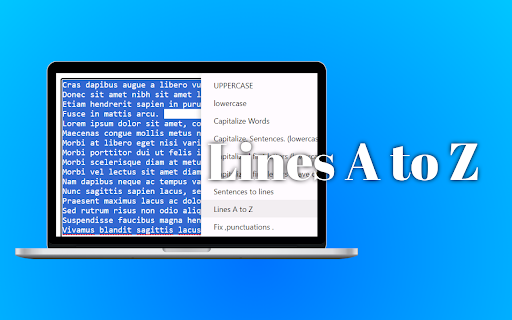
Speed up text formatting with quick case changes, whitespace management, and more. Transform your text formatting workflow with the Right Click Text Format Chrome extension! This handy extension gives you a powerful text formatting menu with just a right click. >> Attention: After installing the extension, first you need to open a new tab/window for the extension to work. Also, read the "Known Issues" below. Important: It works in simple textareas and fields, like on Pastebin.com, Snippet.host, Removecomments.com, Text-compare.com, etc., but unfortunatelly it is NOT works in Gmail message writing field, Google Docs text editor, Facebook Messenger message field, Facebook post field, Confluence text editor, etc. Thank you for your understanding! You can feel free to use the Right Click Text Format icon in the browser's toolbar in any time on any website, which contains text field with all editing possibilites. This is the 4th line." After: "This is the first line. This is the 4th line." Goal: To eliminate unnecessary blank lines, which can help with the visual organization of text and can be important for formatting in certain publication styles or programming contexts. ✅ Remove extra spaces, tabs Before: "Thisis a sentence withextra spaces andtabs." After: "This is a sentence with extra spaces and tabs." Goal: To clean up whitespace, making the text look neater and ensuring consistency in documents or code. ✅ Capitalize. Sentences. (lowercase others) Before: "the QUICK BROWN fox. JUMPS over the LAZY dog?" After: "The quick brown fox. Jumps over the lazy dog?" Goal: To capitalize the first letter of each sentence for proper grammatical structure while converting the rest of the text to lowercase for uniformity. ✅ Sentences to lines Before: "The quick brown fox jumps over the lazy dog. It is a sunny day." After: "The quick brown fox jumps over the lazy dog. It is a sunny day." Goal: To split sentences into individual lines, improving readability and making the text easier to process for both humans and machines. ✅ Format as paragraphs Before: "This is the first line. This is still part of the first paragraph. This is better as a second paragraph." After: "This is the first line. This is still part of the first paragraph. This is better as a second paragraph." Goal: To structure the text into distinct paragraphs, which helps to organize ideas and information in a clear and logical manner. ✅ Add . after lines Before: "This line lacks a period" After: "This line lacks a period." Goal: To ensure that all lines end with a period, which is necessary for complete sentences and can affect the clarity and professionalism of the text. ✅ Add , after lines Before: "This line should end with a comma" After: "This line should end with a comma," Goal: To append a comma to the end of lines, which might be required in a list or to ensure that phrases are properly separated in a series. ✅ Add return after , Before: "Apple, orange, banana." After: "Apple, orange, banana." Goal: To insert a line break after each comma, which is suitable for improving the readability of lists or separating phrases onto new lines. ✅ (Add parentheses to lines) Before: "This line will be enclosed in parentheses." After: "(This line will be enclosed in parentheses.)" Goal: To show how to enclose text within parentheses, which can be used for additional information or to indicate that the text is less important than the surrounding text. ✅ - For lines Before: "This line will have a dash with space prepended." After: "- This line will have a dash with space prepended." Goal: To add a bullet point in front of the line, which is commonly used in lists to improve readability and organization. ✅ -For lines Before: "This line will have a dash with space prepended." After: "-This line will have a dash with space prepended." Goal: To add a bullet point without space in front of the line, which is commonly used in lists to improve readability and organization. ✅ Remove empty lines Before: "This is the first line. This is the third line." After: "This is the first line. This is the third line." Goal: To eliminate unnecessary blank lines, streamlining the text and improving the visual layout for the reader. ✅ Remove 1st characters Before: "The quick brown fox jumps over the lazy dog." After: "he quick brown fox jumps over the lazy." Goal: To show how to remove the first character from a string of text, which can be useful in various text editing or processing situations where the initial character may need to be eliminated for formatting, coding, or other specific requirements. ✅ Remove last characters Before: "The quick brown fox jumps over the lazy dog." After: "The quick brown fox jumps over the lazy dog" Goal: To demonstrate the removal of the last character from lines, which may be necessary for text processing tasks, such as formatting or data cleanup. ✅ Remove extra spaces, tabs, line breaks Before: "The quickbrown fox jumpsover the lazy dog." After: "The quick brown fox jumps over the lazy dog." Goal: To clean up the text by removing additional spaces, tabs, and line breaks, creating a tidy and professional-looking document or output text. Why You'll Love Right Click Text Format Level up your text formatting workflow now with Right Click Text Format. The convenient formatting menu integrates seamlessly into your browser for formatting on the fly. ⭐ Simple One-Click Formatting - Just highlight and right click text to access a menu of formatting options. No need to manually edit! ⭐ Choose from 20+ formatting options for case, whitespace, punctuation, and more. ⭐ Works in editable text fields in web pages, that allows highlighting. ⭐ Time-Saving - Eliminate tedious manual formatting so you can work faster. ⭐ Consistent Styling - Easily enforce capitalization, punctuation rules, and formats. ⭐ More Convenient Than Keyboard Shortcuts - No need to memorize complex hotkeys. Just right click! ⭐ Effortless Workflow Integration - Seamlessly formats text without disrupting your flow. ⭐ Free and Unlimited - Use all features for free forever with no limits. Take your text formatting to the next level now with Right Click Text Format for Chrome! Planned Features: - Shortcut for last used formatting - _ to Space - "Quote text" - / to \ - \ to / While Right Click Text Format aims to provide seamless text formatting in any situation, there are a few cases where the functionality may be limited due to the complexities of working across diverse websites and platforms. - Limited support in some main text fields: There are many different methods websites use for text input, so Right Click Text Format may not work in all fields. Our goal is seamless compatibility across the web. We have tried to handle this situation at least for div, span or other non-input elements with the contenteditable attribute that contain the editable content, but we have not seen any improvement in operation. As a result, we decided to abandon this approach for cleaner code. It works in simple textareas and fields, like on Pastebin.com, Snippet.host, Removecomments.com, Text-compare.com, etc., but unfortunatelly it is NOT works in Gmail message writing field, Google Docs text editor, Facebook Messenger message field, Facebook post field, Confluence text editor, etc. You can feel free to use the Right Click Text Format icon in the browser's toolbar in any time on any website, which contains text field with all editing possibilites. - No built-in Undo: Like most extensions that programmatically modify content, the changes made by Right Click Text Format aren't tracked by the browser's native undo stack and it not worth the effort for this feature. - Fix punctuations: Resolving the more common typing anomalies in their own right takes priority over further optimization. This left unoptimized uses of "..." and the unnecessarily large number of punctuation marks (e.g. "!!!", "??"). - Sentences to lines: Breaks sentences into lines based not simply on end-of-sentence punctuation, but on end-of-sentence punctuation and a letter following it. As a result, when there is a special character between two sentences, it does not break on a new line. This is so that sentences can also contain "(?)" or "(!)" parts. We have accepted these issues. We accept didn't want to delay releasing a tool that can already boost productivity and eliminate tedious formatting work for so many users. No data is collected. Changes are only made locally in the user's browser. Justifications for the requested permissions and usage: activeTab permission: This allows the extension to programmatically read and modify the content of web pages the user is actively viewing. This is required for the core functionality of the extension - to format text on web pages. User data will not be accessed or transmitted. contextMenus permission: This allows the extension to add a context menu option when the user selects text. This is required to allow the user to invoke text formatting from the context menu. No user data is accessed or transmitted. Scripting permission: This allows the extension to programmatically inject scripts into web pages to interact with the page content. This is required to implement the text formatting capabilities. No user data will be accessed or transmitted. clipboardRead permission: The application can load the content of the clipboard into the popup input field if there is no selected text on the page. clipboardWrite permission: The application can load the content of the input field from the popup to the clipboard so that the user can paste it more easily. storage permission: Even if the popup is reopened, keep the text to be edited in the input field. Remote code usage: The extension loads code remotely from the Chrome Web Store. This code implements the text formatting functionality. No user data will be accessed or transmitted by the remote code. Single purpose description: The sole purpose of this extension is to provide text formatting capabilities via a context menu for selected text. No user data will be accessed or transmitted by the extension.

Text Case Converter
Converts text to letter cases including Uppercase, Lowercase, Title Case, Capitalized Case, Sentence Case, and Alternating Case. Text Case Converter is a feature-rich Chrome extension that allows you to effortlessly change the case of any text with just one click. Whether you're formatting headlines, writing code, crafting social media posts, or editing documents, this tool makes text transformation quick and simple. Key Features Live Text Statistics Get real-time insights into your text as you type or paste. The statistics bar displays character count (with and without spaces), total word count, and whitespace count, helping you stay within character limits for social media, SEO meta descriptions, or any other requirements. Lower Case Converter Converts all letters to lowercase. Ideal for casual writing, coding variable names, or when you accidentally typed with CAPS LOCK on. Example: "HELLO WORLD" → "hello world" Upper Case Converter Transforms all letters to uppercase. Perfect for headlines, acronyms, emphasizing important text, or creating attention-grabbing titles. Example: "hello world" → "HELLO WORLD" Capitalized Case Converter Capitalizes the first letter of every word. Useful for names, titles, and headings where you want consistent capitalization throughout. Example: "hello world" → "Hello World" Title Case Converter Intelligently capitalizes text following standard title capitalization rules. The first letter of major words is capitalized, while minor words like articles, prepositions, and conjunctions remain lowercase (except when they appear at the beginning). You can customize the list of exception words to match your preferred style guide, whether it's AP, Chicago, MLA, or your own custom rules. Example: "the house on the haunted hill" → "The House on the Haunted Hill" Sentence Case Converter Capitalizes the first letter of each sentence while keeping the rest in lowercase. This is the standard format for most written English, making it perfect for cleaning up poorly formatted text or converting uppercase text to readable paragraphs. Example: "HELLO WORLD. HOW ARE YOU?" → "Hello world. How are you?" Alternating Case Converter Alternates between lowercase and uppercase letters, creating the popular "spongebob case" or "mocking text" style. Great for memes, social media, or adding a playful tone to your text. Example: "hello world" → "hElLo WoRlD" Customizable Title Case Exceptions Take full control of your Title Case conversions with the built-in exceptions editor. Add or remove words that should remain lowercase, such as articles (a, an, the), conjunctions (and, but, or), and prepositions (in, on, at, by, for). Your custom exception list is automatically saved and persists across browser sessions. Default exceptions include: a, an, and, as, at, but, by, for, in, nor, of, on, or, so, the, to, up, yet, is, are, was, were, and more. Modern, User-Friendly Interface Enjoy a clean, modern design with intuitive controls, smooth animations, and visual feedback. The streamlined layout puts all conversion options at your fingertips while displaying helpful text statistics at a glance. Additional Features One-Click Copy: Instantly copy your converted text to the clipboard with visual confirmation Clear Button: Quickly clear the text area to start fresh Keyboard Shortcuts: Power users can use Ctrl+L (lowercase), Ctrl+U (uppercase), and Ctrl+T (title case) for faster workflow Persistent Settings: Your Title Case exception preferences are saved automatically No Permissions Required: Text Case Converter works entirely within the extension popup and does not require access to your browsing data or web pages Perfect For Writers and editors formatting articles, blog posts, and manuscripts Marketers creating headlines, ad copy, and social media content Developers formatting code comments, documentation, and variable names Students and researchers formatting citations and paper titles SEO professionals optimizing meta titles and descriptions Anyone who needs to quickly reformat text How to Use Click the Text Case Converter icon in your browser toolbar Type or paste your text into the input area View live statistics (characters, words, whitespace) in the stats bar Click any case conversion button to instantly transform your text Click "Copy" to copy the converted text to your clipboard Optionally, expand "Title Case Exceptions" to customize which words stay lowercase Text Case Converter is lightweight, fast, and designed to save you time. No more manually retyping text or searching for online converters. Transform your text instantly, right from your browser. What's New in Version 2.0 -Brand new modern interface with improved usability -Live text statistics (characters, words, whitespace counts) -Customizable Title Case exceptions with persistent storage -Clear button for quick text reset -Keyboard shortcuts for faster workflow -Improved Alternating Case (now alternates only letters, ignoring spaces) -Enhanced copy functionality with visual feedback -Smoother animations and hover effects

Rockit - Fancy Text Generator and Formatter
Format selected text via right clicking it and chosing 'Rockit - Fancy Text...' option from the drop down menu! 🚀 Rockit - Fancy Text Generator and Formatter 🚀 Tired of the same old text? Want to add some pizzazz to your online conversations? Say hello to Rockit, your new best friend for all things text! 🎉 With Rockit, you can transform any selected text on a webpage with just a right-click, that's right 𝐚𝐧𝐲! Choose from a variety of text formatting options like converting to UPPERCASE, lowercase, making it 𝐛𝐨𝐥𝐝 or 𝘪𝘵𝘢𝘭𝘪𝘤, or even changing the font to something 𝒇𝒂𝒏𝒄𝒚! 🌟 (Works everywhere, even if sites don't support it, use it to believe it✨) Also, In the latest update, support for live previews has been added 👾 But that’s not all! Click on the 🚀 Rockit extension icon, and you’ll get a neat info of your selected text, including word count, letter count, and line count. Perfect for those who need to keep track of their word usage! 📝 👮 Instructions -> 𝗦𝘁𝗲𝗽 1: Select the text you want to format on any webpage. Can be text inside a text input field or even the content displayed on the site 😈 -> 𝗦𝘁𝗲𝗽 2: Right-click to open the context menu and hover over the "🚀 Rockit - Fancy text..." option to see formatting choices. -> 𝗦𝘁𝗲𝗽 3: Choose your desired formatting or fancy text option. Rockit will immediately apply the style to your selected text 🥳 -> 𝗦𝘁𝗲𝗽 4: To access more stats and information like word count, character count and such of the selected text, click the Rockit icon in your browser's extension toolbar 💃 -> 𝗘𝘅𝘁𝗿𝗮: You can pres ctrl + z or command + z (mac) to undo fancy text conversion, inside of a text input and fields 👾 𝗙𝗶𝗿𝘀𝘁 𝗧𝗶𝗺𝗲 𝗜𝗻𝘀𝘁𝗮𝗹𝗹: You may need to reload webpages opened prior to Rockit installation, as that would help Rockit 🚀 to load along with webpage. 𝗡𝗼𝘁𝗲: Rockit works on most websites, but there may be some limitations based on the site's specific security policies, that is if reloading the page did not help. Selecting via pressing ctrl / cmd + A may not format text in some sites, use mouse cursor to select. (Site specific restriction) ⏰ Time Savings and Use Cases Imagine the time you’ll save not having to manually change text case or count words, hunting for formatting options that may not even exist on websites. Whether you’re a student working on an assignment, a professional preparing a report, or just someone who loves to express themselves uniquely, Rockit is here to make your life easier and your text 𝕗𝕒𝕟𝕔𝕚𝕖𝕣! 🌈 🎈 🤘 Motivation for Rockit We believe in the power of expression and the beauty of diversity. That’s why we created Rockit - to give you the freedom to express yourself in the way you want, without the hassle. Let’s make the internet a more fancy place, one text at a time! 🌈

Whitespace Remover
Utilize this tool to remove whitespaces and new lines to allow you to enter more text into your ChatGPT prompts. Utilize this tool to remove whitespaces and new lines to allow you to enter more text into your ChatGPT prompts.

Post Formatter: LinkedIn Bold Text & More Styles
Easily add LinkedIn bold text, italics, 20+ styles & lists. Instant formatting for LinkedIn, X, Facebook, Threads & Pinterest. Add LinkedIn Bold Text, Format Posts & Proofread with AI — All in One! Need LinkedIn bold text to make your profile and posts stand out? Post Formatter is the simple yet powerful LinkedIn text formatter you've been looking for! Stop using plain text and start creating engaging, visually appealing content — not just on LinkedIn, but across all your favorite social platforms. 🚀 Elevate Your Social Media Presence 🚀 This extension is your go-to tool for adding emphasis and style. Effortlessly apply bold on LinkedIn, italics, underline, strikethrough, lists, and 20+ unique text styles. Whether you're highlighting skills, sharing insights, or crafting compelling calls to action, using bold on LinkedIn helps grab attention immediately. As a versatile LinkedIn text formatter, it also works seamlessly on X (Twitter), Threads, Facebook, Pinterest, YouTube, and Bluesky. ✨ Your Go-To LinkedIn Text Formatter Features ✨ ✅ Instant Formatting for LinkedIn Bold: Simply select text directly within LinkedIn, and our intuitive floating toolbar appears. Click the bold button (or choose other styles) — getting bold on LinkedIn takes just a second! ✅ NEW — AI Proofread & Rewrite: Catch grammar, spelling, and style mistakes right inside the editor. Let AI rewrite and improve your post while keeping your LinkedIn bold and other Unicode styling intact. Bring your own API key and pick your favorite model. ✅ NEW — LinkedIn Post Preview: See exactly how your post will look before you publish. A live LinkedIn feed preview updates as you type — with your real name, avatar, photos, videos, document carousels, and link previews. ✅ NEW — Post Preview for Every Platform: Realistic post mockups for LinkedIn, X (Twitter), Threads, Facebook, and Bluesky, including dark mode — so you always know how your formatted post will appear. ✅ NEW — Drafts Manager: Save, organize, and reuse your posts. Group drafts into folders, add tags, mark them "Ready to Post," and search everything instantly. Insert any draft with a right-click. ✅ NEW — Character Counter & Limit Checker: Stay within the character limit for LinkedIn, X, Threads, Facebook, and Bluesky with a live counter and one-click "Trim." ✅ NEW — Smart Paste: Paste from Google Docs, Word, or Notion and your bold, italic, and lists are automatically converted to Unicode — no reformatting needed. ✅ Symbols & Emoji: Insert from a huge searchable library of symbols and 30+ emoji, plus emoji bullet lists. Recently used symbols are saved for quick access. ✅ Keyboard Shortcuts: Use Ctrl/Cmd+B for bold, +I for italic, +U for underline, and more — with full undo/redo support. ✅ Convenient Popup & Side Panel Editor: Prefer drafting offline? Open the extension from your browser toolbar or side panel. Type, paste, apply LinkedIn bold, lists, and styles, then copy the perfectly formatted text. ✅ Multi-Platform Support: While ideal for creating bold on LinkedIn, this formatter ensures your text looks great everywhere — X (Twitter), Threads, Facebook, Pinterest, YouTube, and Bluesky. ✅ Rich Styling Beyond Bold: Explore italics, underline, strikethrough, UPPERCASE, lowercase, monospace, script, bubble, and 20+ creative styles, plus easy bullet, numbered, and lettered lists. Increase Engagement: Well-formatted posts, especially those using bold on LinkedIn, encourage reading and interaction. Boost Professionalism: Present polished, structured, error-free content on LinkedIn using a reliable LinkedIn text formatter with built-in AI proofreading. Save Time: Stop searching for workarounds or external tools to get bold on LinkedIn. Format, preview, and proofread directly where you type. Improve Readability: Organize your thoughts clearly with lists, emphasis, and a real preview before you post. Your content remains yours. This LinkedIn text formatter operates entirely locally on your device. We do not collect, store, or transmit any of your text or user data. AI features run only through your own API key. Get LinkedIn bold text with complete confidence. Download Post Formatter today — the easiest way to get LinkedIn bold, add styles, proofread with AI, preview your posts, and become a LinkedIn formatting pro!
