
nakppokddjcajcolinfhjnnfglihfaci
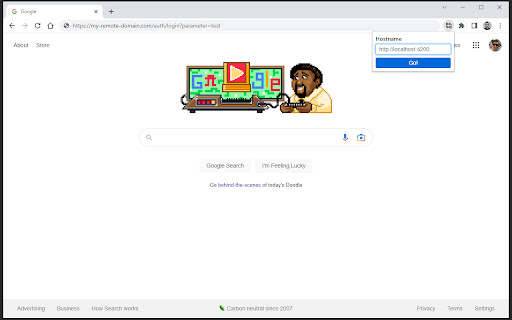
Replace the hostname with the one you defined — the remaining information in the URL will be retained. Replace the hostname with the one you defined — the remaining information in the URL will be retained. This extension was created to help in a very specific situation. As a developer, you may find yourself in a situation where you need to run a task repeatedly, and this extension was created to speed up this process. During the development of a web application, you may need to switch between local server URL and remote server URL, but you may need to keep the rest of the URL information, such as paths and parameters. This extension allows you to define a URL and whenever you need to change the current URL to the one you defined, you can do it with one click.

Meta-Press.es
Explore the press from your computer, with no middlemen between the newspapers and you. Discover millions of results within seconds, and explore the last ones in your browser via this WebExtension. Select your press review and export it in a few clicks.

Sortable Tables for GitHub
Sortable markdown tables for GitHub Source code: https://github.com/polywock/Sortable-Tables-for-Github

Scout AI
Enhance your web browsing experience by navigating through any article's content with the click of a button Scout AI is a powerful Chrome extension designed to enhance your web browsing experience by providing a convenient way to explore and navigate through any article online. Whether you're conducting research, studying, or just browsing your favorite websites, Scout AI offers an intuitive tool to organize and access content with ease. Article Outline Exploration: Scout AI intelligently identifies and extracts the sections present on a webpage, creating a user-friendly outline for quick reference. Intuitive Interface: The extension presents a sleek and user-friendly interface, allowing you to effortlessly view the article outline in a neatly organized list. Instant Access: Click on any heading in the outline, and Scout AI will smoothly scroll to the corresponding section on the webpage, saving you time and effort.

ViHN: Vim for Hacker News
Vi-style key bindings for browsing Hacker News Vi-style key bindings for browsing Hacker News. It's fast. If you have to wait a perceptible amount of time, that's a bug. Use the key bindings similar to Vi to navigate Hacker News stories and comments. It should work on story listings (front page, /new, /newest, /best, user submissions, etc.), comment threads, and comment listings (user comments, etc.). Also, you can quickly find new comments by hitting “n” to browse comments in inverse chronological order. In addition, the quick-reply and quick-edit forms let you see a preview of the comment you are writing. Finally, the original poster (OP) is highlighted in comments. Note: Like in Vim mapping, case is important. So j means hitting the j key with Caps Lock disabled, and without holding Shift. But J means hitting j key with either Caps Lock enabled, or while holding Shift. - j: Next comment/story - k: Previous comment/story - J: Next sibling comment - K: Previous sibling comment - g: Go to first story/comment - G: Go to last story, last root comment or “More” link - H: Focus on story/comment at the top of the screen (high) - M: Focus on story/comment in the middle of the screen - L: Focus on story/comment at the bottom of the screen (low) - n: Switch to Newest Items - h: Parent comment/story (see Follow Links) - p: Parent comment/story (see Follow Links) Note: You can also select an item by clicking in its bounding box. - o: Open story link/comment - O: Open story link/comment in background - c: Open comment thread - C: Open comment thread in background - b: Open both story link and comment thread - B: Open both story link and comment thread in background - h: Follow “context” link (go to comment thread, but focus on current comment) - p: Follow “parent” link (go to parent's page, and focus on parent comment/story) - 1: Open 1st link in comment (maintain shift to open in background) - …: … - 9: Open 9th link in comment (maintain shift to open in background) - 0: Open 10th link in comment (maintain shift to open in background) Note: When on the “XXX more comments” link, you can hit either of `[lLcC]` to go to the next page of comments. Note: The digits of the numeric keypad work as well to open links in comments. However, this can only open links in foreground. Note: When using AZERTY, the key bindings to open links inside comments still work like in QWERTY. Hit the 1 key without shift (like typing `&`) to open the 1st link in foreground. Hit the 1 key with shift (like typing `1`) to open the 1st link in background. Same for the other link numbers. - m: Collapse/uncollapse comment tree - u: Upvote story/comment, or cancel vote - d: Downvote story/comment, or cancel vote - f: Favorite/un-favorite story/comment of the current page - F: Flag/unflag story/comment of the current page - r: Comment on story, or reply to comment (with preview) - e: Edit comment (with preview) - D: Delete comment - Ctrl+Return: Submit current form In the Newest Items list, the following key bindings are available:
