
mplcaaffbhilkciaeimdlkhpcimpeppl
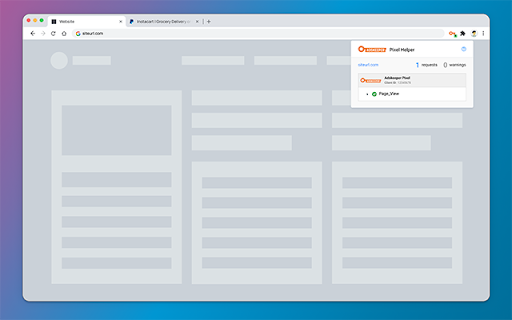


The AdsKeeper Pixel Helper is a troubleshooting tool that helps you to check your pixel implementation status. The AdsKeeper Pixel Helper is a troubleshooting tool that helps you to check your pixel implementation status. It works in the background, scans for all events, and provides real-time feedback on the implementation.

Microsoft Clarity Live
Watch how people are engaging with your site - right from your site. The Microsoft Clarity Live extension helps you easily see where users engage with your site, where they get stuck, and test out new ideas. You don't have to go to a separate website or comb through columns of data to get the info you need, either. Clarity Live does the hard work for you by creating heatmaps and session recordings that you can view without leaving your site. These data visualizations make it simple to analyze engagement, optimize your design, and quickly identify and fix problems. How it works: Download the extension and set up a free Clarity account if you don't already have one. Then simply navigate to the page or specific experience you want to explore and select the heatmap, area heatmap, or session recording icon on the Clarity widget. Voila! Whichever Clarity feature you chose launches right over the page you're on. That's it. Analytics has never been so easy! Highlights Heatmaps: Clarity Live combines two types of heatmap into one view. Click heatmaps capture the most clicked (or tapped) elements on a page. Scroll heatmaps reveal the most viewed areas on a page by showing how far users scroll. Clarity Live makes it easy to see engagement for flyouts, popups, dropdown lists, and other elements that can be difficult to capture in a typical heatmap experience. Area heatmaps: Instead of visualizing engagement on the element level, these heatmaps allow you to select an area, which could contain several elements, to get the total clicks and click distribution rate. An area could include just one element or be as large as the entire page. You're in control. Session recordings: These give you a front-row seat to individual sessions. These animated renderings capture how a user explored your site, by showing you where they clicked or tapped, where they hesitated, and how they moved their cursor. Clarity Live makes it a snap to find recordings for a specific experience, too. For example, if you wanted to see how a user engages with a particular popup, you could fire the popup on your site, and select the recording icon on the widget. You would instantly see relevant recordings made within the last three days. A note on pricing: Clarity is 100% free. You'll never be asked to upgrade to a paid version. No credit card is required to sign up for a Clarity account. Learn more(https://clarity.microsoft.com/pricing) Stop guessing. Get Clarity. Happy visualizing!

AMP Validator
Automatically checks each page for AMP validation. The AMP Validator will check the current page to see if it is an AMP page and then run it through the AMP validator and report if the page passes (green) or fails (red) via the extension icon. If there are any warnings or errors it'll list the number underneath the extension icon and clicking the icon will display the warnings and/or errors. If the current page is not an AMP page and one is available via the extension icon turns blue and clicking it will load the AMP version of that page. By installing this item, you agree to the Google Terms of Service and Privacy Policy at https://policies.google.com/.

Taboola Pixel Helper
This extension allows the user to troubleshoot problems when using Taboola Pixels. The Taboola Pixel Helper is a troubleshooting tool that helps you validate your pixel implementation. It works in the background and scans for conversion, retargeting or new Taboola pixels, and provides real-time feedback on the implementation. In case the Taboola pixel helper found pixels on your page, a small number will appear on the extension's icon. This number indicates the number of pixels found. To reach a detailed report regarding the pixels that were implemented on the page including possible implementation mistakes, just click on the Taboola pixel helper icon.

SingleJS Selector Helper
Helps users find the unique selector on websites. (by Aider Aliiev) Instructions for using the "Mgid SingleJS Selector Helper" plugin Activate the plugin: Click on the plugin icon in your browser. In the window that appears, click the "Start" button. Select an element on the page: Hover your mouse over the article container. The selected element will be highlighted in red. Click on the item to lock the selection. Customize the selection using the keyboard: Use the arrows on the keyboard to fine-tune: Down arrow - move to the next neighbor on the same level. Up arrow - move to the previous neighbor on the same level. Right arrow - go deeper into the first nested element. Left arrow - exit to the parent element. When the desired element is selected, press Enter to confirm the selection. Copy the selector: After confirmation, a unique selector will be automatically generated and copied to the clipboard. Result: Use the copied selector in your tasks (e.g. simple js, etc.). in the new version of the plugin added: “Auto-Select” button improved algorithm of selector compilation (uniqueness and length) added alternative method of copying a selector to clipboard (when clipboard API is not available on the site)
