
mncaahedchkhclokjmfjbennhbeceecl
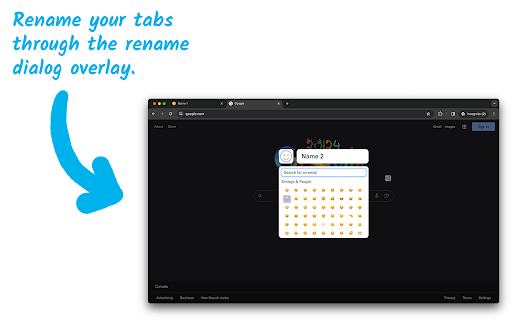
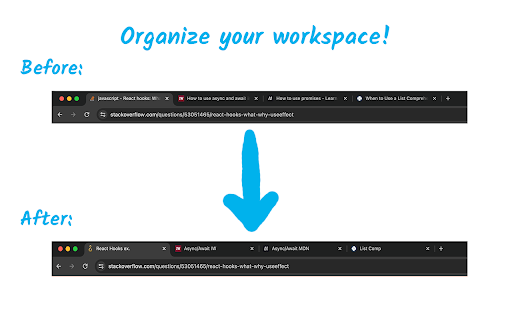
Customize your tab titles and favicons for a more organized browsing experience. Tab Renamer is a handy Chrome extension that lets you rename and change the favicon of your browser tabs for better organization and productivity. With a simple keyboard shortcut, you can open a dialog to customize any tab. It's perfect for people who often have multiple tabs open and need a quick way to identify each one. - ✏️ Tab Renaming: Quickly rename any open tab using a simple keyboard shortcut. - 🎨 Favicon Customization with Emojis: Choose from a wide range of emojis using the built-in emoji picker to replace any tab's favicon, adding a visual cue to make tabs easier to distinguish. - 🔄 Persistent Names: Your tab names and favicons are stored and preserved even when you close and reopen tabs or even the entire window. P.S. If you enjoy using Tab Renamer, your review would be greatly appreciated! (And, if you feel like it, you could also Buy Me a Coffee! https://buymeacoffee.com/ahmadph)

Easy Tab Renamer
Extension that enables renaming of browser tabs Easy Tab Renamer: Enhance Your Browsing Experience Overview: Easy Tab Renamer is the your companion for organized browsing. Say goodbye to generic tab names and hello to personalized labels that stick around even after you refresh or navigate away. With Easy Tab Renamer, your browsing sessions become smarter, tidier, and more efficient. Key Features: 1.Rename Tabs with Ease: Give your tabs meaningful names that reflect their content. No more guessing which tab is which! Simply click on the extension and choose a custom name for the current tab. Then hit enter ot click on the Rename button. It’s that easy. 2.Persistent Tab Names: Tired of losing your carefully crafted tab labels? Easy Tab Renamer ensures your renamed tabs stay put, even after page reloads or after navigation to a different page. Never lose context again—your tab names are here to stay! 3.Restore Original Names: Changed your mind? No worries! Revert to the original tab names effortlessly. Click the Restore button to restore tab name. 4.Intuitive Interface: Easy Tab Renamer seamlessly integrates into your browser. No clutter, no fuss. Enjoy a clean, user-friendly interface that enhances your browsing workflow. 2.Stay Organized: Keep track of research, projects, or shopping lists with personalized tab labels. 3.Save Time: Say goodbye to tab hunting. Easy Tab Renamer streamlines your browsing experience. Spend less time deciphering cryptic tab titles and more time getting things done. Download Easy Tab Renamer Pro now and take control of your tabs!

Tab Renamer
Rename your browser tabs easily Tired of losing track of important tabs in your browser? TabRenamer gives you the power to customize and protect your tab titles, making your browsing experience cleaner and more productive. Stop squinting at cryptic tab titles! Give your tabs meaningful names that actually make sense to you. Whether you're working with multiple Gmail accounts, comparing products, or managing research projects, TabRenamer keeps everything organized. Key Features: - 🔧 Tab Renaming & Persistence - 🎯 Smart Title Cleaning with regex - 🤖 AI-Powered Tab Grouping Perfect for: - Developers juggling multiple environments - Researchers organizing information sources - Students managing study materials - Professionals handling multiple accounts - Anyone who wants a cleaner, more organized browser How it works: 1. Click the TabRenamer icon 2. Type your custom title 3. Hit Enter or click "Rename Title" 4. Your tab stays named exactly how you want it! Stop letting your browser control you. Take charge of your tabs today with TabRenamer!

Custom Tab Title
Change and maintain custom tab titles This extension allows you to set and maintain custom tab titles for enhanced organization and clarity. It aims to handle all known title change scenarios to preventing flickering from occurring if the page tries to change its title while you have a custom one set. When you click the extension's icon, a popup is shown with the following main options: 1. Set Custom Title: This applies to just your current page in this tab and is maintained even if the page is refreshed. 2. Maintain on Navigation: This applies your custom title for the current tab even if you navigate to other pages within that tab. It is enabled by default, although it only has an effect if a custom title is set. 3. Reset Title: Clears the saved custom title setting for the current tab and changes the title back to the one the page most recently tried to set it to, while allowing the page to change its title freely again. There is also a Change Shortcuts button that brings you to Chrome's extensions shortcuts page so you may alter or disable the default shortcuts. Default Keyboard Shortcuts: - Set Custom Title: Alt + Shift + S - When pressed, a text input will show in the middle of the screen, which can be submitted with Enter. It can be canceled by pressing the shortcut again or by pressing Escape. - Reset Custom Title: Alt + Shift + R - Toggle Maintain on Navigation: Alt + Shift + M

Simple Tab Renamer
Quickly rename your Chrome tabs with a click Rename any Chrome tab in one click. Lightweight, private, and uses minimal permissions. FEATURES - Instantly rename any tab - Works on most websites, including Google Sheets and web apps - No data collection or storage - Minimal permissions; only what’s needed to rename tabs - Extremely lightweight with no noticeable performance impact HOW TO USE 1) Click the Simple Tab Renamer icon in your toolbar 2) Enter your desired tab name in the prompt 3) The tab title updates immediately GREAT FOR - Keeping track of multiple similar documents - Organizing research tabs - Customizing titles for screenshots - Temporarily labeling important tabs during presentations ⚠️ IMPORTANT LIMITATIONS ⚠️ - Temporary renaming only: titles reset when you refresh the page or open a new browser window (Chrome limitation) - No tab bar integration: works via the toolbar icon, not a right-click menu on tabs - Some sites may override titles: pages that frequently update their own titles (e.g., Gmail, X/Twitter) can replace your custom name - Not synced across devices: custom names appear only on the device where you set them - Visual only: does not change bookmarks, history, or page metadata - No automatic naming: each tab must be renamed manually (no batch/pattern modes) - Extension icon required: you’ll need to keep the icon available in your toolbar to use it quickly SUPPORT Questions or suggestions? Contact the developer via the Support link on the Chrome Web Store listing.
