
bggencmmfknbnkoimmlhbacgeibojdho
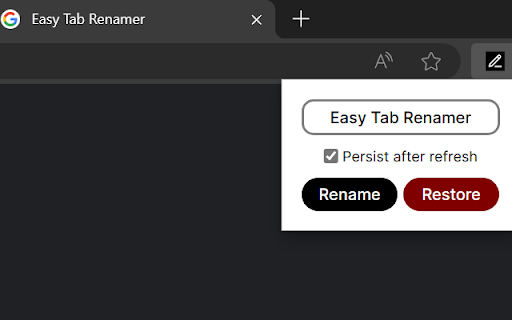
Extension that enables renaming of browser tabs Easy Tab Renamer: Enhance Your Browsing Experience Overview: Easy Tab Renamer is the your companion for organized browsing. Say goodbye to generic tab names and hello to personalized labels that stick around even after you refresh or navigate away. With Easy Tab Renamer, your browsing sessions become smarter, tidier, and more efficient. Key Features: 1.Rename Tabs with Ease: Give your tabs meaningful names that reflect their content. No more guessing which tab is which! Simply click on the extension and choose a custom name for the current tab. Then hit enter ot click on the Rename button. It’s that easy. 2.Persistent Tab Names: Tired of losing your carefully crafted tab labels? Easy Tab Renamer ensures your renamed tabs stay put, even after page reloads or after navigation to a different page. Never lose context again—your tab names are here to stay! 3.Restore Original Names: Changed your mind? No worries! Revert to the original tab names effortlessly. Click the Restore button to restore tab name. 4.Intuitive Interface: Easy Tab Renamer seamlessly integrates into your browser. No clutter, no fuss. Enjoy a clean, user-friendly interface that enhances your browsing workflow. 2.Stay Organized: Keep track of research, projects, or shopping lists with personalized tab labels. 3.Save Time: Say goodbye to tab hunting. Easy Tab Renamer streamlines your browsing experience. Spend less time deciphering cryptic tab titles and more time getting things done. Download Easy Tab Renamer Pro now and take control of your tabs!

Tab Reloader (page auto refresh)
An easy-to-use tab reloader with custom reloading time for individual tabs and more! You can define a custom period with a random variation for each tab. Tab reloading jobs can be disabled or enabled through the toolbar panel. Features: 1. Define variable (random) reloading times with a predefined range 2. Define whether reloading occurs when a tab is active or not 3. Restores reloading jobs after a restart (session manager) 4. Reload tabs from the context menu over tab element (see screenshot) 5. Optionally displays the remaining time of the next reloading on the badge area 6. See the list of all tabs with active reloading jobs in the browser action's popup 7. Set custom rules to start reloading a tab when URL or hostname matches. 8. Optionally move to the bottom of a tab after reloading occurs to read the new content 9. Reload all tabs in the current window or all browser windows 10. Reload local files (file://) 11. Optionally bypass form submissions 12. Define a policy that prevents reloading based on the time (date) and URL 13. Run custom JavaScript code on each reload. 14. Reload only a few times and then stop. 15. Reload discarded tabs in the current window or all windows 16. Supports setting reloading jobs of all selected tabs at once To disable an already activated tab, please make sure to switch to the tab first, then open the toolbar button and disable the job. Note that if you are closing the tab, there is no need to disable the job. The job will be disabled automatically after an active tab gets closed. As of version 0.2.7, you can now ask the extension to automatically set new reloading jobs for you based on the "Custom JSON" object. If the option is checked and the new page has a matching hostname, the extension will load the custom reloading job from the JSON and applies to the tab. Check the options and FAQs pages for more info. As of version 0.2.9, 1 you can define a policy that prevents reloading based on the time (date) and URL. Both time and URL keys accept regular expressions to prevent reloading. With the policies you can, for instance, prevent reloading on a specific page of a domain or prevent reloading at specific hours of a day.

Easy Window Resizer
Easy Window Resizer - Resize and Position Windows Effortlessly A simple, user-friendly extension to quickly resize your browser window and snap it to a position within your current screen. Key Features - Preset sizes: common resolutions, one-click apply - Custom sizes: enter any width/height and save as presets - Recent list: remembers your latest 5 sizes for reuse - Get current size: one click to capture current dimensions - Window positions: Top Left / Top Right / Center / Bottom Left / Bottom Right What’s New - In multi-monitor setups, the window now stays on your current screen when positioning (no more jumping to other displays) - Leaner permissions for a safer experience Great For - Developers, testers, and designers switching window sizes frequently - Anyone working with fixed window sizes and positions Simple and distraction-free. Thanks for using Easy Window Resizer!

Tab Deduper
An extension that allows the user to deduplicate tabs. Tab Deduper is an extension to find and remove duplicate Chrome tabs. Unlike other currently available extensions which dedup tabs, Tab Deduper differentiates itself in the following ways: - Duplicate tabs are not automatically closed. A list of duplicated tabs are presented, allowing for precise control over which tab gets closed. - Use of text OR regular expression based settings to control how tabs are compared, including use of title, fragment, and doing sed-like regex replacements on URLs. This last feature is very useful if you use other extensions which modify your tab URLs.

Rearrange Tabs
Rearrange Tabs is a tiny Google Chrome Extension that allows users to rearrange the position of the tabs in a window by moving them around using keyboard shortcuts. 🚨 IMPORTANT NOTE 🚨 Please reconfigure your keyboard shortcuts if your previously set combinations are wiped out after upgrading to 3.0.0! Customize your keyboard shortcut by following these steps: 1. Go to `chrome://extensions/shortcuts` 2. Scroll down to locate `Rearrange Tabs`. 3. Click in the greyed out fields for `Not set`. 4. Press the desired key combination to create a new shortcut. To move selected tab(s) to the front (leftmost position) Mac: Ctrl+CMD+Up Windows: Shift+Alt+Up To move selected tab(s) to the end (rightmost position) Mac: Ctrl+CMD+Down Windows: Shift+Alt+Down - Move regular tabs around in a window - Move pinned tabs around in a window - Move multiple highlighted tabs around in a window - Move selected tabs to the leftmost or the rightmost positions * Complete rewrite! * Fixes bugs and performance issues * Changes default key combo for Mac users to avoid conflict * update commands in script to reflect the new namespace * namespace the shortcuts with the "rt-" prefix. This fixes the bug that caused the shortcuts to reset after installing of 2.1.2. This only affected users who were upgrading from an existing version of rearrange tabs extension. New installs are not affected. * Add feature to move tabs to the front or the end of the tab bar (Issue #3) * removing permission block from manifest since it is not needed to rearrange tabs (Issue #19) * Create CODE_OF_CONDUCT.md * update license * include lifehacker and changelog links - Add support for moving several tabs at once - Fixed an issue where tab move did not cycle when tab is the rightmost tab and is moved to the right * Add support for pinned tabs * prioritize mac over windows * update key on Mac to Ctrl+Shift+ to avoid conflict with the shortcut to highlight a single word * Initial release * Add support for rearranging tabs using keyboard shortcuts
