
mlloloooolpffjkjaclpfpeednngpjon

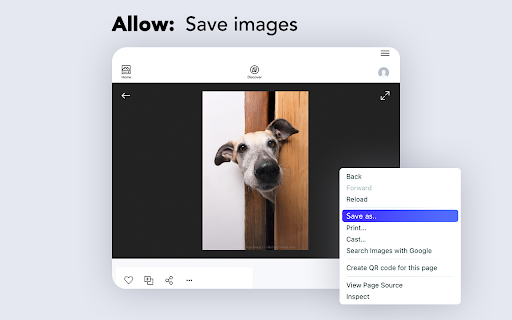
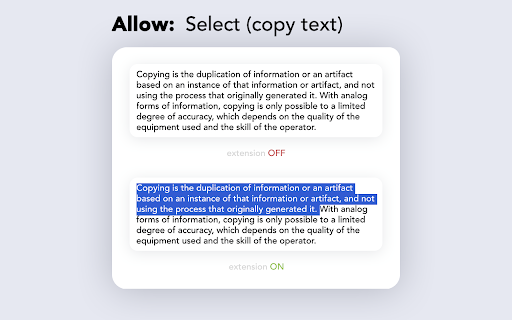
Enable context menus on protected websites. Unblock right click menu. Highlight and allow copy option for all pages works again. Enable Context Menu and Select, Allow select, Allow copy, Allow right click in so restricted pages. Installing this free extension enables you to cut, copy, and paste via right-click menus and the ribbon toolbar when using Office on the web. Due to limitations of web browsers, copying and pasting in Microsoft Office for the web through menus requires additional permissions which are provided through this extension. Enable copy and right-click on protected websites. Usage: - Click browser action icon to enter "copy mode" for current site Features: - Unlocks copy (for real) - Remembers which site to unblock for future visits ---> Once this extension is installed you must reload any open tabs in order for it to workIf you change the extension settings any open tabs must be reloaded in order for them to take effect

Allow Right Click
Allow the right-click menu for all elements with a restriction! Allow Right Click extension enables you to unblock the right-click operation on websites that put restrictions on it. To work with this addon, please navigate to a website (with HTTP, HTTPS, or File protocol). Then, open the toolbar popup and press the toggle button on the left side to activate the addon. Now, you can right-click anywhere on the page (active tab). To de-activate the addon, please reload the page or press the toggle button again. Please note that pressing the toggle button to de-activate the addon reloads the page automatically. You can choose to work with this addon in comprehensive or basic modes. In comprehensive mode, more right-click blocking rules are covered. Please open the toolbar popup and mark/unmark the comprehensive mode option. When this option is unmarked, the basic mode will be activated automatically. Note: This addon works per tab only and activates on user-action by pressing the toggle button within the toolbar popup. Reloading the page de-activates the addon. If you have a feature request or found a bug to report, please fill out the bug report form on the addon's homepage (https://mybrowseraddon.com/allow-right-click.html).

Always active Window - Always Visible
Simulate all whitelisted browser windows as active by spoofing the visibility state event and more! [Breaking Change] Version 0.4.0 and above. The extension must now be enabled for each hostname individually. This adjustment enhances the extension's performance, as the always-active feature can disrupt websites. To activate it, open the page requiring the always-active feature in a browser tab and click the action button once. The page will refresh, and the action button will turn blue. This extension protects against web pages tracking the activity state of the page. Some websites use this track to only offer services when the tab is active. By installing this extension a small script is injected into every webpage which overwrites the "document.visibilityState", and "document.hidden" properties to pretend the tab is always in the active state (document.visibilityState = 'visible' and document.hidden = false). This is useful for the webpages that check your visibility state before loading resources like many music webpages. By installing this extension even if the page is opened in the background page, the player will start immediately like the page is loaded on an active tab. Supported Events: 1. visibilitychange 2. webkitvisibilitychange (only on Chromium browsers) 3. mozvisibilitychange (only on Firefox browser) 4. blur (some websites require the user to keep the tab focused) 5. mouseleave (some websites use this method to make sure the user pointer is inside the window)

Allow Copy - Select & Enable Right Click
Enable copy on protected websites: allow right click, unblock context menu. Enable text highlight and allow copy. Have you encountered situations where attempting to choose text, access a context menu, or copy content resulted in no response? Some website operators employ technical methods to prevent users from selecting and copying material from their webpages. Enable Right Click stands out as an advanced and comprehensive remedy for websites that impede users from utilizing right-click context menus, selecting text, or copying content." Features: - remove copy protection, enable copy text, remove block selection; - allow right mouse click and turn on context menu; - activate / deactivate for specific domain; - free and easy to use. Other similar extensions frequently break websites, so you are forced to disable and activate manually every time you want to use right click. In contrast, Enable Copy uses a unique technology, which minimizes effect on normal functions of websites which are unrelated to right click, text selection, and copy. Enable Copy extension is very easy to use. If you come across a website that has disabled the right-click button, simply click on the extension icon and it will reload the page. This will enable you to use the right-click button once again, giving you full access to all the functions and information on that website. Enable Context Menu and Select, Allow select, Allow right click in so restricted pages and Copy and Paste. Unlock Copying and Selection You can effortlessly unblock right click, context menu, selection, and copy functionalities on any website. Unblock context menu and Select is a tool that helps you bypass web site copy protection. No longer will you be held back by restrictive website settings. Copy and paste text, images, and more with ease, just the way you want it! Control of your browser context menu again. Please, add review to Allow Text extension. Embark on a stress-free, efficient, and productive browsing journey. Don't let website limitations hold you back any longer—break free and unlock the true potential of the internet!

Enable Right Click ─ Allow Copy Everywhere
Allow copying and remove copy protection. Enable text selection, right-click menu, and context menu. Experience true freedom online with the Allow Copy Everywhere Chrome extension, designed to remove copy-paste restrictions on websites. This powerful Chrome extension lets users bypass copy protection on many popular sites, making it easy to copy text—even from pages that disable right-click or standard copy functions. ✔️ Key Features • Enable right click on protected websites • Allow copy and paste text • Unlock text selection • Remove copy protection • Restore context menu • Works on most websites automatically Restore Right-Click Access: Re-enable right-click functionality on restricted websites with ease. Ideal for researchers, students, and anyone who needs quick access to online content, this tool makes copying protected text as easy as a single click. Works on 1000+ websites including Medium, Coursera, Chegg and Udemy! ✔️ How It Works: 1. Install the Allow Copy Everywhere extension by clicking Add to Chrome. 2. Click the extension icon in your browser toolbar to activate it. 3. Select Free Copy and start copying text from any website—even those that block right-click. ✔️ FAQs • What does the Allow Copy Everywhere Chrome Extension do? The extension allows users to copy text from any website, even if the site has disabled right-clicking or copy functions. It's ideal for accessing content without restrictions. • Is it free to use? Yes, Enable Right Click is entirely free to download and use. • Will it work on all websites? The extension is designed to work on most websites with copy restrictions, though a few heavily protected sites may still block copy functions. Enable copy-paste everywhere and enjoy unrestricted access to web content. This copy-protection-disabling Chrome extension gives you full control, allowing you to restore right-click functionality and bypass copy restrictions effortlessly.
