
mjlpiaadgchlgcilngaolhcopgkiogmh
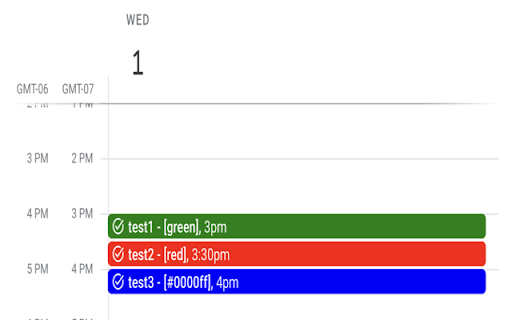
When adding a task to the calendar, all tasks have the same color. With this plugin, a different color can be specified for each task. If task name is ended color surrounded by square brackets (for example, [red]), the plugin will color it with that color. You can also specify a hex value for the color, for example [#00ff00] for green.

Google Calendar Event Checker
Mark events as completed or cancelled in Google Calendar with emojis or strikethroughs. Mark Google Calendar events as completed with checkmarks, emojis, or strikethrough and turn your calendar into a task tracker. It’s the perfect tool for professionals, students, and anyone who wants to mark events as done or canceled and boost productivity. 🆓 Free Version Features 🆓 Available immediately after installation - no sign-in or subscription required: ▸ Customizable completion marks: choose between emojis (✅ or ❌), unicode checkmark (✓), or strikethrough effect (title crossed off). ▸ Automatic timestamps: save completion date/time in event description for easy reference. ▸ Edit-page marking: mark events as done from the calendar event edit page. ▸ Minimal and Privacy-Oriented: the extension is designed to be minimalistic and don’t track any user data. ⭐ Premium Version Features ⭐ Unlock advanced productivity and simplicity features: ▸ Quick-mark from event dialog: complete events with one click from the event popup. ▸ Daily events dashboard: view all today's events in the extension popup with completion status. ▸ Mark from any tab: complete calendar events without opening Google Calendar. ▸ Custom checkmark slots: add up to 5 emojis or unicode symbols as completion markers. ▸ Still Minimal and Privacy-Oriented: we don't see or store any of your events and never share your data. How to use free version: ▸ Install the extension, no sign in needed ▸ Open any Google Calendar event for editing ▸ Click the completion mark button (✅) ▸ Save the event ▸ Go to the extension's options to configure the completion marks and a strike-through effect. How to use premium version: ▸ Pin extension and sign in with your Google account ▸ Start free trial (no credit card needed) ▸ Mark events as completed from an event dialog ▸ Mark events as completed from "Today events" view ▸ Configure custom checkmarks and a strike-through effect in ⚙️ User Settings page (available after sign in). ⚠️ Troubleshooting ⚠️ If something isn't working properly, here's what you can try: ▸ Make sure you can edit event title from an event edit page - some events are not editable at all - for example: working locations, contacts’ birthdays calendar, shared calendars if you don’t have proper permissions. ▸ Sign out and sign back to the extension (for premium users). ▸ Reinstall the extension. ▸ Report an issue to support@calcheckr.com, include screenshots if possible as it might help to resolve your case more quickly, make sure to mention what browser you’re using. ❓Frequently Asked Questions❓ Q: How do I mark Google Calendar events as completed? A: Install the extension, open any event, and use the completion button or choose your preferred visual mark (checkmark, emoji, or strikethrough). Q: Will other people see my completion marks? A: Yes! Since changes save directly to Google Calendar, anyone with calendar access sees the completion marks. Great for team collaboration. Q: Does this work with Google Workspace? A: Absolutely! Works with personal Google accounts and Google Workspace (formerly G Suite) accounts. Q: Does it work with recurring events? A: Yes! Mark individual instances or the entire series. Q: Can I use the free version forever? A: Yes! The free plan includes core features. Upgrade to Premium only if you want one-click marking, daily views, and custom checkmarks. Q: Is my calendar data secure? A: Absolutely! We use only Google infrastructure. Authentication tokens are encrypted, and we never see, store, or share your calendar events data. Q: How do I cancel Premium? A: Cancel anytime from the Stripe customer portal. Premium features remain active until your billing period ends, then you automatically return to the free plan. 📧 Contacts 📧 For any questions, comments and ideas please reach out to support@calcheckr.com 2.2.0 - 12/10/2025: - premium: strikethrough effect in popup view - premium: date picker for quick navigation 2.1.2 - 12/06/2025: - internal fixes: make completion detection to be based on the default + custom checkmarks only 2.1.1 - 12/03/2025: - internal fixes - options page UI refactoring 2.0.2 - 11/24/2025: - internal fixes - add support id in extension options 2.0.1 - 11/18/2025: - internal fixes - show onboarding page once - start introducing premium version 1.6.2 - 12/13/2022: - Fix issue with not showing button (input selector got updated) 1.6.0 - 10/09/2022: - Add error and usage reporting option 1.3.0 - 10/07/2021: - the strikethrough effect is now configurable in options 1.2.0 - 10/05/2021: - issue with search was fixed by saving origin event's title in the description area (configurable in options) - add date and time label when it was completed to the description textarea (configurable in options) 1.1.0 - 10/04/2020: - add check emoji in the beginning (configurable in options) - fix issue for event titles with emojis

Shade Calendar – Time Blocking for Google Calendar
Color-code your time blocks in Google Calendar. Make your schedule easier to read, plan, and manage 📆 📆 Shade Calendar – Color-Code Time Blocks in Google Calendar • Make your Google Calendar more visual and intuitive. • Shade specific time blocks in Google Calendar to organise your day, highlight events, and separate work, personal, or custom schedules. 💡 Features • Color-code time blocks in Google Calendar’s day, week, and 4-day views • Visually block out time for work hours, personal time, childcare, exercise, or focus sessions • Create your own weekly schedule with flexible, recurring time shading • Works seamlessly with multiple calendars, including personal and shared setups • Helps with time blocking, calendar planning, and visual scheduling 🧭 How to Use • Click the extension icon to open the time block editor • Choose which hours to shade and select a color • Set a unique time block schedule for each day of the week • View your new visual layout directly inside Google Calendar 🎯 Who This Is For This extension is perfect if you: • Practice time blocking • Use Google Calendar for both work and personal life • Want to separate tasks visually (e.g. meetings vs deep work) • Need better visual cues for commitments like workouts, childcare, or study time ⚠️ Disclaimer • Shade Calendar is an independent tool and is not affiliated with Google or the Google Calendar brand.

Calendar Color
Customize your Google Calendar colors with ease. Choose from Google's palette or create your own custom colors. Now with a built-in Focus Timer to boost productivity during calendar events. 🎨 Google Calendar Color Categorization: Assign categories to Google Calendar's existing color palette, making it easier to remember the purpose of each color. For example, red could represent "Critical," blue "Learning," and green "Finances." 🖌️ Custom Color Groups: Add custom color groups that appear in the color picker on calendar events. Each color in the group can be customized with a unique color and label. ⏱️ Focus Timer: Start a productivity timer directly from any calendar event. Track your focus time, get completion sounds, and build better work habits. 🔍 Eyedropper Tool: Pick any color from the screen to use in your custom palette. 🔄 Reset and Disable Options: Clear all custom colors or disable them to use only categorization with Google's default colors. 🧩 Templates for Easy Setup: Pre-made templates including Time Blocking, Priority, Energy Levels, Schedule Type, Projects, Focus Mode, Mood, and Value. 🛠️ Dependency on Google Calendar Layout: This extension relies on Google Calendar's current layout. Changes by Google may temporarily break features. If this happens, reach out via email: ali@humanquest.net or visit: https://humanquest.net 💻 Desktop-Only: Chrome extensions don't work on mobile. For mobile, use Google's core colors. 🙏 Free Extension: This is completely free. Please reach out with issues rather than leaving a negative review. 🆕 v0.2.4 - Gmail Sidebar Support • Custom colors now appear in Gmail's sidebar calendar — click the Calendar icon in Gmail and your event colors should show up v0.2.3 - Storage & Color Reliability • Fixed custom colors reverting on page refresh — The local storage fallback now correctly reads chunked data, so your colors persist even when sync storage is temporarily unavailable. • Fixed potential infinite loop in storage sync — When Chrome's sync state changes (e.g. signing in/out), the extension no longer risks getting stuck in a recursive loop. • Fixed event viewer dialog coloring — The event detail popup no longer gets incorrectly painted with the event's custom color; only the color dot indicator is updated. v0.2.2 - Storage Health Warnings • Storage Health Warnings - Get notified when storage is running low, blocked, or when using incognito mode. Helpful tooltip explains what's happening and how to fix it. • Focus History now syncs across devices - Your timer sessions are now stored in synced storage, so your focus history follows you across computers. Last 50 sessions are kept. • Expandable Focus History - Click to see all your tracked events, not just the top 5. • Clear History confirmation - Prevents accidental deletion with a two-step confirmation. v0.2.1 - Focus Timer ⏱️ NEW: Built-in productivity timer for calendar events • Start a timer from any event's right-click menu • Timer adapts to remaining event time, full duration, or custom minutes • 7 pleasant completion sounds • Preview sounds and adjust volume in settings • Track focus sessions with history and statistics • Optional break suggestions after completing sessions • Focus mode dimming to reduce distractions • Beautiful floating widget with event color theming v0.1.0 - Task Color Support ✨ Customize colors for Google Tasks • Right-click any task and choose from your custom color palette • Works with timed tasks. DOES NOT WORK for all-day tasks since Google Calendar does not have colors for these v0.0.8 - Stability & Sync • Improved stability - addresses issues with lost colors and stuck dialogs • Better handling of Chrome sync on/off/changing states • Support for larger collections of colored events (smart chunking) • Enhanced cross-device synchronization reliability

GCalPlus
Extra Options for Google Calendar Enhance your Google Calendar experience and boost your productivity with GCalPlus, the Chrome extension that adds powerful features to help you stay organized and efficient. GETTING STARTED: After installing GCalPlus, open Google Calendar in Chrome and click the GCalPlus icon in the Chrome navigation bar (top-right, next to your profile picture) to access its features. If you don’t see the icon, click the Extensions (puzzle piece) icon and pin GCalPlus for easy access. Some settings may require you to reload the page to take effect. For features that need access to your calendar or settings, click “Connect” to grant the necessary permissions. You can revoke these permissions at any time at https://myaccount.google.com/connections Having trouble? Try clicking “Disconnect” (top-left in the pop-out) and then “Connect” again allowing all the required permissions. Options for the LOOK: "Expand the Month Grid" (previously “Show More Events in Month View”): with this option you'll see at least twice as many events per day in the 'Month' view, and the entire page will scroll. For this reason, the option "Disable Month Scrolling" (in the “Feel” tab) should also be enabled. "Highlight & Toggle Busy/Free": Connect GCalPlus to Google Calendar and enable this option to see at a glance on which days have events in your chosen calendars. This works in all month previews, not only the year view, and also adds a red/green button in event popups to quickly toggle events between Busy & Free. "Show More All Day Events In Week/Day Views": With this option you can display twice as many All Day events in the Weekly and Daily views. "Hide Invites On Shared Calendars": When you invite someone who has shared their calendar with you this hides the duplicate that you see on their calendar. "Hide Primary RSVPs for Secondary Calendar Events": When people RSVP to invitations on secondary calendars their RSVP shows on your primary calendar. This option hides the "duplicate" event. "Hide Images": use this to remove the illustrations automatically added for events with keywords in the title. "Sort All Day Events": All day events used to be grouped by calendar, then were listed alphabetically regardless of which calendar they were in... and now they are grouped by calendar again. Use this option to list all day events alphabetically again wherever possible. "Solid Tasks": Don't like the new faded Task colours? This restores them to full colour! Now ignores completed Tasks "Remove Task Circles": More room for Task titles without the 'timed' and 'completed' circles. "Large Dots, Small Numbers": This applies several custom styles to Google Calendar - compact day/week column headers and larger coloured bullets for timed events. "Hide Upgrade": Already got a Workspace account? This option hides the huge "Upgrade" button top-right. "Colour Timed Events / Timed Bars": These options allow you to change the way timed events are displayed in the Month and Year views. "Colour Timed Events" will set the text title colour to that of the calendar. "Timed Bars" will display timed events in the same way as "All Day" events, except with the time of the event. You can choose between dark and light title text, independently of the main colour scheme you use. These settings are not always applied instantly so please refresh the page if necessary. "Weekend Color": select a color for your weekends. "Adj. Dates Color (M)": Select a background color for dates in the previous and next months in Month view. "Hide Adj. Dates (M)" hides the dates and any events on dates from adjacent months. If Adj. Dates Color (M) is enabled and opacity is not set to full then events on these dates will show though partially. "Hide Adj. Dates (Y)": This hides events from adjacent months will be hidden in the Yearly view. "Today's Border": Choose a color and thickness for today's date border. Options for the "FEEL": “Disable Month Scrolling”: With this setting Google Calendar Plus will disable annoying month scrolling which allows you to use “Expand the Month Grid” to display more events per day in the Month View. "Use L/R Arrows": Why not use the usual left and right arrows instead of 'n' and 'p' for the next or previous day/week/month/year? "Expand Overlapping Timed Events": when you hover over timed events in the Week or Day view this option expands the event to full width, and brings it to the front for easier viewing. When using the "Alphabetical All Day Events" option this also allows you to see the full range of multi-day events. "Show Titles/Descriptions On Hover": When activated, this option will display a popup of the event title or description when you hover over events. Descriptions will be shown when they exist for all calendars selected in the Calendar Selector at the top of the GCalPlus window. For descriptions to be displayed GCalPlus must be connected to Google Calendar and at least one calendar selected. "Disable Clicks on Location": This prevents Maps from opening every time you click to copy/paste the location of an event. Click the Maps icon to the left of the location text if you still want to visit Maps for the event. “Create Events from Year Previews”. Click any day in the Year view to list the events on that day - with this option you'll also see a button labelled "Create Event" which allows you to immediately create a new event on that day. Use your browser "Back" button to return to Year View. “Multiple Copy”: Click the "Connect" icon top-left to allow GCalPlus to access your calendars then enable the option in the “Feel” tab and GCalPlus will add a new "Multiple Copy" button to every event pop-up. You can copy/duplicate events to any writable calendar directly from any view, and you can select whether to copy guests or not in the GCalPlus options. Copy events to the same date (duplicate the event), copy to a new date, or copy to multiple dates. Please note: repeat series will not be copied entirely, only the selected occurrence of the event will be copied. Please note: your system must use the same TimeZone setting as the Google Calendar for which you are copying events for the best results. "Change Calendar in Event Popups": This option allows you to select a new calendar for any event that you own directly in the event popup by simply choosing a new calendar in the drop-down list you see when clicking the calendar's name. When you select a new calendar the original event is immediately deleted, a new copy is created (with or without the original guests) and the popup closed so please be careful with this option - especially if the event in question has Guests. For safety, this option is only available for single (non-repeating) events. "Time Range": This option allows you to hide everything before and after specified times. "Debug Mode": click 3 times very quickly on the "Dark mode" icon to toggle debug mode on/off. This will display debugging logs in the Chrome Dev Tools Console that can help me solve bugs. 3.0.19 Fixed Popup icons showing whenever previously approved 3.0.18 Optional OAuth permission only requested when enabled 3.0.17 Fix for Copy hijacking Edit button 3.0.16 Improved layout & colour pickers, hide dates from other months in mini month grids 3.0.15 Fixed bug where L/R arrows in Descriptions weren't disabled 3.0.14 Added option to color/hide events on previous/next months, removed obsolete "First Time Zone" option, bugfix for busy/free grids. 3.0.13 Ignore completed Tasks, new "Hide Upgrade" option 3.0.12 Bugfix for reinitializeTooltips 3.0.11 Option for solid tasks & no task circles 3.0.10 Better border 3.0.9 Added "Today" border option, fixed "first TZ" 3.0.8 Fixed Busy/Free Toggle 3.0.7 Fixed copying events across DST boundaries for all time zones 3.0.6 Fixed copying events across DST boundaries for user's time zone 3.0.5 More aggressive window resize for "Expand the Month Grid" 3.0.4 New improved Busy/Free display shows busy, free or both - with a red/green button in event popups to switch quickly between busy & free. 3.0.3 "Hide Invites On Shared Calendars", "Hide Primary RSVPs for Secondary Calendar Events", "Change Calendar" directly in event popups, guest options for copy/moves and cache enhancements for better performance. 3.0.2 Multi-calendar support for all "Other Calendars", better calendar list, improved "multiple copy" window with new button in main event popup, other UI tweaks. 3.0.1 Bug fix for holiday calendars 3.0.0 This version is a major update featuring a brand new UI with “Look” and “Feel” tabs, dark mode to match Google Calendar’s new look, multi-calendar support for busy dates and descriptions that display when you hover over events, and “debug” mode to help you help me to fix bugs. This is a significant rewrite with many optimisations under the hood and a new tabbed display to allow more features to be added in the future. 2.1.3 Multi-calendar support for busy dates & hover for descriptions 2.1.1 Added option for "Minimum Time Zone" GCalPlus is brought to you for free by GCalTools Power Tools for Google Calendar. Please consider purchasing a subscription to GCalToolkit, GCalExtras or Sheets2GCal if you find GCalPlus useful. If you need help or would like to report bugs and requests for new features please get in touch using one of the methods provided at https://www.gcaltools.com.
