
mafflgiohamonenafbfaejenakmiejki
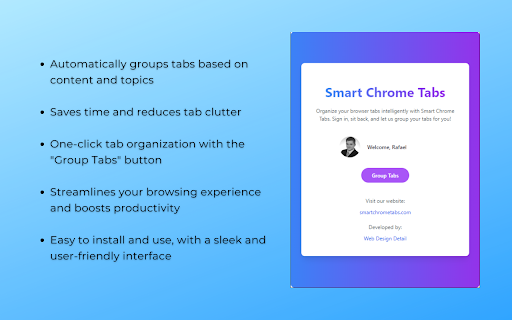
Group your Chrome Tabs the smart way! Smart Chrome Tabs, the ultimate tool designed to enhance your browsing experience by organizing and managing your Chrome tabs intelligently. Whether you're a casual user overwhelmed by numerous open tabs or a professional needing efficient tab management, Smart Chrome Tabs is here to streamline your workflow and boost your productivity.

Auto Tab Groups
Automatically Set Your Tab Groups! This extension allows you to set custom rules that then auto sort your tabs. IT does this using Google Tab Groups. It lets you set up as many rules as you want. To add a new rule click add group button and fill out the TITLE, Domain / URL and COLOR fields. When you open the open extension the TITLE column will be the tab group name. The DOMAIN/ URL column will be the value searched in the website URL field that extension uses to sort the active tab. The COLOR column will be a box that when drop down is clicked allows the user to pick a color for the tab group. These preferences will be saved to users google profile when either the save button is clicked or delete button is confirmed and work across multiple devices with extension under same profile. In order to change or delete a rule you must first check the checkbox for the row and click edit or delete. If deleting values confirm the delete in delete window. If editing values makes sure all fields in rows are checked are not blank, and that color box is not set to grey. Otherwise a warning message will display letting you know to set these fields. The extension works as follows, say you have the value Test1 in Name Column, test1 in URL column, and the box set to Blue. Any website URL you visit with test1 ex.(www.test1thisisatest.com) will be automatically sorted into a group named Test1. You can also specify multiple terms to search with by separating them with commas. For instance, if you assign a group with TITLE column of Colors, and DOMAIN/ URL of blue, yellow, and green; any url you load with those search terms will go in the Tab Group Named Color. The final column COLOR, is the color of this tab group that gets set. By default the following keyboard shortcuts are enabled. You can use Ctrl+Shift+Y, Ctrl+Shift+H, and Ctrl+Shift+U to close, open and toggle tab groups respectively. You can also change this by going to chrome://extensions/shortcuts as well. There is a settings / options page you can get to by clicking the gear in the top right corner. Here you can enable a zoomed in view for larger font size and window for the popup window, change grouping from other windows behavior, and save and load your files from a local file on your computer.

Сhrome grouping tabs
Boost productivity with Chrome Grouping Tabs! Easily organize, tabs in chrome manage. Ideal for clutter-free & multitasking! 🚀 Introducing the chrome grouping Tabs extension, a revolutionary tool designed to transform your browsing experience by simplifying how to group tabs in Chrome. This powerful extension is here to streamline your digital life, making tabs grouping in chrome more intuitive and efficient than ever before. Whether you're a busy professional, a student, or just someone with a knack for multitasking, chrome grouping tabs is the solution you've been looking for. 1. Click on the extension icon in your browser. 2. Select the browser sections you wish to cluster. 3. Assign a name to your sets for easy identification. 4. Voila! Your browser sections are now neatly organized. 🔺 One of the main features of this extension is its ability to effortlessly handle chrome grouping tabs. With just a few clicks, you can organize your browser by topics, projects, or however you see fit. This feature not only saves time but also significantly reduces clutter, allowing you to focus on what matters most. ⭐ For those wondering about tabs grouped in Chrome, our extension offers a variety of customization options: - Color coding for page bundles. - Custom naming conventions. - Easy drag-and-drop interface to manage your browser sections. Another standout feature is the ability to chrome save tab groups. This means that even after you close your browser, your window clusters will be saved and ready for when you return. This is a game-changer for those who work with extensive research or need to pick up where they left off without missing a beat. ⚡ To make the most out of chrome save tab groups, follow these tips: 1️⃣ Use descriptive names for your page bundles to easily remember the purpose of each. 2️⃣ Regularly update your window cluster to remove browser sections that are no longer needed. 3️⃣ Take advantage of the color-coding feature to visually distinguish between different browser sections. But that's not all. The Chrome grouping tabs extension is packed with additional functionalities to enhance your productivity: 📌 One-click tab addition to existing window cluster. 📌 Quick ungrouping options for when tasks are completed. 📌 Seamless integration with Chrome's existing tab management features. 📝Users love the Chrome grouped Tabs extension for its simplicity and effectiveness. Here are just a few ways it can improve your browsing experience: • Keep your browser organized and tidy. • Saves valuable time by reducing the need to search through multiple browser sections. • Enhances focus by minimizing distractions. • Ensures important internet batches are easily accessible and not accidentally closed. 💎 We understand the importance of keeping your workflow smooth and uninterrupted. That's why Chrome browser sections has been meticulously designed to integrate seamlessly into your daily routine, ensuring that your internet batches are always just a click away from being perfectly organized. 💪 Chrome grouping tabs offers an unparalleled blend of functionality and simplicity, making it the ultimate tool for anyone looking to take control of their online workspace. Say goodbye to endless browser slots and hello to a more organized productivity. Try chrome grouped bandles today and revolutionize the way you navigate the web. ❓ FAQs: 📌 Can I share my tab groups with others? 💡 Yes, with chrome tab groups, sharing your organized tab groups with colleagues, friends, or family is straightforward and efficient. ➤ Create or select the tab group you wish to share. ➤ Right-click on the sections title and choose the "Share Group" option. ➤ You'll be provided with a link that you can send to others, allowing them to access your tab group. 📌 How many tabs can I include in a single group? 💡 Chrome tabs group supports up to 100 tabs per group, accommodating extensive information needs from deep research to large projects, thereby enhancing both organization and productivity. 📌 Is there a limit to how many groups I can create? 💡 Chrome tabs groups allow for unlimited sections creation, offering a flexible tool tailored to organize your browsing experience efficiently, regardless of your workflow's complexity. 🚀Stay Connected: Follow us for updates and tips on maximizing your Chrome page collections usage, and don't hesitate to share feedback. Download our extension to streamline your browsing, making it more organized, productive, and stress-free. 🌿 Troubleshooting: For any inquiries or suggestions, feel free to contact our development team olgamashtaler220@gmail.com

Tab Wise
Organize and manage your Chrome tabs efficiently with a modern React interface Tab Wise - Smart Tab Management for Chrome Organize and manage browser tabs with a modern, efficient interface. Tab Wise helps you stay productive by grouping, searching, and tracking your tabs. Key Features: 🔍 Smart Tab Search - Find tabs by title or URL 📁 Automatic Tab Grouping - Groups tabs by domain or title 🎨 Custom Groups - Create groups with custom names, colors, and favorites 📊 Activity Tracking - Monitor time spent, visit counts, and identify active vs. stale tabs ⚡ Real-time Updates - Tab changes sync instantly 🎯 Quick Actions - Close, duplicate, and organize tabs 🌓 Dark/Light Mode - Theme support with system preference detection 💾 Memory Insights - Track memory usage (Chrome Dev/Canary) Why Tab Wise? Clean, modern UI built with React and TypeScript Side panel interface Activity stats to identify unused tabs Custom groups with favorites Fast and responsive Perfect for: Power users with many tabs Researchers organizing multiple sources Developers managing multiple projects Anyone wanting better tab organization Take control of your browsing. Install Tab Wise and manage your tabs efficiently.

Auto Close Tab Groups
Have you had enough of those pesky tab groups automatically being created and interrupting your workflow and peace of being? Look no further, this extension will auto-close them faster than you can start being annoyed. Looking out for you.
