
maanaljajdhhnllllmhmiiboodmoffon
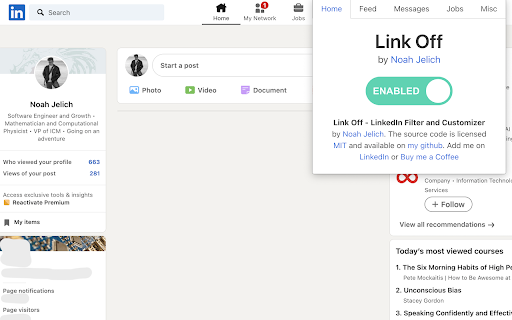
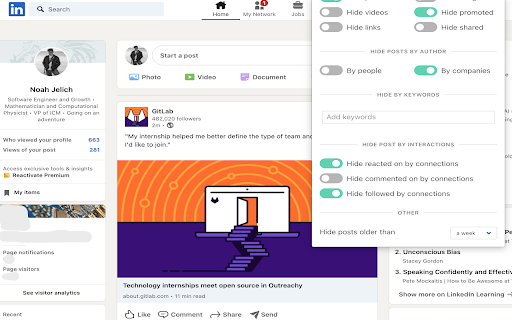


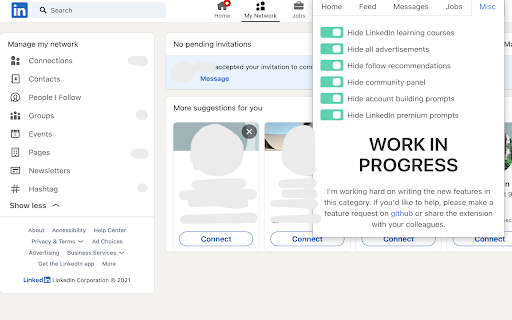
LinkOff cleans and customizes LinkedIn. It filters out the junk, leaving behind the posts and page elements that you want to see. Make your LinkedIn experience better, instantly! With fewer distractions and better filtered content your sales, lead generation and networking will be a smoother and more enjoyable experience. No more seeing unwanted likes and comments by your connections. Block the feed or filter it using custom keywords and find the connections and posts you want more easily. Job seeking? Advanced job filtering coming soon. While you are waiting, clean up your inbox - it can do that too! 🚀 Features - Option to hide the whole feed - Post filtering by content (polls, videos, promoted, shared, etc) - Hide posts by companies or specific people - Filter by custom keywords (politics, coronavirus, vaccination, Noah Jelich, whatever) - Hide posts shown due to interactions (comments, reactions, followed by connections) - Hide irrelevant old posts (older than an hour, day, week, month) - Select messages for mass deletion (clean your inbox) - Message filters (COMING SOON) - Unfollow all collections - Job filtering (COMING SOON) - Block ads on LinkedIn (banners and sidebar) - Hide LinkedIn learning and course recommendations - Hide community panel and follow recommendations - Stop LinkedIn premium upsell pestering - Fully configurable to suit your need! - Completely FREE and with NO ADS - Made with ❤️ by Noah Jelich :) > Are you going to make a Tampermonkey/Greasemonkey script? > What about Vivaldi/Brave/Edge/Opera and other browsers? The extension can be natively installed on all chromium browsers. > What about Safari and MacOs? The store charges 100$ per year to post apps, which I cannot afford. Since neither Chrome or Firefox allow for extensions in mobile browsers, you need to install a chromium distribution that does. I recommend Kiwi Browser (if you have any issues, please report them, still testing mobile support).

LinkStrip - Strip the 💩 from your LinkedIn feed
Strip the 💩 from your LinkedIn newsfeed like a pro user with the LinkStrip Chrome Extension. This LinkedIn ad blocker and content optimizer helps you focus on relevant posts and engage with meaningful content. 😎 Intuitive LinkedIn Filter for Streamlined Engagement - Eliminate unwanted LinkedIn ads, promotional posts, LinkedIn banners, and company updates - Customize your LinkedIn feed to display posts from the last 60 minutes, 12 hours, or 1 day 🤩 Advanced LinkedIn Keyword Filter for Targeted Content Discovery - Include or exclude LinkedIn posts containing specific keywords - Use Boolean search operators (OR/AND) for precise LinkedIn content filtering - Organize your LinkedIn feed with a Notion-inspired tag system LinkStrip Chrome extension automatically saves and applies your filters for a seamless browsing experience. Unless you clear the cache - then all tags will be lost.

Minimal Theme for LinkedIn
Minimal Theme for LinkedIn Remove LinkedIn clutter in one-click. Cut out distractions and focus on what brings you value. Minimal Theme for LinkedIn is a Chrome extension that allows you to clean up the LinkedIn user interface. It allows customizations such as: - Hide ads - Simplify navigation menu - Hide left and right panes if not useful - Hide the messaging windows - Streamline LinkedIn experience so you can focus on important features. Minimal Theme for LinkedIn is a free app made by indie makers, and is not associated with LinkedIn Corporation.

Hide LinkedIn Ads
This Chrome browser extension hides ads on LinkedIn. Tired of seeing promoted post after promoted post while scrolling on LinkedIn? Download this browser extension to hide ads on LinkedIn. This can improve productivity and decrease distractions, making it easier to focus on networking. You can view the source code here: https://github.com/garnetred/hide-linkedin-ads.

Jobs Filterer for LinkedIn
Filter jobs you don't want to see from LinkedIn search results and recommended jobs. NOTE: The author of this extension is not affiliated with LinkedIn, and this extension is not provided or supported by LinkedIn. LinkedIn’s “recommended jobs” and job search functionality are pretty good at finding jobs you might be interested in, but unfortunately they’re pretty bad at finding _only_ jobs you might be interested in, i.e., they show you many jobs you don’t care about. Furthermore, although there are buttons you can click to supposedly tell LinkedIn not to show you a particular job again, it frequently ignores this. This extension’s purpose is to allow you to improve the quality of these lists of jobs by filtering out jobs you don’t want to see based on either jobs whose “don’t show me this” button you’ve clicked or on regular-expression matches on the job title, company name, or location. The simplest way to use this extension is to tell LinkedIn not to show you jobs by clicking on their buttons intended for that purpose. LinkedIn won’t necessarily obey that, but this extension will: it’ll add the job’s title, company name, and location to the “Specific jobs” list above, and it’ll be filtered out automatically from then on. You may want to revisit this options page periodically and clear out old jobs from the list so that it doesn’t get too long and slow things down. If you make a mistake and filter out a job you actually want to keep seeing, you can remove it from the list above and click the Save button to undo it. In addition to filtering out specific jobs by clicking the button, you can filter jobs by regular expression math. To do that, enter the regular expressions you want to filter with, one per line, in the text boxes above, then click Save. Do not enclose your regular expressions in slashes like you would if you were writing them in JavaScript. Normally this extension will simulate clicking the button that tells LinkedIn not to show you the job again, but you will still see the job, greyed out, after it has done so. If you would like to hide filtered jobs completely, check the “Hide filtered jobs completely” checkbox (and remember to click the “Save” button). Note that the options are saved in synchronized storage, so if you have sync turned on in Chrome, the options are synchronized across all the Chrome profiles synchronizing via the same Google account.
