
lpopnmoejimlifiejilnpneckijlgodg
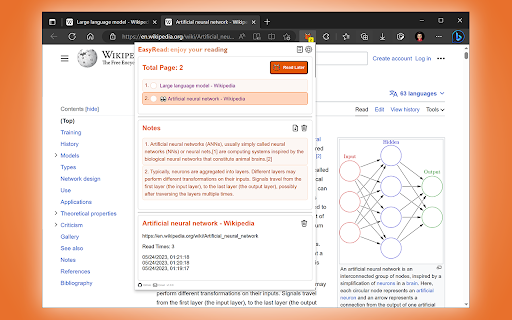
This is a Chrome / Edge extension that creates a smooth web browsing experience for you, providing but not limited to: core functions such as reading later, adding notes, and auto-recording. 1. Easily read any web page, as usual, without any interruptions. 2. When you see something worth recording, select it and **Add to note**. 3. When you have a lot of materials, click **Read Later** to turn them into to-do items, and then read them slowly. 4. When you open a webpage that you have already visited, it will automatically restore you to the **last visited location**. 5. In order to consolidate knowledge, we recommend that you regularly perform data management, export and delete historical data, and use third-party tools to organize your access history and notes. 6. The next reading does not start randomly from anywhere on the Internet, but from **EasyRead**'s **Read Later** list. For a better user experience: We recommend you keep the EasyRead extension always displayed in the toolbar, you will get **read it later** quantity reminders and **fewer steps**. 1. After the extension is installed, it is not displayed in the toolbar by default. 2. To adjust the extension to always appear in the toolbar, please try the following steps: - Google Chrome: Extensions icon > EasyRead > "Pin" (pin icon). - Microsoft Edge: Alt+F > Extensions > EasyRead > "Show in toolbar" (visual icon). 1. Add current page to read later list. 2. Later read counter to help you manage unread. 3. The reading progress helps you to continue reading. 4. The pop-up reminder on the current page will confirm for you whether it is already in the list. 1. Manage notes by page, an article is a knowledge unit. 2. Select the text on the page and add it to the note. 3. View notes by page, multi-paragraph notes are presented in the order they were added. 4. Support exporting to Markdown format. 1. Log all visited web pages. 2. Track the number of visits, time, etc. 1. All data is stored locally in the browser. 2. Support one-click all export as backup. 3. Supports two recovery modes: replace storage and merge storage. 4. Support the purpose of deleting all data and some data to save space.

Easy to read
Easy to Read extension turns difficult sentences into easy sentences. All you have to do is hover over a sentence that is hard to understand. The app will then show you a version that is simple to understand. We created this app for a family member who has a mental disability. But we soon found out it helps many people, both with disabilities and with no disabilities. To use the extension follow these easy steps: 1. Click the green Install button. 2. When the button turns from Install into Open, click Open. 3. Go to the top right side of your Chrome and click the jigsaw puzzle icon. 4. From the menu that will open, choose Manage Extensions at the very bottom. 5. On the web page that will open, you will see all your chrome apps. The Easy to Read one, will be on the top left. 6. There will be a toggle button. Move it to the right. It will turn from gray to blue. If it is already blue. Leave it like that. 7. Now the Easy to Read pink icon will appear on your Chrome. Click it, and a tiny window will open up. At the bottom of the window there will be a link, saying “How do I get a license?” Click it. 8. Now a web page will open. Scroll to its bottom, fill in your details, and get a code. 9. Copy the code. 10. Now click the Easy to Read button again. The tiny window will open. There will be a field titled My User Number. Paste the code there. Now move the gray toggle button to the right. It will become pink. 11. The app is now ready to use. Visit any website. We recommend trying The New York Times. Hover over a hard sentence, and let us show you the simple version of that sentence. Would you like to learn how this extension works? We use Machine Learning to improve the app. This means that when you use our tool, we learn from the way you use it, if you are happy with the results. And we improve the tool based on how much it helped you. So go ahead, start simplifying difficult texts. We hope you will get a lot of value from our app. And please leave us feedback. We want to improve for you. Thank you.

Reading List
Reading List is an extension designed for quickly accessing links you wish to save without cluttering your bookmarks. It functions similarly to the Chrome Reading List but offers the convenience of a shortcut (a popup) and a more user-friendly interface.

Save Chrome Tabs
Save your Chrome tabs for later, and avoid the need to bookmark unwanted pages anymore 😁. Save Chrome Tabs allows you to save and organize all your windows and tabs in a single place. You can save unlimited tabs groups free of charge, and it's ad-free. It also synchronizes all your saved tabs groups with other devices. And very importantly, this extension does not collect any data. It basically uses Chrome APIs to see your tabs and save them in your Chrome storage.

Read Later Bookmarks
Read later view addon for chrome bookmarks Turn your bookmarks into a read later reader without relying on any third party applications! Click on the extension icon to open its menu and start adding bookmarks as read later pages! Features - Add bookmarks as read later pages - Archive visited bookmarks to native chrome bookmark manager - Search and sort bookmarks in read later view - Archive or delete after visiting a bookmark - Export to Pocket and Instapaper - Bulk actions: archive, export, delete Planned Features - Assign and manage tags *** This extension relies on the use of the bookmark folder "Read Later Bookmarks" under "Other bookmarks". Please do not modify the folder and its contents to ensure functionality. *** This extension is open sourced at https://github.com/XcrossD/read-later-bookmarks.
