
lnngonmdpkejhjpobbbonechojbncoll
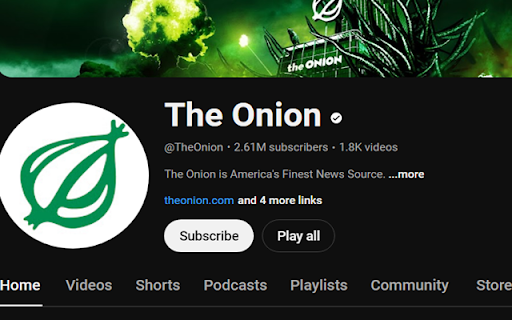
Brings back the Play All button on YouTube. Note: there's a delay added for the button to let you know that this button is injected by an extension while waiting for the page to stabilize. If the button doesn't show up, please try to reload the page to see if it works. This extension should work on any YouTube channel page. It adds a "Play all" button that takes you to a playlist with all the channel's uploads. As of now this extension is pretty hardcoded and doesn't do anything fancy. If you need more complex features such as reverse the order of the playlist, I recommend checking out https://playlist.tools/. If you need to remove shorts from YouTube, there are other tools to help with that as well, such as the Enhancer for YouTube extension. Repository if you want to file an issue or raise a pr: https://github.com/c-c-cxy/youtube-play-all Fixed a bug where going from a video page to its channel page via middle click (open in a new tab in background) won't inject the button.

Youtube Playback Speed Control
Control speed of the youtube playback using keyboard. Press '+' to increase and '-' to decrease the playback speed. [ Added functionality for the extension to work with all html5 videos. If you are having issue with videos other than youtube, feel free to disable it from settings] ***Note: The extension auto loads for html5 videos. So please don't confuse that you have to click the extension button to load it. Lots of people were confused about how to use this extension.*** Youtube playback speed increase or decrease is just a mouse click or keyboard button away. Get more out of Youtube and control speed of youtube video easily either by clicking the speed overlay button on the top right hand corner or just keyboard button '+' and '-'. Keyboard button are configurable and if you want to use different key, you can change this default keys from settings tab. With HTML5 Video playback on YouTube, you can speed up and slow down the currently watching videos. I loved this feature. But still it was too many mouse clicks for me. So, this extension was created to control the playback speed using keyboard. Press '+' to increase the playback speed and '-' to decrease the playback speed. If '+' and '-' keys are already used by other extension or you want to use different key, you can change this default keys from settings tab. This extension even works for the HTML5 YouTube player embedded in other website. Make sure that the player is in focus. A website can embed multiple YouTube player and the keyboard shortcuts will effect the currently playing one. Everything works no change needed. Please check extension options for more setting options. You can change playback rate increment from default 0.25 to any desired increment. Note: - The control may not appear the first time the extension is installed or updated. Refreshing the page should make it work. - Close the setting page after making changes for the extension to function properly. ★ YPSC - Version 0.0.15 - Fixed an issue reported by users after chrome update Version 127. Version 0.0.14 didn't fix the issue. ★ YPSC - Version 0.0.14 - Fixed an issue reported by users after chrome update Version 127. Wasn't fully able to replicate the issue but fixed the error that appeared on the console. ★ YPSC - Version 0.0.13 - Allow the extension to work with all html5 video. Added option to disable it if needed. - Updated Bootstrap & Jquery ★ YPSC - Version 0.0.12 - Fixed a issue with playback button remaining on full screen even with FadeInFadeOut option. ★ YPSC - Version 0.0.11 - Fixed a bug that breaks the playback button display when switching full screen and back. ★ YPSC - Version 0.0.9 - Updated to Manifest v3 required by Extension development ★ YPSC - Version 0.0.7 - Removed webRequest, activeTab permission. - Easy access to setting page. - Changes to comply with chrome web store. ★ YPSC - Version 0.0.6 - Removed the need to access to full browser history. - Fixed the shortcut assigned for speed up and down are not taken into account and reset to "0" issue. - Added more control over position of playback rate increase/decrease button. Added TopLeft, TopMiddle, TopRight, BottomLeft, BottomMiddle, BottomRight option for position. - Fixed the extension overlay from preventing "press x to close" when in miniplayer mode. - Fixed hotkeys triggering when typing in comments. - Added option to view time saved using this extension in option page. ★ YPSC - Version 0.0.5 - Added an option to disable Shift+MouseScroll combination. - Shows the speed control for 300 millisecond when the speed is changed. ★ YPSC - Version 0.0.4 - Added a reset playback speed to 1x feature. By default it's '*', but user can change. Clicking the playback rate display also reset to 1x. - Added increase or decrease of playback speed using Shift+MouseScroll combination. - Added 'Up Arrow' and 'Down Arrow' to key options (Request from user). ★ YPSC - Version 0.0.3 - Made extension more stable. The extension successfully loads every time now (unlike its predecessor where CTRL+F5 was needed sometime) - Fixed the bug with playlist not advancing to next video. - Fixed the bug of comments not loading sometime. - Made the extension work with embedded videos almost all the time. - Supports user defined playback rate increment that user can set from settings. - Added more speed options. Supports higher playback rate. Note: Sound will not work for higher than 4x. ★ YPSC - Version 0.0.2 - Updated to a user friendly display of the playback rate and added increase/decrease button. - Fixed the bug of '+' and '-' buttons located next to backspace not working. Only the '+' and '-' buttons of Numeric keypad was working. - Added various mode of playback rate display (Always, Hide/Show, Simple and None).

YouTube Screenshot Button
Screenshot button for YouTube. Just click and let the magic happen. Also works on YouTube Gaming. Changes: 16.10.2025 Adjust layout to align with recent YouTube interface updates 05.05.2022: Fix a bug related to file names.

Return Youtube Red Subscribe Button
Brings back the red subscribe button. Return the red subscribe button on YouTube. This extension is currently in an active development phase, so if you experience any issues, don’t hesitate to report them on our GitHub page.

YouTube Rewind & Fast Forward Buttons
Enhance your YouTube experience with the Rewind & Fast Forward Chrome extension. This tool adds dedicated buttons for rewinding and fast-forwarding videos. 1. Customizable Time Skips — Choose the skip duration for each button individually, with up to four customizable buttons. 2. Arrow Key Override — Choose whether to synchronize the Left and Right arrow keys with your configured skip durations. (Default: No override) 3. Media Key Integration — Map your keyboard's media keys (Previous/Next track) to use the same skip durations as the extension buttons. How to Access the Options Page 1. If you've pinned the extension, click the extension icon and then click "Open the options page". 2. If you haven't pinned it, click the Chrome extensions icon; you'll have two options: - Click the three dots next to "YouTube Rewind & Fast Forward Buttons" and select Options. - Click the extension name, then click "Open the options page". See the screenshots below for guidance.
