
lnkeehekeppeibkegcjndkmpimcnehio

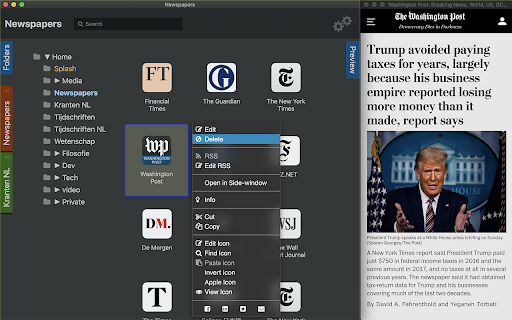


Organize and preview your websites Key features - Organise your bookmarks in folders: copy-paste, drag and drop. - Make Splash your personal start page to have your most useful websites always at hand. - Quickly export a selection of your bookmarks to share with a friend. - Privacy: No ads, no collection of information. - Highly customisable: Themes, colours, sizes. - Synchronised: splash uses the bookmarks of chrome, so they are automatically synchronised across devices. - Optional: put your mouse over any bookmark to see a live preview of its website. - See only the headlines (RSS-feeds) with a click. Daily usage: - You have the bookmarks you check often in folders called Newspapers, Technology, Social, Sports, Entertainment, Work, MyOwnBusiness, etc. - Click on the name of a folder and move your mouse over each bookmark to see what is new in your world. Documentation: how it works: 1. Previews Put your mouse over any bookmark to see a live preview of its website Typical / frequent usage: You organised your bookmarks, e.g. you put the papers websites you examine daily in a folders called Newspapers, Technology, Social, Sports, EntertainmentNews Papers. Then you need an overview of the contents today. You don't want to open them unless the headlines interest you. Click on the name of a folder and move your mouse over each bookmark to see what is new in your world. Then Splash gives you the Preview button (vertical tab on the right)! Turn Preview on and it makes Splash present any bookmark you put your mouse over in a small window at the side. It appears on the left of your browser window. You can also set it to appear on the right. By turning Preview on (vertical tab on the right) makes Splash present any bookmark you put your mouse over in a small, vertical window at the side. It appears on the left of your browser window. You can also set it to appear on the right. (Splash is intended make better use of 16:9 screen space when it comes to reading. Your browser must not be in full screen mode, in order to accommodate a second window which displays the instant previews of your bookmarks.) 2. Icons A bookmark is presented as a big icon. You can set this to be smaller. The big icon is fetched from the website the bookmark is pointing to. Most websites offer a special big icon for mobile devices that's called apple-touch-icon. If this is not found, the smaller favicon is used. If you would rather have another icon, you can copy another image on the interne, then paste it into the bookmark. Steps: - right click on any image in your browser - Copy image link - back in Splash: click the 3 dots on your bookmark - Edit icon and paste the link 3. Export/import You can export all or part of your bookmarks to a json file. Send the json file to a friend and share your tree of bookmarks or just a branch of it. Or keep it as a backup on your local drive. You may also export your custom icons. 4. Favourite folders Have always at hand the folders you use the most. Right click a folder > Favourite. They appear as vertical tabs on the left side of the window. Give them different colours if you like. 5. Copy/paste Bookmarks and folders can be copied/cut and pasted to other folders. 6. Drag/drop Bookmarks and folders can be dragged and copy-dragged to other places. You can even drag bookmarks from the bookmark bar into another location in Splash. 7. Skin Choose an appearance from Dark, Light or System. System follows your operating system settings, this works on MacOS and Windows. 8. Language The language you choose in your browser will be the language Splash uses. Momentarily only Dutch and English are supported. Default is English. 9. Compatibility Splash has been tested on MacOS, Windows, Linux and Chromebook. Installable in these browsers: Chrome, Microsoft Edge.

Bookee - Instant Bookmark Manager
Browse, search and share your Bookmarks with screenshots and thumbnails! Here are a few things that Bookee does to make your life easier: - ⚡️ Loads instantly on any tab as you browse - 🔎 Shows better search results - 🏞 Shows you a thumbnail of each bookmark - ⌨️ Adds shortcut keys (like "Command + e" to edit a bookmark) - 🍿 Let's you watch any YouTube bookmarked videos right away - 🤝 Share your bookmarks and folders with your team (coming soon) - 🔗 Add collections of links for quick access (coming soon) We all use our Bookmarks and Bookmarks Tab. But it can get super-busy: too many bookmarks, and losing track of what we've bookmarked. Bookee was designed to access and search through your bookmarks instantly: just press the "Command + Shift + k" shortcut, and Bookee will pop right up. Start typing to instantly search through your bookmarks, and then press the Enter key to open that bookmark in a new tab. Here's what Bookee will *not* do: - 🚫 It will *not* share your data with any third party sites - 🚫 It will *not* export your bookmarks to any servers - 🚫 It will *not* be a closed system. We will be open sourcing it soon 🙂

Vertically Listed Tabs
Manage your tabs vertically and browse quicker! ================ BEFORE YOU BEGIN Browser check: Vertically Listed Tabs is built for Chrome, Brave, and Edge. Beyond that, I cannot guarantee it will work. Please do not review the extension unless you are using Chrome or Brave. Other browsers can be added if you submit a GitHub issue or email support@onlyhumn.org. About reviews: If something is preventing you from using the extension, please contact me before leaving less than a 5-star review. Email, GitHub issue, or Chrome Web Store support all work. I will fix the problem so you can leave a 5-star review. Thanks. ============ THE PROBLEM Lots of horizontal tabs at the top of the browser pile up and become tiny. When they share the same favicon, or even similar titles, finding the right tab becomes slow and frustrating. If you multitask with many tabs open, this wastes time every day. Vertically Listed Tabs opens a panel window ("VLT") and attaches it to the left or right of your normal browser window. It is not inside the tab strip or existing window. It is its own window, docked beside your browser. This allows you to even move it to a different window if needed. Inside VLT, tabs and groups are listed vertically. You can see many tabs at once while keeping full tab titles readable. Scan the list, click the tab you want, and it becomes active in the main window. 1. Install the extension. 2. Click the puzzle piece in the top-right to open the extensions menu. 3. Pin Vertically Listed Tabs so its icon appears next to the puzzle piece. 4. Click the VLT icon. If your window is maximized or fullscreen, VLT will resize the window so the panel can attach on the side. 5. In the list, hover over a tab's favicon (the small image on the left) to show the toolbar for close, group, pin, pause, and more. • Side panel: VLT opens on the left or right (set in Options) and adjusts when you resize the window. Windows and macOS may look slightly different due to window borders. • Options: Right-click the extension icon and open Options to change background color, default width, and more. • Click to focus: Click a tab in VLT to switch to it in the main window. • Drag to reorder: Click, hold for about one second, then drag tabs to reorganize. • Hover toolbar: Hover the tab favicon to close, group, pin, or pause a tab. • Rename groups: Edit group titles directly in the VLT window. • Detach and move: Detach VLT from the main window and move it to another monitor. • Snap and tile: Works with Windows Snap and macOS tiling so VLT can sit beside a full-screen window. Example: https://i.imgur.com/Nwg2h6z.png • Linked focus: When you switch away and click either VLT or the main browser window, both windows come to the front together. 1.0.4 - fixed group movement 1.0.3 - fix for focusing on main window 1.0.2 - fixed detatch and attach button in top menu 1.0.1 - Fixes for windows 1.0.0 - Bunch of minor fixes. 0.12.0 - All remaining bugs fixed. Hovering over a tab shows an animation indicating how long until the full title appears.

TempoGrid
TempoGrid: Open, Flat, Snappy. Clarity and perspective for your tabs. Shape your browsing to reflect your rhythm, with defined pane layouts and color themes that feel right. Set your tempo. Your tabs, in tune. CAUTION: In Chrome 145, updates to tab groups are not applied immediately. This issue is scheduled for a fix in Chrome 146, and there is no workaround available. Please wait until then. https://issues.chromium.org/issues/483537691 - Cross-Search all your resources: bookmarks, open tabs, history, and recently closed tabs. - Utilize window titles to simulate nested tab groups, providing superior hierarchical organization. - Instantly find the matching tab upon opening a bookmark, using URL prefix or domain matching. - Pin any window to the top or bottom of your screen. - Move a window to the latest position/order. - Multi-Select items via the main menu, long press item, or Ctrl+Shift shortcut. - Toggle between List and Icon views for all open tabs. - Bookmark flat-view: Flatten any folder to view all its nested bookmarks in a single, unified list. - Supports multi-line display and language-specific hyphenation. - Easily reorder and resize all resource panes. - Smart-wider the pane width simply by mousing over it (Optional). - Synchronize settings across all devices using Chrome Sync. - Customize your workspace with your favorite color themes. v0.27.4.3 (Jun 11, 2026) ================== Change the date and time display to match the Display Language setting. v0.27.4 (May 30, 2026) ================== Added “Add Tab” button and remove the “Add New Tab” option from the menu. Fixed a bug where the history was not updating during searches. v0.27.3 (May 19, 2026) ================== Added text settings for base size and contrast. v0.27.2 (May 4, 2026) ================== Refined the color scheme and appearance of bookmark folders in Flat View. v0.27.1 (Apr 30, 2026) ================== Fixed a bug where bookmark features did not work correctly when the settings page was open. Refined the appearance of the active tab in the dark theme. v0.27.0 (Apr 20, 2026) ================== Added a font family setting option. Fixed a bug where “Recent Tabs” was not displayed in pop-up mode. Fixed a bug where opening and closing “Tab Groups” was not reflected in pop-up mode. v0.25.1 (Apr 15, 2026) ================== We identified an environment‑specific issue in the latest release v.0.25 and have rolled back the update. v0.24.7 (Apr 4, 2026) ================== Fixed an issue where the display refreshed immediately after deleting the history items. v0.24.5.5 (Feb 6, 2026) ================== Fixed a bug where the number of lines for multi-line could not be set independently. v0.24.5.4 (Feb 2, 2026) ================== Fixed an issue where drag-and-dropping a window to a new window would cause the tab group to disappear on Linux (KDE). v0.24.5 (Jan 12, 2026) ================== - Added an option to limit text display to 2–4 lines or show it in full for long strings. - Added an option display language. - Improved to display tooltips for open tabs in icon view mode up to a maximum of 3 lines. v0.24.0 (Dec 19, 2025) ================== UI/UX improvements for bookmark management. - Added bookmarks flat-view. - Added a "New Folder" button with Drag & Drop functionality. - Introduced a Trash folder to prevent accidental bookmark deletion. - Enabled date and time placeholders (e.g., {yyyy}-{MM}) for automatic folder naming. v0.23.11 (Nov 21, 2025) ================== Fixed a bug with bulk deletion of history items when multiple items were selected. v0.23.10 (Nov 9, 2025) ================== Improved: - Restored focus to the previously focused window after closing the active window. - Prevented unnecessary screen refreshes when updating bookmark. v0.22.0 (March 7, 2025) ================== - Added window mode - Added a recent-tabs pane - Change app name and icon v0.21.14 (Nov 8, 2023) ================== Fixed a bug that the bookmark/folder menu display to cut off outside of screen. v0.21.13 (Mar 2, 2023) ================== Fixed a bug that broke the UI of new window button when window sort order was descending. Fixed a bug that the UI of new window button was broken when window sort order was descending. v0.21.11 (Feb 21, 2023) ================== - Fixed a bug that drag-and-drop from history to window of tabs did not work. - Fixed a bug in search that tabs are always searched for title and URL. v0.21.7 (Feb 4, 2023) ================== - Added a menu in main menu for bookmarking from link text. - Modified the bookmark button[☆] works as drag and drop for current tab. v0.21.5 (Jan 30, 2023) ================== Fixed a bug that the submenu display to cut off outside of screen. v0.21.4 (Jan 27, 2023) ================== Fixed a bug in v0.21.0 that caused drag & drop of multiple selections to fail after opening the main menu. v0.21.2 (Jan 24, 2023) ================== Fixed a bug in the tab highlighting function on bookmark mouse-over where URL prefix matching was not performed when the URL contained characters that require escaping in HTML, such as "&". v0.21.0 (Jan 22, 2023) ================== - Added recently closed tabs/windows in history. Up to 25 tabs/windows are displayed. Please accept "sessions" permissions. - Added pin a window to the top or bottom of open-tabs pane. - Added save your favorite color themes. It can be rotated with the main menu or F2+shift key. v0.20.0 (Dec 28, 2022) ================== - Added mouse over a bookmark to highlight the tabs with the matching URL and select them with mouse wheel. - Added search history. The value is stored when the popup is closed. To show, click on the search box or press the arrow down key. - Added display of number of searches in tabs. - Added a button to scroll the current tab and highlight it. v0.18.4 (Nov 11, 2022) ================== - Added bookmarks and folders panes are flippable. - Added pane to always resizable. v0.18.1 (Nov 3, 2022) ================== Allow incognito window/tab drag-and-drop to new window. v0.18.0 (Oct 28, 2022) ================== Added a button/drag-and-drop area to open a new window. It can also change the order of chrome windows. v0.17.0 (Sep 22, 2022) =================== - Added memorize last search words. - Migrated to Manifest V3 and now requires Chrome 105 or higher. v0.16.2 (Jun 9, 2022) =================== Added option to not exclusively open the bookmarks folder tree and to keep the state. v0.15.2 (May 24, 2022) =================== Added folder menu to open all bookmarks in the folder in a new window. v0.15.0 (May 22, 2022) =================== - NEW: Added a button to scroll to next/previous window in open tabs pane. - Added a margin to the right of the scrollbar when in Xen mode that does not released it. v0.9.0 (Apr 10, 2022) ================= - NEW: Drag & drop functions for tabs and history pane. - NEW: Color schema settings - Modified faster history search using cache. NEW: - History and open tabs panes. DISCONTINUED: - Chrome Extensions, Chrome Apps, and Google Bookmarks folders. - Window mode.

Super Bookmark Desktop
Super Bookmark Desktop - the new tab page + bookmark manager that acts like your computer desktop!… Super Bookmark Desktop - the new tab page + bookmark manager that acts like your computer desktop! If you've ever wanted to treat your bookmarks like files on your desktop then give this a try! Some features: * Cool desktop backgrounds and ability to add your own. Add a Wallhaven source and get new backgrounds every day! * Click and Drag icons to move them around the desktop or into folders. * Create a selection of multiple items by clicking and dragging with the mouse (then try moving all of them). * Hold down Ctrl, Shift, or Command and then click an icon to multi-select icons. * Right Click the desktop create bookmarks or to change backgrounds and set background settings. * Right Click icons to edit or delete them (editing and deleting affects the actual bookmark). * Create text files that sync like a normal bookmark. Good for making quick reminders!
