
lnfececmldedlanmhbeljgdaofncfeho
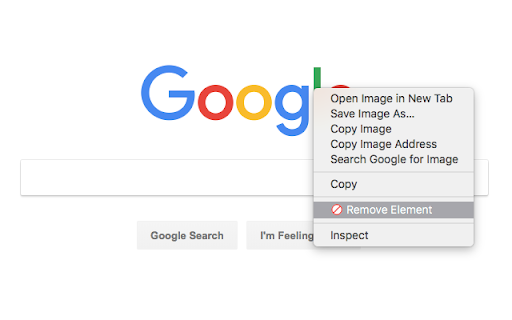
Creates a contextual menu item to remove an element from the DOM Right-click anything on the page and remove it. Useful if an ad is in the way of you reading an article. If you accidentally remove too much, just refresh the page - removing items is temporary. After installation you must reload any open pages for the extension to work.

Snip - Remove Web Elements
Remove any element from any website with just one click With Snip you can remove any element from any website with just one click. So it only shows what you want to see. You choices are saved. So next time when you visit the same page those elements will be gone as well. With Snip you can undo or redo recent changes. You can also review all removed elements and revert any of them. If you login with your Google account, your choices will be synced to all your devices using that same account. Version 2.10 changes: -Add the feature to snip an area of a web page. Version 2.9 changes: -Temporarily remove the login button. Version 2.3 changes: -Handle the case when first using Snip and the rules don't exist. Version 2.2 changes: - Fix the issue that removed elements will appear for a few seconds when reloading the page. Version 2.1 changes: - Improve performance when analyzing the page.

Hide That!
This extension can hide or remove selected elements on a page. Useful for removing invasive adverts, banners and overlays. The primary feature of this extension allows users to hide any element on the page with a simple right-click menu action. Advanced features on the Options page also allows the user to automatically close invasive popup windows, as well as automatically hide selected elements when the page is loading. Several other customizable settings are also available on the Options page. NOTE: - The primary right-click functionality of this extension does not permanently hide the element. Any page refresh will bring back the full page as intended. To automatically hide elements when loading a page please try the ‘Automatic Hiding’ feature on the Options page. - Once the extension is added to Chrome, any pages you already have open will need to be refreshed for the extension to start working. - The icon menu for chrome extensions should display to the right of the address bar (a puzzle piece). 3.7.0 (13th April 2024): - Added ability to close “about:blank” popups when opened from a specified website. - Displays “unsaved changes” warning message on the Options page. 3.6.0 (14th April 2023): - Migrated to new Chrome extension manifest version 3. 3.5.0 (18th November 2022): - Added "Show Auto Hidden" button in the icon menu to redisplay automatically hidden elements. - Added "Rerun Auto Hide" button in the icon menu to rerun automatic hiding. 3.4.0 (8th September 2022): - Added a user-friend option for the Automatic Hiding feature in the icon menu (“Set Auto Hide”) which will automatically generate the necessary element selectors for all your hidden elements on the current page. - Set newly added items as green, to indicate they are unsaved. 3.3 (21st March 2021): - Switched to using Chrome's local storage for storing the settings data (instead of syncing the data to your Google account). This allows for a higher data storage limit. 3.1 (22nd December 2020): - General improvements and bug fixes - Added option to show/hide help text on the Options page. 3.0 (29th November 2020): - Added new ‘Automatic Hiding’ feature on the Options page. - Split the ‘Advanced Features’ section on the Options page into the ‘Automatic Closing’ section and the new ‘Automatic Hiding’ section. - Improved help text and advanced feature explanations. - I apologise if any of your Option settings for this extension were reset upon upgrading to version 3.0. 2.2 (6th September 2020): - Added new 'Export Settings' section to the Options page. This will allow a user to import/export their settings. 2.1 (9th January 2020): - Enhanced the 'Advanced Features' option that closes listed popup sites. There is now a dropdown list that displays the address of recent new tabs or popups. This means the user doesn't have to manually capture the initial address of the popup site. 2.0 (December 2019): - Added new 'Advanced Features' section to the Options page. - Added 'Advanced Features' option that can immediately close listed popup sites.

Hide Anything - Element Hider for Chrome™
Best element hider for Chrome™. Remove distractions in a breeze. Hold down Ctrl key, then left-click and use the mouse to drag a box over any element or intrusive ad to erase it from the page. Hide any distracting web element and clean up your favorite websites with just a few clicks. With over a million downloads on Play Store, Excelling Apps is now offering Chrome extensions.

Web Cleaner - Hide & Block Elements
Right-click to hide any unwanted website element. Remove ads, popups, and clutter for distraction-free browsing. Easily remove, hide, or block unwanted content on any webpage with a simple right-click. This powerful webpage customization tool helps you clean up cluttered websites and remove distracting elements. Perfect for creating a cleaner, more focused browsing experience! ✨ Perfect for: - Creating distraction-free reading environments - Removing annoying popups, ads, and banners - Customizing news sites and social media feeds - Taking clean screenshots - Blocking unwanted website sections - Making websites more focused and readable Take control of how you browse the web - customize any website with just a right-click.
