
lncamcnihkpmnbpioiooedpmmpaaohnb

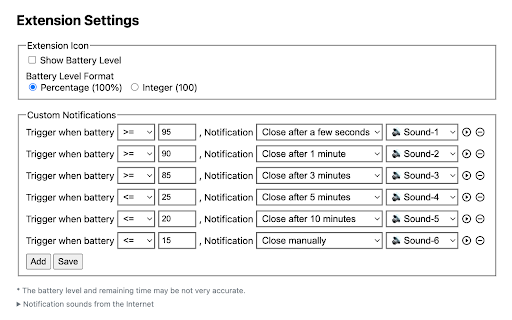
Display battery level, charging or discharging status. Display battery status on the extension icon and popup page, and support custom notifications. Updates: ● Version 3.0.0 (2024/02/23): upgrade to manifest v3, and requires Chrome version >= 118. ● Version 2.0.2 (2023/02/08): support playing sound with notifications! ● Version 2.0.0 (2020/12/20): support custom notifications! State of the extension icon: ● Green color: power level > 15%, Red color: power level

Just a Clock - the Minutes
A simple digital clock for the toolbar. This is JUST THE MINUTES. Pair with the hours for an awesome readable clock in your toolbar! Just a clock, in your Chrome toolbar; Nice and big and simple. There are 2 extensions, one for the Hours and one for the Minutes. I built this because I usually have a full screen app/game/video going on my main monitor and can't see the clock. My browser is usually on my 2nd monitor and now I can always see the time at a glance! This is JUST THE MINUTES and meant to be paired with the "Just a Clock - The Hours" extension in your toolbar and positioned to its RIGHT. Remember to also install the HOURS: https://chrome.google.com/webstore/detail/agglgohcegmeeaccikjfmehncfomccpg -- Now with High Res images! -- White numbers for dark themes are available in Options If you like it please let me know in the comments. If you have any suggestions or requests please also let me know.

CPU and Memory Performance Monitor
Features:- 1. Monitor CPU Usage 2. Monitor Memory Usage. 3. Monitor CPU Temperature (in Fahrenheit) (Visible on Chrome OS only/ Graph Only) 4. Chrome Window/Tab Counter 5. Network Status Indicator 6. Clean Memory/CPU: - Discarding inactive tabs can release memory used in loading web pages in background. If you have multiple tabs open, this can save anywhere between 0%-40% memory. 7. Clear browsing data (with options to set time range and clean up preferences.) 7. Shortcut to Reset Chrome. 9. Works in online/offline mode. This tool provides an option to monitor CPU, CPU Temp and Memory utilization as number or in graph mode. (You can enable/disable specific legend in graph by clicking on legend label.) Permissions: - CPU & Memory read permission, Clear Browsing Data (Delete only), local storage (to save browser clean up options) . ** This tool does not interact with applications open in your chrome window. This tool does not transfer any data to or from your system. Version History: - 9/17/24-V1.7/V1.8 (Fixed Icon issue) 9/13/24-V1.6 Updated manifest version V3 12/28/20 - V1.2 # Added Options page (right click on toolbar icon) to set options for browser data clean up. # Removed Shortcut to Clear Cache and added direct functionality to clean browsing data based on options set up by user. # Removed Current Tab Count parameter and added Network Status. 12/13/20 - V1.1 # Added CPU Temperature in Graph mode (Chrome OS only) # Added Tooltip on toolbar Icon to display CPU and Memory Usage. # Added Status/Confirmation Message on "Release Memory" button to display number of tabs discarded and memory saving estimate. 12/06/20 - V1.0 # Monitor CPU/Memory graph, Capture Window/Tab count and Chrome Version, Shortcut to clear cache & reset chrome, Option to discard background tabs to release memory.

Badge Clock: simple toolbar clock
Keep an eye on the time, even with taskbar hidden, with this animated digital clock in your browser toolbar. 👀 What's new: this update is docs only. Like Badge Clock? Also check out our newest clock, Icon Clock. It uses the icon, instead of the badge, to display time. See it at https://chromewebstore.google.com/detail/icon-clock-tidiest-toolba/jemimfaflibimklmebhllpmhmbihpjma 👀 What is Badge Clock? A badge is the element in a chrome extension which adds a number overlay onto the extension's icon in the toolbar. Badges are typically used to show unread email count, etc. Here, the badge is really the only functional element of the extension, providing a digital clock. 👀 Why would you need it? If you use Chrome on Mac in full screen, or use Windows Taskbar or Mac dock in auto-hide mode, you might not be able to see the OS clock. Badge Clock keeps simple digital time in your direct line of sight, in any mode in which taskbar is still visible. And uses very few resources to do it! 👀 How do you use it? 1. After installation, pin the extension. 2. Drag it to where you like it in the toolbar. 3. Click on the extension's icon to set your preferences. 4. Toggle Animated Eyes off if you find them distracting. 5. Toggle Colon off if you see clipping on Mac. 6. Toggle 24-hour time on if you don't like AM/PM style. 👀 Is this extension safe? This extension does not ask for unnecessary permissions. It doesn't track you. It doesn't save any information about you. You can right click on the extension icon in your toolbar, to see exactly what information it can read from your browser. You can read our detailed terms of use and privacy policy here: https://garagerocket.com/terms/privacy-extensions/ 👀 Why are the edges of the numbers cut off on Mac? Chrome for Mac has a font weight and padding bug that prevents 4.5 chars display. If the clipping bothers you, try turning off 24-hr time, and perhaps turning off the colon, too. 👀 What is the use license for this extension? Copyright 2024 Garage Rocket, all rights reserved. Use and enjoy, but please don't copy or redistribute. 👀 How can I get more info about the extension? FAQ, privacy policy, terms of use, the ability to donate to support development: https://garagerocket.com/extensions/badgeclock 👀 What if I find a bug or have a feature request? We are grateful for ideas and suggestions! If you run into any issues, please leave a bug report in lieu of a negative review. We use Chrome Web Store's built-in support portal, which is at the bottom of this store listing, in a section called Support. Or paste this link: https://chromewebstore.google.com/detail/bjpipplkhaijhapdnecfbemhfbihhaia/support 👀 What's on the roadmap? --Add a couple of different animated icons, for people that don't like the glancing eyes. --Add the option to remove icon entirely in use, and just have a badge. --Add badge and text coloring options. 👀 What's changed in this release? 0.0.7: Corrected FAQ and privacy notifications on Chrome Web Store to reflect that this extension does no tracking of any kind, ever! 0.0.6: added no-colon option to work around text clipping on Mac. 0.0.5: fixed a bug where, occasionally on laptop resume from sleep or other long periods of inactivity, clock is stopped/stuck. 0.0.3: updated in-store documentation and screenshots, adding license in readme. 0.0.2: initial public release.

Icon Clock: tidiest toolbar time!
An elegant little address bar clock with digital and analog faces, font choices, dark mode, time zones. This update: new fonts! 🕤 What's new? Now with a nice zen analog clock face for when you just need a low-key glanceable "about four" update; a handy timezone reminder tooltip with time and date clarification; a couple of sweet new fonts. 🕤 What is Icon Clock? Icon Clock is a tidy little clock, right in the extension icon. System dark mode following, lockable to a different time zone, cool font choices, and analog face option! What more could you ask for? 🕤 Why would you need it? Working in your browser in full-screen mode is great, but then on both Windows and Mac, the system clock is hidden. Icon Clock lets you place an easy to read time right in the browser toolbar. Additionally, analog mode is quietly informative without being too jangly. 🕤 How do you use it? 1. After installation, pin the extension icon using the puzzle-piece icon in the address bar. 2. Drag Icon Clock to where you like it in the toolbar. 3. Click on the icon to open preferences. 4. If you want the face to automatically reverse contrast when your system changes to dark theme, select "follow system theme." 5. If you use custom colors inside chrome, you can force dark mode on it its' better for your theme. Also try adding a contrasting background behind the numbers. 6. If you want to track time in another part of the world, you can set the clock to any zone you like. By default it follows whatever your system is using. 7. Don't like AM/PM time? Use the 24 hr time option. 8. Don't need up to the minute? For a low-key glanceable "about four" update, try the analog face. Soothing and zen. 9. Click Buy Us a Cup of Rocket Fuel to support extension development! 🕤 Is this extension safe? This extension does not ask for unnecessary permissions. It doesn't track you. It doesn't save any information about you. You can right click on the extension icon in your toolbar, to see exactly what information it can read from your browser. You can read our detailed terms of use and privacy policy here: https://garagerocket.com/terms/privacy-extensions/ 🕤 What is the use license for this extension? Copyright 2024 Garage Rocket, all rights reserved. Use and enjoy, but please don't copy, redistribute or monetize. 🕤 How can I get more info about the extension? FAQ, privacy policy, terms of use, the ability to donate to support development: https://garagerocket.com/extensions/iconclock 🕤 What if I find a bug or have a feature request? We are grateful for ideas and suggestions! If you run into issues, please leave a bug report instead of a negative review. We use Chrome Web Store's built-in support portal, near the bottom of this page. 🕤 What's on the roadmap? - On-page clock overlay: it might be nice to have a bigger easy to read but translucent analog or digital clock overlaid on every page. Also, it could optionally provide back-to-top and reading progress functionality too, just like our Top Rocket extension. Or is that crossing the streams? What do you think? Leave a comment in the support section of the extension's page in the chrome web store. - Remove custom font files: they are overkill when we only use 0-9 numerals. Instead use exported SVGs for each numeral, for each font option. This will make the extension smaller, simpler, faster and less resource intensive. 🕤 What's changed in this release? 1.1.0: Swapped out one font due to licensing restrictions, and one font for performance reasons. Removed font previews from the popup, slowed everything down too much. Added version info to popup. 1.0.1: Fixes three small bugs: sometimes user prefs are not saving correctly; sometimes force dark mode and follow system dark are not mutually exclusive; sometimes the time is out of date for a minute on system wake from sleep. 1.0.0: Adds a timezone reminder, with time and date clarification, in the action icon's hover tooltip. Calling this feature complete. 0.0.5: Minor fix: broken image path for one of the popup example images. 0.0.3: Added an analog clock face option. Corrected FAQ and privacy notifications to reflect that this extension does no tracking of any kind, ever. 0.0.2: initial public release includes 24hr time or AM/PM, auto follow of system dark mode, three cool fonts, manual time zone override.
