
llocbjbocnpindmhcankkhiidpfaiedp

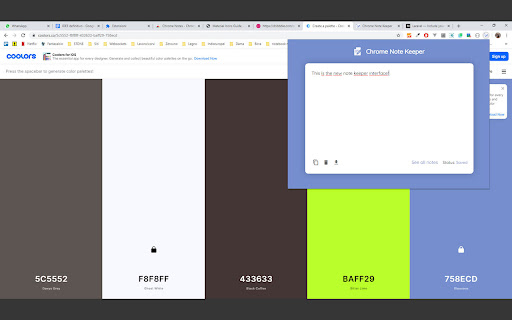


Keep notes on every website page and read it whenever you want! This extension give you the ability to write down notes about a specific web page and save it to Chrome storage. A little badge near the extension icon notify you the presence of a note. --- v0.4 --- - Added icon badge to notify the presence of notes --- v0.3 --- - Added import/export to options page - Fixes on options page - Larger textarea on popup - Fixes on popup

NoteKeeper
a versatile, powerful tool for staying organized. Sync notes across devices, accessible via Chrome Store—ideal for task management. With the NoteKeeper extension and its backend server, you can access your notes from anywhere that allows access to the Chrome Store. This means that as long as you have access to a device with a Chrome browser and the NoteKeeper extension installed, you can easily view and manage your notes. The extension's seamless syncing and cross-device functionality make it a convenient option for anyone who needs to access their notes on the go. Whether you're traveling, working remotely, or simply prefer to switch between devices throughout the day, the NoteKeeper extension has you covered. In addition, the extension's customizable features, such as font choices, colors, and formatting options, ensure that your notes are easy to read and visually appealing, no matter where you access them from. Overall, the NoteKeeper extension is a versatile and powerful tool for anyone who wants to stay organized and productive. Its ability to sync notes across devices and be accessed from anywhere that supports the Chrome Store makes it an excellent choice for busy individuals who need to stay on top of their notes and tasks, no matter where they are.

Note Saver
Save notes for specific webpages Version 2024.12.27: Bugfixes for bugs introduced in v2024.12.23: attempt to truncate URL on empty table; password setting prompt appearing even when no password protection requested + unlock icon functionality when note is temporarily decrypted Version 2024.12.23: MAJOR UPDATE - introduction of encrypted note feature; look and feel improvements; bug fixes Version 2024.05.14: Table body font in monospace Version 2023.4.18: Filter the table; color the row red if note exists for current page; feedback link; version number displayed; bugfix for truncateUrl(); look and feel improvements Version 2023.4.14: Clickable column headers in the table to toggle table sorting. Description: Note Saver is a simple and secure Chrome extension that allows you to quickly jot down notes directly within your browser. Whether it's a reminder, a quick thought, or important information you need to remember for a specific website, Note Saver helps you keep it organized and accessible. Key Features: Website-Specific Notes: Save notes associated with individual websites. When you visit that site again, your notes are right there for you. Easy to Use: A clean and intuitive interface makes note-taking straightforward. Just type your note into the text box and it’s saved automatically. Password Protection: Secure your notes with a password. Only those with the correct password will be able to view the note. Encrypted Storage: If you choose to password-protect a note, it is encrypted on your device using industry standard encryption. Search and Filter: Easily find your notes using the search functionality, which filters both note content and URLs. Organized History: View all saved notes in a neat table, which can be sorted by URL and Note contents. Delete Notes: Notes can be deleted from the history if they are no longer needed. How to Use: Open the Extension: Click on the "Note Saver" extension icon located in your browser’s toolbar. Consider pinning the extension to make it permanently visible. Take a Note: The extension will display a text box and URL for your current website. Type your note into the text box. It will save automatically when you click outside of the text box, or when you start working on a new page. Password Protection: If you want to password-protect your note, click the "Password Protect" checkbox before entering your note. Enter and retype your password. Your note will be encrypted. To view an encrypted note, click the area where the note would be in the table. You will be prompted to enter the password. If the password is correct, the lock icon will disappear from the note table. If you turn password protection off, this will delete your encrypted note. Please be careful when disabling password protection. View Saved Notes: Click "Show saved notes" to see all of the notes you have saved. Use the search bar to find specific notes by keyword or web address. Click on the URLs to open the corresponding pages in new tabs. Hide Saved Notes: Click "Hide saved notes" to hide the table from view Security Information: Your privacy and security are paramount. Here’s how "Note Saver" protects your information: Client-Side Encryption: If you choose to password-protect your note, all encryption happens directly within your browser. This means that your notes are never sent to any server in an unencrypted form. The extension uses the latest industry standard encryption protocols to make sure that the data is protected. Passwords and Keys are Not Saved: Critically, the password you use to protect your notes, and the keys that are used to encrypt and decrypt your notes are not saved anywhere. They are generated each time they are needed, directly within the extension. This ensures that even if your browser or computer were compromised, there would be no saved password or keys available that could be used to gain access to your encrypted notes in plaintext. Temporary Decryption: If you reveal a password-protected note, the extension keeps the note decrypted and accessible for the current session, as long as the popup is open. Once the popup is closed, the note will be re-encrypted, which is why you will need to re-enter your password if you wish to view a note in future sessions. Local Storage: All notes, encrypted and unencrypted are saved on your local device within your browser’s storage. This storage is fully controlled by your browser and is not accessible to anyone else. Important Notes: Password Recovery: Because your passwords and encryption keys are not saved, if you forget your password there is no way to recover it. The only way to access your note if you forget your password, is to turn off password protection. This will delete your encrypted note so you may wish to copy your note to another location before doing so. Please be careful when setting passwords. Browser Security: "Note Saver" relies on the security of your Chrome browser. Please be sure to keep your browser up to date with the latest versions. Feedback: We welcome your feedback! If you have any suggestions or issues with the extension, please don't hesitate to share your experience on the extension's feedback page on the Chrome Web Store. We are always working to make "Note Saver" better for you. Disclaimer: Always be careful when handling sensitive information. "Note Saver" will not be liable for any misuse of the data saved within the app.

PageMo - Sticky notes & Memo in any page
Add sticky notes on any page, move the sticky notes to any position on page. View all sticky notes in the extension options. You can add sticky notes to any web page and move the sticky notes to anywhere on the page. Even if you restart the web page, the added memo will be displayed. You can set the fort size, marker, background color, etc. In the editor that edits the memo. You can check the added sticky notes list in the extension options. ■ Sticky notes display - Move notes by dragging and dropping. - If you hover your mouse over the lower right corner of the memo, the size adjustment icon will be displayed and you can adjust the memo size. ■ Sticky notes list display page - When you press the menu "Show Notes List" of the Pegemo extension, the sticky notes list page is displayed. - A list of added memos is displayed on the option page of the Pegemo extension. - The added sticky notes and the target site are displayed on the sticky notes list page. - You can delete sticky notes with the trash can icon and delete sticky notes for each site. - You can access the target site of the added sticky notes from the list.

WebStickies
Sticky notes for the Internet. Sticky notes are saved locally and reappear on subsequent visits. Features: - Intuitive interface for creating and modifying notes. - Attach notes to specific websites or match multiple URLs with regex. - Sync notes across all devices. - Organize notes with tags and folders. - Lightweight and fast. - Privacy focused. This extension does not share data and respects users' privacy. Commands: - Alt+Shift+N — New sticky note - Alt+Shift+M — Toggle minimization for all notes on the page - Alt+Shift+O — Open the browser action menu - Alt+Shift+L — Open the options page Permissions: - Store unlimited amount of client-side data — Required to save sticky note data locally. - Access your data for all websites — Required to load sticky notes on any page. Support: Leave a review! Give feedback with email: lawrencehook gmail
