
lipakennkogpodadpikgipnogamhklmk
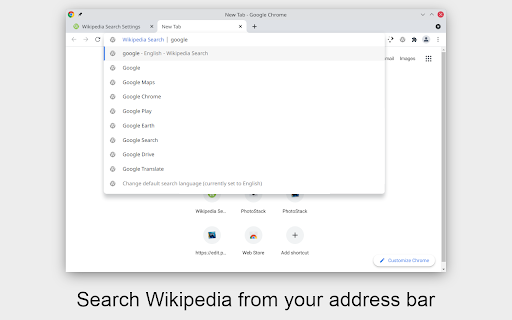


Search Wikipedia in every language from the address bar and context menu. Wikipedia Search is an extension that adds multiple ways to search Wikipedia, the free encyclopedia, right in your web browser. You can type "wiki" in the browser search bar, then the Space or Tab key, to start a search with live suggestions as you type. Also, selecting a word or phrase in a web page and opening the context menu will show a Wikipedia search option. You can change the default search language to any language Wikipedia supports, and the optional multi-language search feature can override it with a different choice. Search results can be opened in the desktop Wikipedia site, the mobile site, or Wikiwand. Wikipedia is a trademark of the Wikimedia Foundation. Wikipedia Search is in no way affiliated with Wikipedia or the Wikimedia Foundation.

Omnifinder
- Directly search on the most useful websites! - Dozens of search engines available in 1 click - Smart search suggestions - Fully customizable layout - Colorful themes - Right-click context menu integration - New tab page replacement (optional) - No recording of your searches - DuckDuckGo support (prevents tracking)

Modern for Wikipedia
Enhance your Wikipedia experience with a beautiful, clean, modern design that's fully customizable. Once installed, Modern will simply apply the new look and features to existing Wikipedia article pages, without you having to do anything. All current features on Wikipedia are supported, this extension simply builds upon the existing interface to offer many improvements, including: ✔ Themes (light, dark, sepia, slate, black) ✔ Fonts (sans, serif, change font size) ✔ Styles (column width, line height) ✔ Languages (menu to switch, fully translated interface) ✔ User accounts (all wikipedia account features accessible from menu) ✔ History (quickly jump to articles you've previously viewed) ✔ Search (powerful autocomplete with preview text & images) ✔ Trending (see today's most read articles) ✔ Contents (fixed to left side for easy navigation, can be hidden) ✔ Editing (full editing controls, history, watch etc) ✔ Switch back to the old design (if needed) with one click ✔ More improvements planned for upcoming releases! If you have any questions, need help or have any suggestions, please get in touch: support@modernwiki.app Note: If you're logged into Wikipedia, you must use the default skin for the extension to work. ---------- Wikipedia™ is a registered trademark of the Wikimedia Foundation, Inc. This extension is not endorsed by, affiliated with, or sponsored by Wikipedia™. v1.40 - Listen to articles with new text-to-speech feature - Fixed redirect bug on wikipedia home page v1.23 - Fix for mobile wikipedia pages (redirect to non-mobile version) - Fixes for image viewer - Style fixes for Italian articles - Scrollbar style fixes for dark themes on mac - New icon v1.22 - Contents sidebar settings (set font size, line height & width) - Better support for large screens (more width settings) - New settings --- Auto dark theme (changes to your last used light/dark theme) --- Fixed header (turn off to hide when scrolled down) --- Open links in new tab --- Hide article links --- Justify text --- Show bullet points on contents - Fixed bugs with article width / centering - Brought back red links for articles that don't exist v1.20 - Search box for languages menu - Nicer scrollbar styles - Centered article text when contents hidden (removed left padding) - Added left padding to article text when contents visible - Fixed french dark theme + languages menu - Fixed user menu for non-english languages - Fixed font size not changeable for Chinese, Japanese, and Korean - Removed system-ui font (fix for east-asian windows fonts) - Fixed display of math equations in dark mode - Made search box usable at narrow widths

Right-Click Search IMDb
Quickly search for highlighted text on IMDb via right-click This simple extension adds an IMDb search for any text you highlight to the right-click menu. If you see a name that you want to look up on IMDb, just highlight the name, right click, and select "Search IMDb for " on the menu. The search executes in a new tab by default or in the same tab or a new window depending on a user's settings. Saving this setting requires the storage access permission. The extension is tiny and takes very little memory. To keep it small, there are limited options. The extension "Right-Click Search IMDbPro" is available if you want to search IMDbPro (requires IMDbPro account). Install both if you want both search options.

Selection Search
Search for the selected text in search engines With this extension you can easily search for text you have selected. When some text is selected you can left click the selected text to get a popup where you can choose a search engine to search with. In the options page you can customize the look of the menu, which mouse button that should activate the menu, which search engines to show, and a lot of other things. When you install this extension you will get a warning that this extension can: "Access your data on all websites." This is needed because the code for the popup-menu needs to be added to every website for it to work. If you want to report a bug/issue, please use the following site: https://github.com/Pitmairen/selection-search/issues Alternatively you can use the support section on this site (chrome web store), but I get no notifications about new posts, so I may not notice the message. Some people have asked for ways to make donations to the project. If you want to make a donation you can do so by buying me a coffee: https://www.buymeacoffee.com/pitmairen 0.9.7 - Improve support for IME input in toolbar popup (See issue #173) - Change to use a html class to shown/hidden the popup menu to make it easier to override the display property of the popup with custom CSS. 0.9.6 - Fix issue where icons in some cases could fail to load because the fallback icon loading did not work. This may improve the icon loading for some users. 0.9.5 - Add option to trigger "open all" feature on submenus with middle click only. - Make back button in toolbar button go back only one level at the time - Fix issue where "open all" on sub menus could crash if the submenu contained separators - Change default search engines on new installs to use https 0.9.4 - Add ability to customize the toolbar popup with css - Include separators in the toolbar popup. Hidden by default, but can be made visible with custom css. 0.9.3 - Fix issue where some icons failing to load could trigger a loop in the image loading, which could cause high CPU usage and pages failing to load. 0.9.2 - Improvements to icon loading. The icons are now loaded in the background worker, similar to how it was done in the 0.8.* versions of the extensions. This should make the icons load faster and with less chance of icons failing to load. Note: The icons are cached in the sessions store provided by the browser. This storage has limited capacity. If you have a lot of search engines or have many large custom icons, you can hit the limit. This will cause some icons to fail to load. If this happens try to use smaller icons if you have custom icons. If that does not help report the issue as it may be possible to make the usage of the storage more efficient if necessary. You can also hit the limit if you make a lot of changes to your search engines in one go, but this should be fixable by just restarting the browser as this will cleanup old entries in the storage. 0.9.1 - Fix issue with context menu items requiring two clicks to work - Fix issue where the context menu items was not added properly - Fix issue where hitting enter in the toolbar search box would not open the first search engine - Changed icon loading to use the icon urls directly, instead of loading the icons in the background, as the background loading does not work properly with manifest v3. This will probably also fix some issues where custom svg images would not load. 0.9.0 - Major rewrite of internals to migrate the extension to manifest V3, as required by Chrome for the extension to continue to work. - No new features or bug fixes in this release. 0.8.63 - Added new buttons to allow adding new search engines/separators/submenus at specific positions in the search engine list 0.8.61 - Added option to enable the search engine popup blacklist/whitelist to also affect the search engine hotkeys. The options is located under Popup menu -> Advanced -> Blacklist/whitelist. 0.5.58 - Fix issue where the popup could be partially positioned outside the top of the browser window and become unreachable. Mostly an issue for very large popup menus with many search engines. 0.8.57 - Fix mycroft integration. - Add an additional source for search engine icons that is used if the default source does not have an icon. 0.8.56 - Added special search engine marker for sites requiring encodings other than UTF-8. Simply append {SPECIALENCODING} to the end of the search engine url. This enables the feature and the browser should be able to auto detect the correct encoding. 0.8.55: - Possible fix for freezing tabs for searches opened in new foreground tab 0.8.53: - Added option to open search in new window - Make it possible to add search url to the submenu root item. If a search url is added it will open when clicking the submenu root item, unless the openall on click option is checked. - Improved replacement of bracket placeholders ({%s}). If "}" must be used inside the placeholder it can now be escaped using "}". - Improved regexp placeholder replace converter. The old "re:" converter still works for backwards compatibility. The new improved converter is called "replace:", and is documented under "More Variables" at the top of the options page. 0.8.51: - Fix issue with saving changed settings on options page For full changelog see:
