
lghgclalgmdpglinjojjddmlmhlfjaif
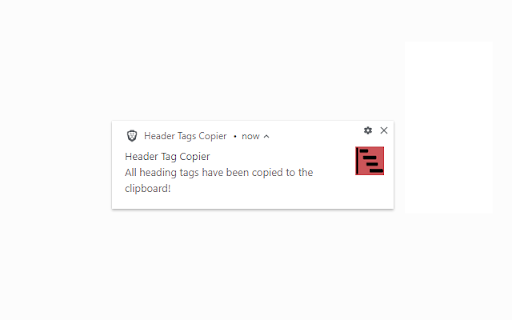
Header Tags Copier is a convenient Chrome add-on designed to quickly and effortlessly copy all header tags (h1 to h6) from any webpage you visit. With a simple click of the extension's icon, the add-on extracts header tags along with their respective types (e.g., H1, H2, etc.) and copies them to your clipboard. A notification confirms the successful completion of the process, allowing you to easily paste the copied headers into a text document for further reference or analysis. This user-friendly tool is perfect for content creators, researchers, or anyone who frequently works with web content and wants to streamline their workflow.

SEO META 1 COPY
This is an extension that allows you to easily check SEO-related meta information and copy it with one click. This is an extension that allows you to easily check SEO-related meta information and copy it with one click. You can quickly check META information, headings, and structured markup (JSON-LD, Microdata, RDFa). You can also easily copy information in Markdown or tab format. ++++++ Usage ++++++ Simply install the extension in your browser and access the page you are interested in. When the icon is clicked, the metadata that is often checked by SEOs will be displayed. ++++++ Features ++++++ #### Summary Tabs #### * Basic Information ** Displays information in Head tags such as Title, Description, etc. ** Total number of DOM elements ** Number of Style tags and bytes ** If the CMS is WordPress, show it. If the CMS is WordPress, show it. If the theme is known, show it too. * Page Speed ** Obtained from Navigation Timing API. * All StyleSheets ** List of css files set in stylesheet tag. * ALL LINKS ** List of files set in the link tag. * ALL SCRIPTS ** List of JS files set in script tag * ALL METAS ** List of names and contents set in meta tags * Number of links in Hx tags and a tags * External links List of links by rel setting #### headings tab #### * H1 - H6 tags in the order of their appearance in the HTML. * Each hierarchy has a different color and is indented for easy viewing. * Use the arrow buttons on the right to scroll to where they appear. * At the bottom is a list of the number of H1 - H6 uses and links. #### JSON-LD tab #### * This is a function to check the Google recommended structured data JSON-LD. * You can also check the details of the settings. * It does not check if the JSON-LD specification is correct. * A link button to the Google Docs for each type of structured data has been provided. Please refer to the links for detailed specifications. * We have also placed a link to Google's Rich Results Test at the bottom; please use Google's tool to check if the JSON-LD description is correct. #### Microdata tab #### * This is a function to check Microdata for structured data. * You can also check the details. * Red text notifies you if the no longer supported "data-vocabulary.org" is being used. * Links to documentation, rich-results testing, and schema markup validation tools are also provided at the bottom. #### RDFa tab #### * This function verifies RDFa for structured data. #### Image Tab #### * The number of img tags at the top is summarized in a table by condition. ** Number of cases where ALT attribute is not set. ** Number of cases where loading="eager" is set ** Number of cases where loading="lazy" is set ** Number of images that are displayed by replacing the src attribute in JavasScript *** Judged by whether data-src is set or not ** Number of noscript tags with img tags ** Number of img tags with no width and height set ** Number of webp, avif in next generation image format ** Number of img tags without width and height ** Number of webp and avif images in next generation image formats ** Number of images that took more than a certain number of milliseconds. *** The number of images that took more than a specific number of milliseconds is counted using the Resource Timing API. * You can check this in the list of images that match each condition. ** Thumbnail images. *** If data-src exists, the image in data-src will be displayed. ** File name ** Value of ALT attribute ** Image type (determined by content-type, not extension) ** file size of the image ** size of the image ** time it took to display ** value of data-src, if present ** lazy processing * Added a new check item to reflect Google's update to the Googlebot crawl limit to 2 MB. * Adjusted the base font for the sidebar. * Switching between popup and sidebar display mode now takes effect immediately without restarting the extension. * Add a list of internal links, page internal links * Added the ability to open in the sidebar from a shortcut key. * Some of the required properties of JSON-LD are now checked. * Added a setting item to the context menu when clicking on the extension's icon. * Changed design of options screen * Fixed a bug in the initial display tab settings in the sidebar. * We have made it stand out when you press the headline move button. * Prepare for manifest V3 support * bug fixed. * The default tab to be displayed first can now be set. * Prepare for manifest V3 support * JSON-LD/Microdata/RDFa are now combined in the Structured tab. * Social tab has been added. * The analysis results obtained once are now cached and reused. * Option page added. * Added the ability to check image rights information (EXIF, XMP, IPTC). * Added field data for Core Web Vitals. * Prepare for manifest V3 support * Introduced a progress bar on the screen during analysis. * Fixed some pages that could not be displayed due to errors. * Changed the counting of slow images so that images for which "responseStart" cannot be obtained are not counted. * Changed to sort the list of images that took more than 20 milliseconds in order of slowest to fastest. * Fix the look. * The time taken for each phase of the image resource can now be checked in a list. * Image speed is referred to the "Resource Timing API", so it may not be available for all images. * The determination of slow images has been changed to the time taken for request and response. * Added the number of images that take more than 200 milliseconds to load and a list of those images to the Images tab. * Image speed is referred to the "Resource Timing API", so it may not be possible to get it for all images. * The count of images with no size specification and the number of next generation format images are now shown in the table. * Added the image format, file size, and image size to the images in the Images tab (some images cannot be retrieved due to API reasons). * Added a list of images whose size is not specified. * The total number of DOM elements has been added to the Summary tab. * I changed the background of the image tooltip to a checkerboard pattern. * Added page speed description and specification document. * Added the Image tab. * You can also check the number of images and the number of images that are set to be lazily loaded. Privacy Policy: https://app.macha795.com/seo-meta-1-copy/extension-privacy-policy/

Header Checker
Heading Tag Checker is a free header tag checker tool, which could be very useful if you want to check a page and know what kind of heading tags it is using, and how many of them are on the page. Heading tag checker is a wonderful tool that every blogger must use, because it gives a great look on how competitors are organizing their content, and this will help you to super pass them. Header Checker is very easy to use, you do not have to check every head tag manually from "Inspect Element" or by using a web application to show how many head tag or what are their types, just by adding the Heading tag checker to your browser you could know the type of Heading tags as simple as just hovering over the element. The tool will check HTML heading tags from H1 to H6, after that it will give each element a unique background color, so, it will be clear to you which elements in the page are heading tags. At the time you hover on the colored element, you will see the type of the header tag. Heading tag checker free tool is very handy and works with all kinds of websites either with HTTP or HTTPS and checks tags from H1 to H6.

SEO Extension [Metrics, Backlinks, On-Page]
Speed up your SEO routine with SEO extension by Mangools. See the important metrics & website insights on a click. CHECK THE DOMAIN AUTHORITY AND POPULARITY The most popular SEO metrics by Moz, Majestic and popularity charts give you a great overview of any website. Metrics included: - Domain Authority - Page Authority - Citation Flow - Trust Flow - Alexa Rank - Referring IPs - Facebook shares - Followers on social profiles See what the currently visited website already ranks for without visiting any keyword tool: - See the list of keywords with positions in search results - Get the exact search volume for each keyword - See the estimated visits of the currently visited website - Check PPC metrics - Evaluate the keywords with Keyword Difficulty by Mangools rated as (one of) the most accurate metrics on the market Get the list of your competitor's backlinks directly in your browser. The “Backlinks” tab includes the backlinks with the most critical metrics: - The Link Strength developed by Mangools - Source URL - Citation Flow - Trust Flow - HREF - Anchor text - DoFollow/NoFollow tags Click on the "Expand" button to proceed to LinkMiner if you want to further backlink analysis. ON-PAGE SEO ANALYSIS What's the appearance of the website in Google SERP? Are there any on-page errors? Find out with: - Google SERP snippet preview tool - Meta tags, Headings and Structured data checker - Keyword usage analysis - Outbound links analysis (broken link checker) - Page Speed checker - Social previews Identify what long tail keywords are used on the website, what's their density and where are they used. - 1/2/3 word terms - tags usage - title tag and the meta description usage - keyword count - keyword density. If you want to analyze the keywords, just click on the magnifier to see the keyword difficulty and other metrics in KWFinder. You can also copy and import all the keywords. This is super-useful to find any broken links on the website. They are a great opportunity for broken link building or if you look at your own website, you'll be able to fix any errors thanks to the following information: Track the organic positions of your website or competitors: - Start tracking the keywords the currently visited website already ranks for (we'll show you their top organic keywords) - The Dominance Index and Estimated Visits inform you about the overall organic traffic share - Spot the biggest ranking changes with the Top Rankers and Top Outrankers We've included quick context menu integrations so you can access all the popular features of the Mangools SEO tools package at any time. Advanced features that are available directly in SERP to boost the SEO analysis are great huh? And that's exactly what's included in the search results: - SERP positions - Shortcuts to Mangools SEO tools for further analysis You can use this extension with the 10-day FREE trial account. No strings attached, no credit card required. If you are already subscribed to Mangools SEO tools, you'll see the data from the tools in the extension ;)

Heading Tags Checker - cmlabs Tools
Heading Tags Checker helps you analyze H1-H6 tags for better page structure and readability. Heading Tags Checker by cmlabs is a powerful tool designed to analyze and optimize the heading structure of your web pages. By evaluating the hierarchy and usage of HTML heading tags (H1, H2, H3, etc.), this tool helps ensure that your content is well-organized and accessible for both users and search engines. Proper heading tags are crucial for SEO and user experience, as they guide readers through your content and enhance readability. With this tool, you can easily identify any issues, such as missing tags or improper nesting. Download this Chrome extension and enhance your heading tags now! The Heading Tags Checker by cmlabs comes with a variety of useful features that help improve your website’s structure, enhance user experience, and boost your SEO efforts. - This tool is available at no cost (free for all). - With this tool, you can easily analyze your heading tags to ensure they are used correctly, ensuring a clear site structure. - By checking your heading tags, this tool helps improve your search engine ranking, since properly structured headings make it easier for search engines to index your site. - Ensuring your headings are set up correctly also makes your content more accessible to all users, including those using screen readers. - The tool highlights any problems with your heading tags so that you can easily address them and enhance your website's overall quality. Here’s why you need the Heading Tags Checker Chrome Extension tool: - User-Friendly Interface: The design makes it simple and intuitive for anyone to use, no matter their experience level. - Quick Analysis: The tool provides fast checks on your heading tags, saving you time and effort. - Detailed Results: It displays comprehensive information about your headings, including their hierarchy and any issues that need fixing. - History Tracking: The Local History feature records your previous checks, making it easy to revisit and review past results whenever you need. With these features, the Heading Tags Checker makes optimizing your website straightforward and efficient! 1. Enter the URL to be Checked Simply type or copy and paste the URL of the web page you want to analyze. Make sure the URL is correct to ensure the tool can perform an accurate analysis (Notes: the URL you input should follows the following format: https://www.example.com). After entering the URL, click the “Check URL” button located on the right side of the input field. 2. Wait a Moment Once you press the button, the tool will begin examining the heading structure of the page you entered. This process typically takes just a few seconds. You only need to wait briefly while our tool gathers the necessary data. 3. Check the Results Through Detected Headings After the analysis is complete, the results will be displayed on your screen. The report includes a list of detected headings, such as H1, H2, H3, and so on, along with the respective counts for each. You can easily evaluate whether each heading tag has been used correctly on that page. The tool will also highlight any issues, such as the use of multiple H1 tags or improperly ordered headings. With this information, you can take the necessary steps to improve your content structure and make it more user-friendly. We value your feedback! If you have any suggestions for improving the Heading Tags Checker or encounter any issues while using the tool, please don't hesitate to let us know. Our support team is here to help. Reach us by email at:
