
lbnnfjfjdijcnaakaebgcoemmlicjbnl


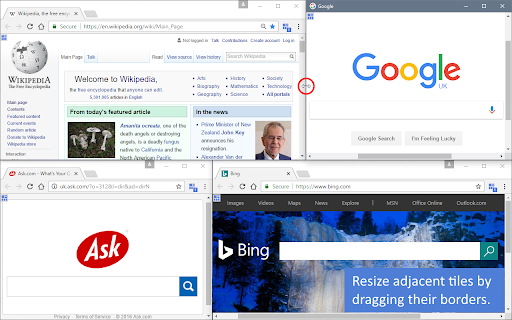


Take tabs from parent windows and arrange them in layouts of tiled sub-windows. Tile Tabs WE provides facilities to take tabs from a parent window and arrange them in a layout of tiled sub-windows. This makes it easy to browse or monitor multiple web pages, or to compare multiple web pages using synchronized scroll. Layouts can be saved and later re-opened. Tile Tabs WE is implemented using the WebExtensions API and is available for both Firefox and Chrome with identical functions and user interfaces. Tile Tabs WE emulates 'split browser' functionality with simple switching between the normal view and the tiled view. Tile Tabs WE displays multiple tabs in a layout of tiled sub-windows ('tiles') within the area of the parent browser window. The tiles can be arranged horizontally, vertically, or in a grid. A tiled layout can be created using the toolbar button, button menu, context menu, quick menu, or keyboard shortcuts. The parent window is indicated by a badge on the toolbar button showing the current number of tiles. Tiles are indicated by a badge on their toolbar buttons showing the letter 'T'. When a tiled layout is created, tabs from the parent window are moved into the new tiles in the following order: first the selected tab, then tabs to the right of the selected tab, then tabs to the left of the selected tab, and finally if there are insufficient tabs then new tabs will be created. A tiled layout can be saved and previously saved layouts can be opened or deleted. A default layout can be configured. Dragging the borders between two tiles will resize both tiles (and any sub-tiles). OPTIONS PAGE The Tile Tabs WE Options page can be accessed as follows: • Firefox - On the menu bar select Tools > Add-ons (or press Ctrl+Shift+A), select the Extensions tab, and then click on the Options button. • Chrome - Right-click on the toolbar button, and then select Options. After installation of Tile Tabs WE, there will be a new blue 'tiled-layout' button on the main toolbar. To create a new tiled layout, click on the Tile Tabs WE toolbar button. To switch between the tiled view and the normal view, click on the Tile Tabs WE toolbar button again. To perform any layout or tiling operation, right-click on the page contents to open the context menu, select the 'Tile Tabs WE' sub-menu, and then select one of the menu items: • New Layout - creates a new layout and moves one tab from the parent window into each tile. • Close Layout - closes the existing layout and moves tabs from all tiles back into the parent window. • Hide Layout - hides the existing layout and moves tabs from all tiles back into the parent window. • Show Layout - shows the existing layout and moves one tab from the parent window into each tile. • Refresh Layout - brings all of the tiles to the front and focuses one of the tiles. • Toggle Toolbars - toggles the tab bar and address bar in the currently focused tile or all tiles. • Tile Tab - tiles a tab above, below, left or right of the currently focused tile or creates a new layout. • Add Tile - adds a new tile (with a new tab) above, below, left or right of the currently focused tile. • Remove Tile - removes the currently focused tile and expands the other tiles as necessary. • Expand Tile - expands the currently focused tile to the full size of the layout. • Contract Tile - contracts the currently focused tile back to its original size. • Equalize Tiles - equalizes the sizes of the currently focused tile and other tiles in the same group. • Bookmark Layout - saves the current layout as a browser bookmark. • Open Layout - opens a previously saved layout and assigns the saved tabs (if any) to the tiles. • Save Layout - saves the current layout and optionally the tabs, scroll positions and zoom levels. • Delete Layouts - deletes previously saved layouts. • Default Layout - sets the default layout to be one of the previously saved layouts. • Scroll Lock - enables/disables the scroll lock for the currently focused tile. • Sync Scroll - enables/disables synchronized scrolling of tiled tab contents. Or right-click on any tab to open the tab context menu and use the 'Tile Tab' menu item to create a new layout. Alternatively, right-click on the Tile Tabs WE toolbar button to open the button menu, and then select one of the menu items. • define the default page for new tabs created by New Layout or Add Tile. • show/hide the Tile Tabs WE submenu item on the context menu. • show/hide the toolbars for new tiles created by New Layout or Add Tile. • open the default layout on browser start and restart. • reload pages in tiled tabs during Refresh Layout. • synchronize scroll only when scrolling the focused window. • set the zoom mode to per-tab (instead of per-site) for all tiled tabs. • delay setting of saved scroll positions when opening saved layouts. • delay setting of saved zoom levels when opening saved layouts. To provide quicker access to frequently used commands, a small Quick Menu icon is displayed in the top-left corner of the page contents of each tile. The Quick Menu is especially useful when the toolbars are hidden or when the Tile Tabs WE toolbar button has overflowed off the toolbar. To perform frequently used commands, hover the mouse over the Quick Menu icon, and then select one of the available commands: Note, the Quick Menu icon is not displayed in some special pages (e.g. about: or chrome://...). There are options to show/hide the Quick Menu icon in all tiles and to position the Quick Menu icon in any corner of a tiled tab. To perform the most frequently used operations, press one of the four keyboard shortcuts: • New/Close Layout - Alt+Shift+Up (Windows and Linux) or Control+Shift+Up (Mac OS X) • Hide/Show Layout - Alt+Shift+Down (Windows and Linux) or Control+Shift+Down (Mac OS X) • Refresh Layout - Alt+Shift+Left (Windows and Linux) or Control+Shift+Left (Mac OS X) • Toggle Toolbars - Alt+Shift+Right (Windows and Linux) or Control+Shift+Right (Mac OS X) There is an option to set the Toggle Toolbars keyboard shortcut to toggle all toolbars. If there is only one tab selected, then creating a new layout will assign the selected tab and tabs to the right of the selected tab to the tiles in the layout. If there are not enough tabs to the right, then additional tabs will be assigned from the left of the selected tab. If there are still not enough tabs, then new tabs will be created and assigned. If the new layout is an 'All Tabs' layout, then all of the existing tabs will be assigned to tiles. If the Tile Tab menu command is used to create a layout, the selected tab and the tab chosen by the Tile Tab menu command will be assigned. If multiple tabs are highlighted using Ctrl+Click or Shift+Click, the highlighted tabs (including the normal selected tab) will be assigned to the tiles. If there are not enough tabs, then new tabs will be created and assigned. If there are too many tabs, then the rightmost tabs will not be assigned, but the selected tab will always be assigned. Ctrl+Middle-click on a link in a tile to open the link in the next tile (to the right or below). Press 'Shift' as well to open the link in the previous tile (to the left or above). There are options to open links as normal or to configure the click type as: Ctrl+Click, Middle-click or Ctrl+Middle-click. To move or resize a tiled layout, first hide the layout, then move or resize the parent window, and then show the layout again. Dragging the borders between two tiles will resize both tiles. Resizing of tiles is limited by minimum width and minimum height constraints. There are options to configure the window margins for tiles for different operating systems. • The top margin for tiles is 0px for Windows, Linux and Mac OS X. • The other (left/right/bottom) margins for tiles with toolbars are 7px for Windows or 0px for Linux and Mac OS X. • The other (left/right/bottom) margins for tiles without toolbars are 7px for Windows or 0px for Linux and Mac OS X. • The adjustment if the parent window is maximized is 1px for Windows or 0px for Linux or Mac OS X. There are options to export or import layouts using the '.json' file format. Distributed under the GNU General Public License version 2. See LICENCE.txt file and http://www.gnu.org/licenses/

tabtiles
Control your tabs with tiles - useful for large monitors and full screen (F11) browsing. This extension displays a window's tabs in a bar along the top or bottom of the screen, useful for when browsing in full screen (F11) mode. The tiles are larger, so easier to click on than the usual browser tabs. Now includes touch support if you have a device with touch capability. It also allows navigating through the tabs using the keyboard, using the left and right keys. Press Enter to select a tab. Type-to-search: start typing to enter keywords in the tabtiles address bar, press Enter to search. Choose when to display the bar: for normal restored windows, when maximized or in full screen mode. And / or auto-hide when not in use. Customize the size of the bar, to a percentage of the window height. Show popup hints, containing the full title and address of the page. Check out my other extension - search the web store for Last Tab Back. 0.9.5 Fix an issue where closing a tile removes the tab but not the tile until a later refresh has occurred 0.9.4 Added a setting to configure the main homepage (left click new tab or home), in a similar way to the alternate (right click new tab or home) 0.9.3 Added touch support to allow scrolling left and right through tabs. Also re-enabled lasttabback integration after some fixes 0.9.2 Disable lasttabback integration for now 0.9.1 Update to Manifest V3 and add bug fixes 0.9.0 Hide when viewing some media players full screen 0.8.13: Changed to allow clicking through to the page in areas where there aren't any tabs; now shows Untitled for pages with no title, and PDF Document for .pdf files - to allow the pdf viewer buttons to be clicked more easily 0.8.12 - Manually disable type-to-search or keyboard tab navigation; now allows 1-pixel activation height for auto-hide mode; set interval for hiding or switching back to mini mode; middle mouse button closes tab. 0.8.11 - Selected tab now has extra highlighting to make it easier to quickly locate. Fixed a bug where mouse clicks outside of the bar sometimes select a different tab when the button is released (i.e. when the mouse button was held down and then released at a different location). 0.8.10 - Changed to allow specifying the percentage size of mini mode compared to normal; also to allow setting the popup hint to "centered" 0.8.9 - The first (leftmost) button now shows the time and date in a hint. When using the wheel to move through tabs, mouse movement is deactivated until moved by a small amount. 0.8.8 - Added a history button within the address bar. Delete can now be pressed to close non-selected tabs when in keyboard navigation (left / right) mode. Fixed a bug that was preventing selecting tabs correctly if somehow no tab was selected 0.8.7 - Minor fixes for the new pinning integration 0.8.6 - Disabled displaying when printing the page (ie. on paper) 0.8.5 - Added support for pinning tabs - right click twice to do this 0.8.4 - Fixed minor zoom bug (not related to standard chrome zoom) 0.8.3 - Fixed a bug that caused the bar to go off screen at some chrome zoom levels 0.8.2 - Fixed bug in hide when right clicking the address bar close button 0.8.1 - Moving the mouse will cause the bar to be displayed, if it hasn't already. This helps with delays caused when the page being viewed tries to refer to slow / offline third party sites. Also, minor bug fixes 0.8.0 - Updated the button layout; click to close now snaps partly off-screen tiles to edges; fixed bugs relating to the bar not being displayed on some sites, and being damaged by chrome's translate feature 0.7.4 - Now allows address bar navigation to a new tab for both URL and search keywords; click-to-close message for selected tab is smaller for narrow tabs; fixed minor bugs 0.7.3 - Fixed a problem resizing tiles after some are closed (and auto-hide is enabled) 0.7.2 - Corrected issues regarding switching between mini and normal mode - wasn't re-sizing as intended 0.7.1 - Fixed bug where right-hand item does not correctly focus 0.7.0 - Initial release

Split Screen for Google Chrome
You can easily split and separate tabs, split interface layout, and resize tabs by columns and rows. Multi-monitor support This extension splits your browser windows into two with just 2 clicks. The ratio of the windows can be adjusted according to your needs. This extension is great for presenters who need to use Google Meet/Zoom and need to split their screen so that they can see their presentation & also see the faces of their students/attendees of the Google Meet call. Most of our users are on hangouts meet and want to see the faces of the attendees while they are doing screen sharing. This extension/feature is great for teachers who are teaching online classes at the moment. You can monitor your students via "Grid Mode in Google Meet" on one tab and do "screen sharing" in another Chrome tab which contains your teaching materials. Split the current browser window into a pair so it acts like a dual monitor setup. Try dualless mode today using this extension. Our software works well with google hangouts meet Permissions Required - Please note we do NOT read your browsing data, the only reason we use the browsing tabs permission is to allow the software extension to split your current Chrome Browser Windows into 2+ windows. This extension is useful for users who do not have dual monitors and want to split their browser windows into different sections, mainly when you're on a call using google meet app To begin using the software, simply do the following 1) Install our software extension 2) Click on the extension icon 3) Choose the layout ratio you wish to use for this split screen extension 4) Our software will split screen and display the browser into the split screen ratio you selected If you have any feedback for us for our extension which is meant to work with google video conference, please contact us. Disclaimer: Please note this extension is NOT made by Google and is made by an independent development team. All copyrights belong to their respective owners. Google doesn’t endorse or sponsor this Chrome extension. Split Screen is not owned by, it is not licensed by and is not a subsidiary of Google Inc.

Extentie - extension manager
A simple and elegant Chrome extension manager allows you manage your extensions in a popup window. Extentie is a simple and beautiful tool that allows you to toggle and manage Chrome extensions in a popup. Latest update: - Now you can create your own groups to manage your extensions - Revamped from ground up, added more features

MultiView: Split Screen Tab Extension
Multiview is a transformative Chrome extension designed to revolutionise the way users interact with the web. By… Multiview is a transformative Chrome extension designed to revolutionise the way users interact with the web. By introducing a dynamic split-screen functionality directly within your browser, it offers unparalleled multitasking, research, and browsing efficiency. Split-Screen Functionality: Seamlessly divide your browser tab into two or four independent sections. Each section functions as a standalone browser window, allowing you to view and interact with different websites simultaneously. Choose between a dual-view or a quad-view layout to suit your specific task. Whether it's comparing products, conducting research, or keeping an eye on social feeds while working, our extension adapts to your needs. Easy URL Management: Set and change the URLs in each split section with intuitive controls. Load your favorite websites, search results, or any URL you need without leaving the extension. Adjust the size of each screen segment with easy-to-use resizing tools. Optimize your view based on the content you're interacting with, ensuring you get the most out of your screen real estate. Thanks to the integrated storage permission, your customized layouts and URLs are remembered. Pick up right where you left off, saving you valuable time and enhancing productivity. Intuitive Interface: Designed with simplicity and ease of use in mind, the extension's interface is clean, straightforward, and integrates seamlessly into your browsing experience. Works harmoniously with your existing Chrome setup. Enjoy a clutter-free experience that feels like a natural extension of your browser. Despite its powerful features, Multiview is lightweight and designed to maintain optimal browser performance. > Privacy and Security We prioritize your privacy and security. The extension does not collect personal data, and its functionality is transparent and user-centric. Host permissions are utilized responsibly, allowing the extension to function effectively while respecting user privacy and security. Students and Researchers: Open academic resources, reference materials, and notes side by side for efficient studying and paper writing. Casual Users: Stream a video, follow social media, shop online, and read news, all at the same time. > Future Updates and Feedback We are committed to continually improving Multiview. Future updates will include more customization options, enhanced performance, and new features based on user feedback. > Support and Contact For support, questions, or feedback, please contact us. We value your input and strive to make Multiview the best possible. Please note that Multiview uses iframes to display content from various websites. Due to security policies set by some websites, our extension may not display all content as intended. This tool is particularly useful for users who have permissions to embed their own or specific websites. We are not responsible for any restrictions or limitations imposed by third-party websites on embedding their content. Users should ensure they have the right to display website content through iframes. Use Multiview at your own risk.
