
lbkchokjjlobhgplflifppneonadpejl

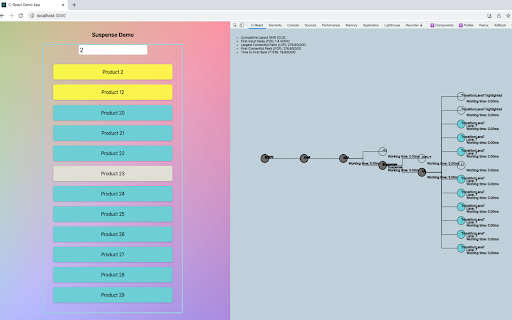
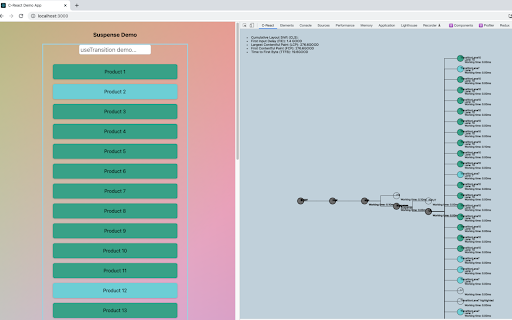
A Chrome Extension tool that visualizes React rendering of components C-React is an open-source tool that visualizes DOM components as a tree, marks rendering patterns on web pages, and displays performance metrics. The C-React Developer Tool displays a DOM component tree within the Chrome Developer Panel, which receives data sent from our Custom Renderer (https://www.npmjs.com/package/creact-visualizer). Our Developer Tool dynamically updates and communicates with the webpage to visualize component changes and also provides performance metrics of components to promote efficient load times. Instructions: 1. C-React DevTool from the Chrome Web Store 2. Open your React application, rendered by our Custom Renderer 3. Open Chrome Developer Tools and click on the C-React panel 4. Watch the tree update dynamically as you navigate through your web page by clicking on components 5. Click on tree nodes to see corresponding element highlighted on your web page This Dev Tool also works with any webpage that is not rendered by our Customer Renderer, but it will not display loading times for specific elements or display corresponding element highlighted on your web page when a tree node is clicked.

React Click To Component
React Click To Component, a Chrome extension to open a React component in the editor by clicking on it. React Click To Component, is a Chrome extension to open a React component in the editor by clicking on it. `Option + Click` (on MacOS) or `Alt + Click` (on Linux/Windows) takes you to the code editor The extension also supports TurboPack builds where the project root is not exposed. You'll just need to setup the project root file when prompted. The updated value can be manipulated on the localStorage as required. To see how this works, checkout the repo at and raise any issues on the extension at the GitHub repository. And if you like the extension, star the repo too! Features - Option + Click or Alt + Click on a component to open the file in an editor - Highlight the component name when hovering over it with Option/Alt key pressed - Supports Turbopack builds with manually defined project roots (that can be changed simply by updating the localStorage key clickToReact-projectPath-{HOST}) - Now the extension copies the path to clipboard instead of opening the file, for editors that doesn't support opening file:// URLs. You can set the editor with clickToReact-editor-{HOST} localStorage key.

Reactime
A Chrome extension for time travel debugging and performance monitoring in React applications. Reactime was nominated for the Productivity Booster award at React Open Source Awards 2020. Reactime is an open source Chrome developer tool for time travel debugging and performance monitoring in React applications. Reactime enables developers to record snapshots of application state, jump between and inspect state snapshots, and monitor performance metrics such as component render time and render frequency. - Record Snapshots of Application State and Accessibility Tree - Provider/Consumer Panel for useContext Hook - Import and Export Snapshots of State - Time-Travel Debugging - Snapshot Series Comparison - Component Tree Visualization - React Router Compatibility - Component Render Time & Frequency - Support for Gatsby, Next.js and Remix - TypeScript Support - Ability to Reconnect - Web Performance Metrics - Tutorial Walkthrough - Prop Visualization - Intuitive Layout and Modern Design - Dark Mode Reactime 26.0 introduces transformative updates that redefine React debugging. The groundbreaking Providers/Consumers Panel now captures and visualizes state changes from useContext hooks, offering a real-time view of provider-consumer relationships and live context state values. A revamped time travel slider delivers enhanced control over debugging with intuitive navigation and playthrough options. The extension also boasts a modernized UI with dark mode for better usability, improved reliability through critical bug fixes, and the restoration of the accessibility tree tab for addressing potential accessibility issues. With these innovations, Reactime v26 empowers developers to streamline workflows and optimize complex state flows like never before. ❓ Why is Reactime not recording new state changes? Reactime lost its connection to the tab you're monitoring, simply click the "reconnect" button to resume your work. ❓ Why isn’t Reactime finding my hooks? Reactime detects and monitors hooks by traversing your application’s unminified React code in development mode. If your build process is minifying or uglifying your code—even for development builds—Reactime may not be able to properly locate and track your hooks. To fix this: Ensure a true development build: Double-check your bundler or build tool configuration (e.g., Webpack, Babel, Vite, etc.) to make sure that your application is not minimized or uglified in development mode. For example, with Webpack, make sure you’re running in mode: 'development', which should disable default minification. In a Create React App project, simply running npm start or yarn start will automatically configure a non-minified development build. Check for overrides: Ensure there are no custom Babel or Webpack plugins that minify your code, especially if you’re using frameworks like Next.js or Gatsby. Sometimes additional plugins or scripts might be running under the hood. Restart & rebuild: After changing any build configuration, rebuild or restart your development server to ensure the new configuration is applied. Then refresh your browser tab so Reactime can detect your unminified hooks. After changing any build configuration, rebuild or restart your development server to ensure the new configuration is applied. Then refresh your browser tab so Reactime can detect your unminified hooks. ❓ Why is Reactime telling me that no React application is found? Reactime initially runs using the dev tools global hook from the Chrome API. It takes time for Chrome to load this. Try refreshing your application a couple of times until you see Reactime running. ❓ Why do I need to have React Dev Tools enabled? Reactime works in tandem with the React Developer Tools to access a React application's Fiber tree; under the hood, Reactime traverses the Fiber tree through the React Developer Tool's global hook, pulling all relevant information needed to display to the developer ❓ I found a bug in Reactime Reactime is an open-source project, and we'd love to hear from you about improving the user experience. Please read the 👩💻 Developer README, and create a pull request (or issue) to propose and collaborate on changes to Reactime.

React Spy
This extension works bidirectionally: 1. Click UI to find the source code. 2. Click source code to find the UI. To use, you must also install the vs-code extension below:

React Scan Toggle
This is a wrapper for the million's React Scan library (version 0.2.14) [NOT AN OFFICIAL REACT SCAN EXTENSION] IMPORTANT: This extension requires React Developer Tools to be installed and enabled. A lightweight extension that helps you visualize and analyze React component renders in real-time. Toggle React Scan functionality with a single click to debug performance issues and understand your React application's behavior. Key Features: • One-click activation/deactivation • Visual feedback through colored overlays • Track component render counts and timing • Inspect component props and state changes • State persists while navigating within tabs • Zero configuration required • Works with any React application • Secure local script execution (no external connections) This community-built tool makes React Scan more accessible by providing an easy-to-use toggle interface. Perfect for developers who want to quickly analyze React component performance without modifying their codebase. Note: This is not an official React Scan extension. It's a community-built tool that incorporates React Scan (MIT licensed, Copyright 2024 Aiden Bai, Million Software, Inc.) to make its functionality more accessible. Privacy & Security: • No data collection • No external connections • All processing happens locally • No permissions beyond the active tab
