
lbheaicoedhggjaiknjioebegldnnepo
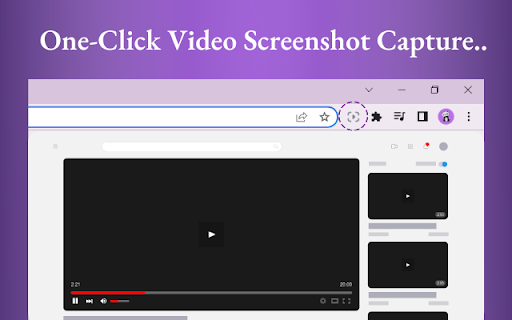
Video ScreenShot Capture, capture's video-size screenshots and saves them in the form of png. Video ScreenShot Capture, capture's video screenshots and saves them in the form of png. What Is Video ScreenShot Capture? Video ScreenShot Capture's the screenshot of the video without capturing an extra screen. It just captures video-size screenshots and saves them in the form of png. Why Video ScreenShot Capture? With Video ScreenShot Capture, users can effortlessly capture YouTube screenshots with a single click or keyboard shortcut. Say goodbye to the hassle of capturing unnecessary screens - this screenshot extension focuses solely on the video content, ensuring precise captures every time. Who Is Video ScreenShot Capture for? Video ScreenShot Capture is ideal for students, researchers, and content creators who rely on platforms like YouTube and Coursera for educational content. By seamlessly integrating with these platforms, this screenshot extension enhances the process of taking YouTube screenshot notes. HOW DOES IT WORK? There are two different ways to capture a video screenshot: Clicking on the extension icon. Using Shortcut : WINDOWS : CTRL + SHIFT + Z and MAC : CMD + SHIFT + Z. Video Screenshot Extension: The ultimate YouTube screenshot tool and top-notch extension for effortless captures.

Picture in Picture - floating video player
Watch videos while surfing the web with Picture in Picture (PiP) mode. Floating video player for Web! Picture-in Picture Extension (PiP) lets you play any video in floating video player mode, and it works on all platforms. PiP is a popped-out, always-on-top video player that floats on top of other windows. You can also reposition it along the screen border while you continue to surf the internet. Now stream your favorite movies, series or sports on any tab. Install Picture in Picture Chrome extension to enable the floating video. We support this feature on every streaming site. What is the mode and how it will be useful for you? You can also reposition it along the screen border while you continue to surf the internet. Allows you to watch videos in a floating window (always on top of other windows) so you can keep track of what you are watching when interacting with other sites or applications. Just click on the app icon to display the video player on YouTube or any other websites on the Web. This window will play the video on all pages of the browser on which there is a video resource. How do I play a video in a floating player? Open the YouTube video on the mini player in floating image-in-image mode. Supports video players This window will play videos on all pages of the browser. How Extension works: 1. Find the video and run it. 2. Click the extension icon to reduce the video player on YouTube and other sites. 3. Select the “Floating Picture in Picture” and you're done. Just click on the Floating Player and Video Control icon to display the video player on YouTube or any other websites on the Web. This window will play the video on all pages of the browser on which there is a video resource. Pic-in-pic mode supports all video formats and works with popular video hubs like HBO Max, Netflix and many others. Important Note: YouTube is a trademark of Google Inc. Use of this trademark is subject to Google permissions. The floating image mode in Picture mode for YouTube is not created, is not associated with Google Inc. or not supported. We really hope that our Picture Viewer will be useful to you! We look forward to your feedback and ratings! Also write your suggestions for improving the functionality.

Screenly : Screenshot & Screen Video Recorder
Record videos and take screnshots from your screen. 🎥 Record ▸ Record your Desktop, current Tab or Camera only ▸ Include your voice in recording with Microphone option on ▸ Include your face in your video by embedding your webcam ▸ Choose video dimensions from 720p, 1080p or 4K ▸ Add drawing tool while tab recording 💾 Save ▸ Save recordings to your local disk ▸ Save recordings to your online account ▸ Download uploaded videos in the WebM format 📷 Screen Capture ▸ Capture a screenshot of the page you visit, full page, selected area or visible part ▸ Capture a screenshot of your entire screen or a specific application window ▸ Capture visible part, entire screen or app window after delay ▸ Edit screenshots and download.

Video Screenshot
With Video Screenshot, capture photos from video, creating high-resolution youtube screenshots and screencap video to image. Introducing video screenshot: screencap video easily with this easy to use tool 📸 Video Screenshot is a powerful Google Chrome extension designed to help you effortlessly capture image from video. Whether you need a screenshot for presentations, social media, or personal use, this extension simplifies the process and ensures excellent results. How to Use it? 1️⃣ Install the Extension: Download Video Screenshot from the Chrome Web Store. 2️⃣ Press Play: Open the recording you want to capture. 3️⃣ Click to Start: Use the extension icon or a keyboard shortcut to capture picture of video content instantly. 4️⃣ Save and Share: Your screenshot from video is ready to be saved or shared. Practical Applications ➤ Content Creation: 📸 Enhance your content by adding high-quality screen shots from video, perfect for blogs, articles, and social media posts. ➤ Educational Purposes: 📚take photo from video for study material, making it easier to remember key points and create effective learning aids. ➤ Social Media: 📲 Share captivating shots on social media platforms to engage your audience with visually appealing content. ➤ Professional Use: 💼 Use screenshot of video for presentations, reports, and marketing materials to illustrate your points with clear and relevant visuals. And more applications: 📁 Content Analysis: Analyze content frame by frame for detailed studies, sports analysis, or quality checks. 📁 Creative Projects: Extract unique capture picture from video to use in creative projects, such as digital art, collages, and multimedia presentations. 📁 Marketing Campaigns: Enhance your marketing campaigns with high-quality screenshots from youtube video, product demos, and customer testimonials. 📁 Customer Support: Improve customer support by providing clear, visual instructions and how-to guides. Why Choose Video Screenshot? Convenience: 🚀 Quickly learn how to screenshot a video with our straightforward guide. Customizable Settings: 🎛️ Adjust capture settings to fit your specific needs, whether for personal or professional use. Quick Access: 🔍 Instant access to captured images directly from your browser, making it easy to manage and organize. No Watermarks: 💧 Enjoy clean and professional capture from video without any watermarks, ensuring your images look polished. Lightweight Extension: 🪶 The extension is lightweight and doesn’t slow down your browser, providing a seamless user experience. Frequent Updates: 🔄 Regular updates ensure that Video Screenshot stays compatible with the latest platforms and includes new features. Privacy Focused: 🔒 Your data and video snapshot are stored locally on your device, ensuring your privacy and security. Customer Support: 🤝 Dedicated customer support to assist you with any issues or questions Enhanced Productivity: ⏱️ Boost your productivity by quickly capturing and utilizing video to frames made content in your projects. 📄 Frequently Asked Questions 📹 Q: How to take a video screenshot? A: To understand how to do it just simply install the extension, play it, and click to capture. It’s that easy! 📹 Q: Can I screenshot a video mac? A: It is fully compatible with Mac. Find the extension on chrome browser and you are ready to use it. 📹 Q: Is it possible to screenshot a video windows? A: It works seamlessly on Windows. Just install the extension, play your input, and capture the frame you need. 📹 Q: How to video screenshot online? A: It works online including different platforms. 📹 Q: How can I ensure the possibility to take screenshot from video in high quality? A: Ensure your source is of high quality. Video Screenshot maintains the original resolution and clarity. 📹 Q: Can I use extension for professional purposes? A: Absolutely! To screen shot video it is perfect for professional use, including creating marketing materials, educational content, and technical documentation. 📹 Q: How do I access my captured images? A: Captured images are saved locally on your device and can be accessed directly from your browser or specified folder, ensuring easy organization and management.

Handy Screenshot - Full Page Screen Capture
Take screenshots of web pages with ease. Capture, edit, annotate and save them as PNG / JPG / WEBP formats. An easy, free and full-featured screenshot tool that lets you screen capture, annotate and edit screenshot. Full page screen capture supported, as well as capturing entire display. We try to make it super easy for you to capture viewport, capture entire page, crop, annotate, save as PNG / JPG / WEBP / PDF, copy to clipboard. 🤩 You will love: ◉ Easy and user-friendly interface ◉ Custom keyboard Shortcuts: separate shortcuts for 1. capture full page 2. capture visible area 3. select area ◉ Capture screenshot for selected area / visible area / whole page ◉ Annotate your screenshot with our powerful yet the most easy-to-use built-in image editor ◉ Name your screenshot before saving as best quality, high-resolution screenshots, PDF, PNG, JPG, and WEBP formats ◉ Upload your screenshots to Google Drive, and it remembers the folders you've used ✨ Features of our built-in screenshot editor: ◉ Cropping ◉ Texts ◉ Shapes: arrows, rectangles, circles ◉ Free draw: pencil or highligher ◉ Blur: to hide sensitive info on screen ◉ Counters: for steps / order ◉ Magnifier: highlight details with zoomed-in callouts ◉ Beautiful gradient background: to take your screenshots to next level 🚀 PRO Features (New) PRO license is a one-time purchase - no subscription. It unlocks more control and a faster editing workflow: ◉ Annotation presets: save and reuse your favorite styles (colors, shapes, crop, background) ◉ Layer manager: easily organize, reorder, and manage elements on your screenshot ◉ History (undo & redo): go back and forth through your edits with confidence ◉ Fixed-size capture: capture screenshots with precise, consistent dimensions One more thing: * The other products made by ohhandy.com are also listed in a dropdown in screenshot editor page (editor.html)
