
lalbcphldbcignmifdmgjdidkegjhecd
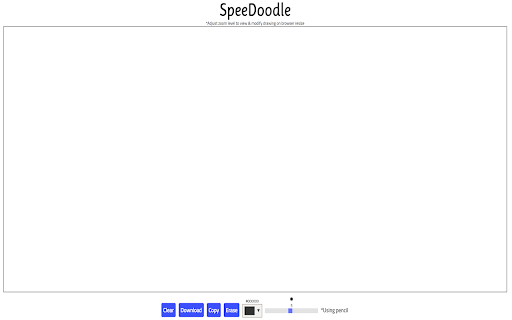
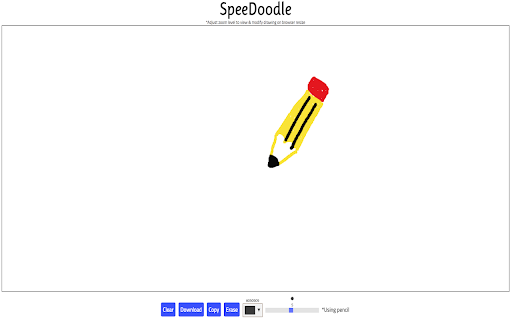
Allows the user to doodle using the mouse on a new tab page and provides options to download and copy the doodle. Simple chrome extension that replaces the New Tab page with a doodle space where users can easily draw a doodle using their mouse. Users can download their doodle as a PNG file or copy the doodle to Clipboard. User can also clear a drawing, erase parts of their drawing, change color of pencil, and change weight of pencil.

Paint Online - Drawing Tool
Sketch fun drawings directly on web pages using the paint tool. Capture your art with a quick screenshot. Classic MS Paint in the browser, with extra features. The paint on tab tool has a simple and easy-to-use design. It is not confusing, and easily recognizable icons are used in the app, which makes it easy for everyone to use. Paint Tool is a fun extension on Google Chrome which lets you annotate any page you want and share it with your friends. Paint enables you to draw on any webpage with various tools to express your thoughts, make a point or edit. The plus points of Paint extension are: - Draw on any webpage in your browser. - Make shapes with the magic marker. - Write with the text tool. - Take screenshot to share your creativity. Using this Paint Online, you can share your feelings about a webpage and then share it with your friends.

Page Marker - Draw on Web
Draw or highlight on any website in real time. Add text, lines, and shapes. Move, undo, or redo anything you draw. Draw on any website, add text, add lines, and highlight! With Page Marker, you can use your mouse or touchscreen to draw on the web or on PDFs and save it to your computer. Paint, draw, and mark on any webpage or website. Instructions: 1. Click the puzzle piece-shaped extensions icon in the top right corner of your browser. Pin the Page Marker red marker icon for ease of access. 2. Begin drawing on any webpage with your mouse or touchscreen. 3. To change the color of the marker, click on the color selecting box. 4. To change thickness, use the size slider. 5. Use the highlighter tool to highlight lines of text. 6. Use the eraser tool to erase parts of your drawing. 7. Use the text tool to add text to the website. 8. Use the line tool to draw straight lines. 9. To undo or redo, click the corresponding undo/redo buttons. 10. Change the default color or thickness in the options menu when you right click the Page Marker icon.

Annotate the Web
Annotate on any webpage and save it as a screenshot! Annotate the Web was created to allow users to annotate any webpage and save it as an image. This can be useful for students having to submit work, or for anyone that would like to screen capture an image of the webpage they are on, along with annotations. The extension does not save any of your user data nor does it relay any information to any server. It allows you to save the images to your hard drive. This extension may be updated at irregular intervals. Note: The annotation window can be moved around the screen. You can change the pen color, size of the pen, erase your annotation, clear the screen and save your annotation as a screenshot to your hard drive.

MPen
For example. To mark important sentence. To Write operations during Screencast. MPen is simple graffiti tool. Translucent color You can use it like a highlighter with a translucent color compatible pen. Multi-language UI supports English and Japanese. For Windows 8.1/10 users: There is a problem that you can not click on the touchpad while pressing the letter key. Improved by setting "touchpad sensitivity" of touchpad to "maximum sensitivity" in your Windows settings. For details, please refer to Microsoft Support. (https://support.microsoft.com/en-us/help/2907018/button-clicks-for-internal-touchpads-and-pointing-sticks-are-not-respo) Version 0.3.1 - Updated the link to the homepage. Version 0.2.0 - Added Rect tool. - Added Ellipse tool. - You can draw vertical/horizontal lines by holding down the Shift key and dragging with Line tool. - Changed keyboard shortcuts - Bug Fixes & Other Misc. Changes Version 0.1.7 - Added Quick Tool feature. You can temporarily use the tool while pressing [QWERTY] key. Version 0.1.5 - Added Text tool. - Option panel can now move to left/right. - You can now open a blank/ruled-line/grid page from the icon menu. Version 0.1.2 - Added Line tool. - Added Abort command to Pen and Line. ([ESC] key)
