
keaaclcjhehbbapnphnmpiklalfhelgf
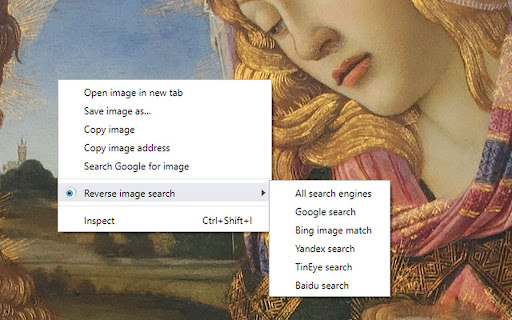


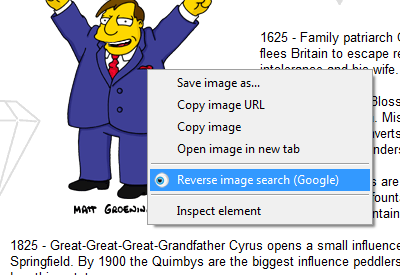
Perform a search by image. Choose between the image search engines Google, Bing, Yandex, TinEye, or user-defined engines. This extension allows to perform an inverse image search by right-clicking onto any image in a web site. You can configure the context menu to contain either a single button with your default search engine, or a cascaded menu with all included search engines. You can also add custom search engines through the options menu. RevEye is free and open source software. To minimize its memory footprint in your browser, it is written in pure vanilla JavaScript and it does not use any of the fancy JavaScript frameworks. RevEye does not track any of your data, and it does not include ads. Source code and more info: https://github.com/steven2358/reveye Changelog: - v2.0.0 (2024-08-30): Updated to manifest v3. Added option to add custom search engines. Refactored code. - v1.5.2 (2022-11-13): Replaced Google Image Search by Google Lens. - v1.5.1 (2021-01-19): Fixed a bug in upgrade/initialization script. - v1.5.0 (2021-01-18): Add checkboxes to enable/disable individual search engines. Removed Baidu (for now). - v1.4.8 (2020-11-24): Fixed Yandex search. - v1.4.7 (2019-06-14): Removed unnecessary permissions. - v1.4.6 (2019-06-14): Fixed Yandex search. - v1.4.5 (2017-07-23): Fixed Baidu search. - v1.4.4 (2015-05-20): Re-included Yandex and Baidu search. - v1.4.3 (2015-05-19): Included Bing image match. - v1.4 (2013-06-28): Performed security changes and updated manifest to v2. Removed Yandex, Baidu, Cydral. - v1.3 (2011-06-17): Included Google (brand new and kicking), Yandex and Baidu image search engines. Removed GazoPa as they discontinued their B2C service. - v1.2 (2011-05-30): Name change to comply with Google's branding policies. Added Cydral search engine. Added option to choose between default engine or cascaded submenu. - v1.1 (2011-03-01): Added option to select between TinEye and GazoPa search engines. - v1.0 (2010-03-02): Added context menu. - v0.2 (2009-12-14): Included new logo. - v0.1 (2009-12-13): Initial version. Performs reverse image search of all images on a page using TinEye.

Fast Image Research
Heavy reverse image search user? This extension adds a simple "Research Image" option to the right-click context menu of Web images. Researching an image will automatically retrieve reverse image search results from your choice of Google, TinEye, Yandex, Bing, or a combination. Results are loaded into new tabs. You can use the data to find out who is using your own images, or help narrow down the subject matter of an image you found. NOTE: Google does email me user feedback. Any questions, feature requests or bugs? Contact support using the website link.

Wayback Machine
The Official Wayback Machine Extension - by the Internet Archive. Welcome to the Official Internet Archive Wayback Machine Browser Extension! Go back in time to see how a website has changed through the history of the Web. Save websites, view missing 404 Not Found pages, or read archived books & papers. Most features will work without requiring an account including Save Page Now. Some features must be enabled from Settings. Turn on Private Mode to prevent automatic sending of data and to protect your privacy while browsing. • Save Page Now - Instantly save the page you are currently viewing in the Wayback Machine. Turn on Auto Save Page in settings to save pages that have not previously been saved, or Auto Save Bookmarks to save when bookmarking a page. Works while logged out, or log in for additional options. • Oldest, Newest & Overview - View the first version of a page or the most recently saved in the Wayback Machine. Or view a calendar overview of all archived pages. Can also use by right-clicking over a page or link. • Wayback Machine Count - Display a count of snapshots of the current page stored in the Wayback Machine over the toolbar icon, and the date of last save in the popup. • Contextual Notices - Check for contextual information from fact checking organizations and origin websites. • Relevant Resources - View research papers and books while visiting Wikipedia, archived digitized books while visiting Amazon Books, and recommended TV News Clips while visiting news websites. • URLs & Collections - Show a list of URLs captured under the current website, and what collections they are saved under. • Site Map & Word Cloud - Present a sunburst diagram for the domain you are currently viewing, or create a Word Cloud from the link's anchor text of the page you are on. • Annotations - Provide a list of annotations for the current web page and domain, provided by Hypothes.is. • My Web Archive - Save URLs to your public archive page on the Internet Archive. • Tweets & Share Links - Search Twitter for information regarding your current page, or share archived links on social media. For support, please email info@archive.org

Hunchly 2.0
Hunchly is a tool to capture and organize online data for your investigations. Requires the Hunchly app (https://www.hunch.ly) - Never take a screenshot again! Hunchly captures the web content you visit automatically, and makes it much easier to stay organized. - Stay focused on what matters - the investigation! Hunchly works quietly in the background, and with the blacklist and capture toggle, you can make sure you're only capturing what you need. - Page you saw got taken down? No probblem! Hunchly makes highly accurate offline copies in case the page you visited gets taken down or changed. - Protect against tampering! Every page, image, and attachment in Hunchly is given a unique fingerprint ("hash") at capture.

Search image with Yandex
Search for similar images in Yandex with open source code, without advertising and analytics. A very lightweight extension for image search via Yandex. This extension is open-source and distributed "as is", without any warranties or guarantees. The author of this extension has no affiliation with Yandex and does not endorse or promote the company in any way. GitHub page: https://github.com/tenRabbits/extension-search-image-with-yandex/tree/master Version 2.0.1 - The search tab opens to the right of the active one
