
kbmiinnadjmjonbiponipalknjibhiko
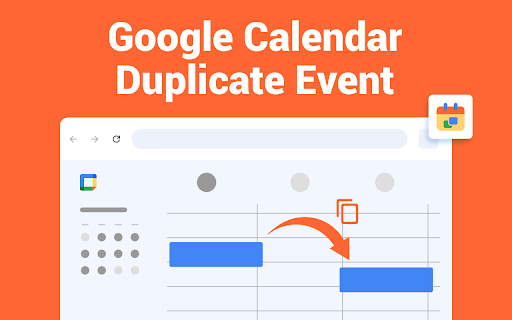
Manage Google Calendar Duplicate Events to quickly copy events. Use Google Calendar Copy Event to save time and simplify scheduling. The Google Calendar Duplicate Event app helps users quickly copy appointments within GCal. Whether you're copying a single event or an entire series, this tool saves time and improves efficiency. With Google Calendar duplicate events, you can manage recurring tasks or meetings more easily, adapting them to new dates or needs. Additionally, if you're looking to manage copy events on Google Calendar, this app simplifies the process. Who It’s For: This app is designed for anyone who uses Google Calendar regularly. It's especially useful for: ✒️ Busy professionals who need to create recurring tasks like meetings or appointments quickly using the Google Calendar copy event feature. ✒️ Teams and employees using integrations like PracticeWorks Google Calendar Integration, needing to duplicate tasks across different projects. ✒️ Anyone managing multiple events, like holidays or weekly meetings. The Google Calendar Duplicate Event app offers a variety of tools to streamline your scheduling process and improve appointments management. Among its key features: 📌 Duplication of Individual Events — The app allows you to create an exact copy of a single event, with the ability to adjust details such as the date, time, and location. 📌 Bulk Duplication — If you need to replicate multiple events at once, the app provides the functionality to duplicate several tasks simultaneously. This feature is particularly useful for handling recurring events or scheduling similar activities across different days. 📌 Drag-and-Drop Event Duplication — With the Google Calendar duplicate drag-and-drop feature, you can quickly move events to new dates within the calendar, avoiding the need to manually recreate each task. 📌 Managing Duplicate Events — After copying, users can hide or manage any redundant entries that may clutter their calendar, ensuring a clean and organized view. 📌 Holiday Management — The app helps users manage holidays or other recurring events that may be duplicated in the calendar, making it easier to remove or modify them. Here’s how to copy events in Google Calendar: 1. Select the Event: To duplicate a calendar appointment in GCal. 2. Adjust Event Details: Modify the time, date, and description if necessary. This is helpful when you need to copy set of events in GCal. 3. Drag-and-Drop Duplication: For event drag, simply drag the event to a new date. 4. Duplicate Multiple Events: Select several appointments to duplicate them all at once, without the need to manually recreate each one. 5. Export to Tasks: Export event in calendar into tasks google calendar to organize meetings in one place. 6. Moving All-Day Events: If you want to move all-day appointments to the top of your calendar, the app helps you organize your schedule in a more intuitive way. The Google Calendar Duplicate Event app offers several key benefits that can enhance the efficiency of managing events: 🔹 Time Efficiency — By enabling the quick duplication of events, this tool significantly reduces the time required to create new tasks. Whether you're scheduling one-off meetings or recurring tasks, the app allows for rapid copying of events with minimal effort. 🔹 Flexibility in Customization — Once events are duplicated, users can easily adjust the details such as time, location, or description. This flexibility is particularly valuable when needing to copy events in Google Calendar for different dates or to match specific requirements. 🔹 Mass Duplication — For users managing a high volume of appointments, such as meetings, or tasks, the app’s ability to copy multiple events in Google Calendar streamlines this process. This functionality is ideal for those who need to replicate large sets of appointments quickly and efficiently. 🔹 Integrated Task Management — The app also offers the ability to turn events in calendar into tasks Google Calendar, turning important meetings or deadlines into actionable tasks. This ensures that both your calendar and task lists are synchronized and well-organized. 🔹 Handling Holiday and Special Events — The app makes it easy to manage holidays or other special dates that may be duplicated on Google Calendar. This feature helps ensure that such events are properly handled and do not overwhelm the calendar view. If you need an efficient way to handle appointments in GCal, the Google Calendar Duplicate Event app is a powerful tool. It helps you save time by duplicating, modifying, and managing events, making scheduling simpler. Whether you need to manage recurring meetings, tasks, or projects, the app ensures your calendar remains organized and efficient, improving productivity. Plus, with features like managing duplicate events on Google Calendar and learning how to copy tasks, you’ll be able to streamline your workflow with ease.

Google Calendar Event Checker
Mark events as completed or cancelled in Google Calendar with emojis or strikethroughs. Mark Google Calendar events as completed with checkmarks, emojis, or strikethrough and turn your calendar into a task tracker. It’s the perfect tool for professionals, students, and anyone who wants to mark events as done or canceled and boost productivity. 🆓 Free Version Features 🆓 Available immediately after installation - no sign-in or subscription required: ▸ Customizable completion marks: choose between emojis (✅ or ❌), unicode checkmark (✓), or strikethrough effect (title crossed off). ▸ Automatic timestamps: save completion date/time in event description for easy reference. ▸ Edit-page marking: mark events as done from the calendar event edit page. ▸ Minimal and Privacy-Oriented: the extension is designed to be minimalistic and don’t track any user data. ⭐ Premium Version Features ⭐ Unlock advanced productivity and simplicity features: ▸ Quick-mark from event dialog: complete events with one click from the event popup. ▸ Daily events dashboard: view all today's events in the extension popup with completion status. ▸ Mark from any tab: complete calendar events without opening Google Calendar. ▸ Custom checkmark slots: add up to 5 emojis or unicode symbols as completion markers. ▸ Still Minimal and Privacy-Oriented: we don't see or store any of your events and never share your data. How to use free version: ▸ Install the extension, no sign in needed ▸ Open any Google Calendar event for editing ▸ Click the completion mark button (✅) ▸ Save the event ▸ Go to the extension's options to configure the completion marks and a strike-through effect. How to use premium version: ▸ Pin extension and sign in with your Google account ▸ Start free trial (no credit card needed) ▸ Mark events as completed from an event dialog ▸ Mark events as completed from "Today events" view ▸ Configure custom checkmarks and a strike-through effect in ⚙️ User Settings page (available after sign in). ⚠️ Troubleshooting ⚠️ If something isn't working properly, here's what you can try: ▸ Make sure you can edit event title from an event edit page - some events are not editable at all - for example: working locations, contacts’ birthdays calendar, shared calendars if you don’t have proper permissions. ▸ Sign out and sign back to the extension (for premium users). ▸ Reinstall the extension. ▸ Report an issue to support@calcheckr.com, include screenshots if possible as it might help to resolve your case more quickly, make sure to mention what browser you’re using. ❓Frequently Asked Questions❓ Q: How do I mark Google Calendar events as completed? A: Install the extension, open any event, and use the completion button or choose your preferred visual mark (checkmark, emoji, or strikethrough). Q: Will other people see my completion marks? A: Yes! Since changes save directly to Google Calendar, anyone with calendar access sees the completion marks. Great for team collaboration. Q: Does this work with Google Workspace? A: Absolutely! Works with personal Google accounts and Google Workspace (formerly G Suite) accounts. Q: Does it work with recurring events? A: Yes! Mark individual instances or the entire series. Q: Can I use the free version forever? A: Yes! The free plan includes core features. Upgrade to Premium only if you want one-click marking, daily views, and custom checkmarks. Q: Is my calendar data secure? A: Absolutely! We use only Google infrastructure. Authentication tokens are encrypted, and we never see, store, or share your calendar events data. Q: How do I cancel Premium? A: Cancel anytime from the Stripe customer portal. Premium features remain active until your billing period ends, then you automatically return to the free plan. 📧 Contacts 📧 For any questions, comments and ideas please reach out to support@calcheckr.com 2.2.0 - 12/10/2025: - premium: strikethrough effect in popup view - premium: date picker for quick navigation 2.1.2 - 12/06/2025: - internal fixes: make completion detection to be based on the default + custom checkmarks only 2.1.1 - 12/03/2025: - internal fixes - options page UI refactoring 2.0.2 - 11/24/2025: - internal fixes - add support id in extension options 2.0.1 - 11/18/2025: - internal fixes - show onboarding page once - start introducing premium version 1.6.2 - 12/13/2022: - Fix issue with not showing button (input selector got updated) 1.6.0 - 10/09/2022: - Add error and usage reporting option 1.3.0 - 10/07/2021: - the strikethrough effect is now configurable in options 1.2.0 - 10/05/2021: - issue with search was fixed by saving origin event's title in the description area (configurable in options) - add date and time label when it was completed to the description textarea (configurable in options) 1.1.0 - 10/04/2020: - add check emoji in the beginning (configurable in options) - fix issue for event titles with emojis

Scheduling Calendar
Scheduling Calendar for Google Calendar™ Overview This Scheduling Calendar – simple tool to view and manage events, compatible with Google Calendar™. Key Features ➤ 📅 Quick Access: View your full schedule from any webpage. This Chrome calendar extension offers a fast and compact overview, perfect for multitaskers who want to stay focused while managing time efficiently. ➤ 📝 Event Management: Create, edit, and track appointments directly from your browser. Add new items, modify plans, set a calendar reminder, or send out invites without needing to switch tabs. It works like a full-featured app in your toolbar. ➤ 📆 Meeting Scheduler: Easily plan online meetings and virtual appointments. Use this extension appointment scheduling or integrate with the Calendly Chrome extension for quick scheduling. Join video calls with one click using Google Meet, Zoom, or Microsoft Teams. ➤ 👥 Shared & Family Use: Whether you need a shared calendar app for your team or a family calendar app for household coordination, this extension supports all your planning needs. Create a shareable app that works for everyone. Personal & Team Use This extension is perfect for managing both personal and professional schedules. At home, use it as your go-to tool to keep track of birthdays, chores, and events. As a family calendar app, it's great for syncing your life with partners or kids. At work, it becomes a vital tool for managing team projects, meetings, and deadlines—ensuring everyone stays aligned and in the loop. Easy Setup & Seamless Sync 1️⃣ Quick Installation: Add the Calendar Chrome plugin directly from the Chrome Web Store—no extra steps or downloads required. 2️⃣ Account Sync: Sign in using your Google account to load and view all your existing events from my Scheduling Calendar automatically. 3️⃣ Snapshot Preview: Click the toolbar icon anytime to get a calendar quick glance of your day, week, or month. Add new plans on the go and receive timely notifications. 4️⃣ Share & Invite: Send out invitations or collaborate with others in real-time. Use Google schedule share features to show your availability and keep everyone on the same page. Customize Your Planner Style your experience the way you like it. Turn on dark mode for easier night-time viewing or keep it classic. Minimize to a small floating window or open a full-screen layout like a Scheduling Calendar desktop view. You can even place it as a widget on your new tab for faster access. • 🌙 Dark Mode: Built-in theme for low-light environments, helping reduce eye strain. • 📱 Compact or Full View: Collapse into a mini layout or expand into a full computer desktop web interface. • 🖼️ Widgets & Icons: Pin it as a shortcut on new tabs or as a standalone Chrome App for easy opening. • 📝 Offline Templates: Use this extension insted of Plan in Docs or Sheets. Collaboration & Integration Tools Connect your favorite tools and streamline your workflow. Add links for Zoom or Google Meet, manage availability, and receive reminders—all from one place. ➤ 🎥 Smart Video Integration: Schedule virtual meetings with auto-generated call links—no more digging for access codes. ➤ 📧 Easy Invites & Sharing: Quickly send invitations or publish your schedule using Google schedule share functionality, so colleagues or friends can book time with you efficiently. Why You'll Love It Designed for flexibility, this Chrome calendar tool is lightweight, intuitive, and runs smoothly without slowing down your browser. Whether you're managing client meetings or your child's school events, it functions as reliable calendar software in your daily routine. Think of it as your personal online calendar planner—always a click away, always up to date. Summary of Benefits ➤ 🎯 Instant Access: View and manage your schedule with one click—open my Scheduling Calendar straight from the toolbar. ➤ 🧩 All-in-One Tool: Combine reminders, appointments, templates, and meetings in one unified extension. ➤ 🔐 Secure & Lightweight: No ads, no bloat—just clean, secure performance in every browser session. Get Started Now Ready to simplify your day? Click Add to Chrome and start using Scheduling Calendar right away. Stay in control of work meetings, personal plans, and everything in between. Make your browser smarter and your schedule simpler—download the calendar Chrome plugin today and enjoy stress-free planning from here on out. 🚀

Google Calendar Right Click
create Google Calendar event with Title or Description from Right Click Menu you can create Google Calendar Event with 3 step

Merge duplicate Google Calendar events into one rainbow
Event merge for duplicate cal events on Google Calendar to appear as one rainbow gradient and adds weekend background color. Free Chrome extension to cut the clutter when families or teams use calendar sharing and the same event appears multiple times. Also removes duplicates displayed by being invited at multiple email addresses. 📅📅 → 📅 merges duplicate Google Calendar events into one rainbow of the individual calendar colors 🟦 makes weekends great again - with cool blue background colors 🗓 new event box & mini calendar views also get cool blue weekends 🌗 tuned for device Dark mode, Dark Reader compatible 💻 works only in your browser and does not modify events 🚫 doesn't show ads and doesn't send user data anywhere 🌼 open source: https://github.com/coedit/gcal-rainbow-surf Like it? Please rate it! Do you have ideas for new calendar enhancements or see an issue? Start a discussion: https://github.com/coedit/gcal-rainbow-surf/discussions/categories/ideas Passion project – curated by @ezdub – dedicated to @illstylist With code by @imightbeAmy @karjna @rubenpoppe @msteffen @TraumaER @ezdub art copyright ©2021 @ezdub
