
jmkfnhojkplhlmjelcjiajlpgoongdfp
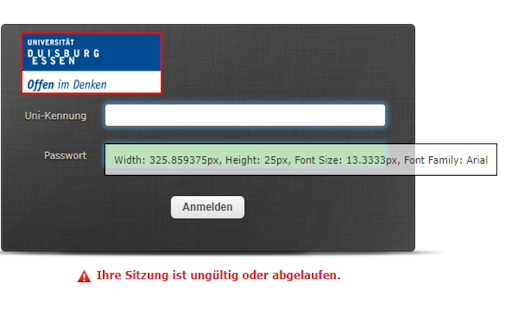


Elemets Inspektor! Unleash the full potential of web development with Elements Inspector! This robust Chrome extension empowers you… Elemets Inspektor! Unleash the full potential of web development with Elements Inspector! This robust Chrome extension empowers you to easily inspect various elements on any webpage. Designed for precision and ease, Elements Inspector delivers accurate measurements of an element's height, width, font size, and font family, all with just a simple shift + click. Ideal for developers, designers, and anyone in need of detailed web page analysis, Elements Inspector eliminates the guesswork in your tasks. Just press shift + click to mark an element, and all its details will be displayed. If your element contains text, you'll also see the font size and font family. And for a clutter-free workspace, simply click the element again to clear all markings and measurements. Upgrade your web development toolkit today with Elements Inspector. Experience the seamless, straightforward approach to web inspection, tailored to save you time and boost your productivity. Note: While Elements Inspector is designed to work with all websites, its functionality may vary depending on the structure of individual pages. To ensure an undisturbed browsing experience, the extension operates only when activated. What's New: Introduction of font size and font family inspection features. Reach out to our dedicated support team if you have any queries or need assistance. Happy inspecting with Elements Inspector!

Element Extractor
Extracts all elements from the current page. The "HTML CSS Extractor" Chrome extension allows users to extract HTML and CSS elements from web pages. Users can click on the extension icon in the browser toolbar to open the popup, where they can then click the "Extract HTML & CSS" button to extract elements from the current webpage. The extracted HTML and CSS elements are displayed in a textarea, and users can save the extracted data as a text file by clicking the "Save as Text" button. Additionally, the extension provides a Help page with step-by-step instructions on how to use the extension and FAQs for quick reference.

Attribute Reporter
Dev Tools Extension to report on elements attributes and copy their value as text or xpath expression Attribute Reporter is a DevTools panel for inspecting HTML element attributes across a page. Select any element, type an attribute name (or pick class, id, or data-testid with one click), and instantly see a list of all matching child elements with their values — or which ones are missing them. - 🔍 Inspect any attribute by name across all child elements - ✅ Spot missing or empty attribute values at a glance - 📋 Copy individual values, XPath expressions, or CSS selectors to the clipboard - 📦 Export all results as JSON (element, value, CSS selector, XPath) - 🔒 No special permissions required What's New in v2.1.0 - 🔍 Missing attribute finder — Toggle "∅ missing" to instantly see all elements that lack the target attribute (e.g. buttons without aria-label). - 🏷️ Element-type filter — Filter results by element type (button, input, div…). Multi-select, composes with the missing toggle. - 🟢🟡🟠🔴 Status indicators — Every row now shows a color-coded status: OK, duplicate value, empty value, or missing attribute. Hover for details. - 📋 Copy as CSV — Export the current filtered list as CSV, ready for spreadsheets or bug reports. - 💾 Remembers your last attribute — The target attribute name is now saved between DevTools sessions. - aria-label shortcut added to the quick-select badges.

CSS Inspector
The CSS Inspector extension outlines the elements on a page and displays their CSS properties when you hover over them. The "CSS Inspector" is a browser extension that provides a convenient way to inspect CSS properties of elements on a webpage. When you hover over an element, it outlines the element and displays its CSS properties. This can be particularly useful for web developers and designers who want to understand how a webpage is styled. Element Outlining: The extension outlines elements on a webpage when you hover over them. This helps you visually identify the boundaries and positioning of the element. Tag Property Display: It displays the HTML Tag properties of the hovered element. This can help you to identify the element itself. Toggle On/Off: The extension can be easily toggled on and off. This means it won't interfere with your browsing when you don't need it. Support for All URLs: The extension works on all URLs, making it a versatile tool for inspecting any webpage.

Pointer - Element Inspector for DevTools
Enhanced element inspection with cursor-driven workflow. Visual highlighting, measurements, and DevTools integration. Pointer enhances Chrome's built-in element inspector with a persistent, intuitive DOM navigation tool that stays active while you work. Unlike the default DevTools inspector that turns off after selecting an element, Pointer keeps running so you can quickly inspect multiple elements without constantly reactivating the tool. — Always-On Element Selection - Navigate the DOM using arrow keys or click to select elements. The pointer stays active between selections. — Visual Box Model Display - See margin, padding, and content areas with color-coded overlays. — Element Information - Hover over any element to see its tag name, dimensions, CSS classes, and behavioral badges (flex, grid, media, scroll containers and event listeners). — Built-In Ruler - Hold Alt to see pixel distances between selected and hovered elements. — DevTools Integration - Selected elements automatically sync with Chrome DevTools Elements panel. The inspector scrolls elements into view and maintains selection state when DevTools is reopened. — Pass-Through Mode - Hold "`" (backtick) to temporarily interact with page elements normally while keeping the inspector active. — DOM Manipulation - Cut, copy, paste, delete, and duplicate (Cmd/Ctrl+D) elements directly in the page. Full undo/redo support. — Inline Attribute Editor - Press "/" to add attributes, classes, and properties to selected elements without switching to the DevTools elements panel. — JavaScript Console - Press ";" to execute JavaScript commands with the selected element as "this" context. Perfect for quick DOM modifications and debugging. — Selector Search - Press "f" to enter find mode and highlight all elements matching a CSS selector in real-time. Navigation — Arrow Keys - Navigate between elements (up/down for siblings, left for parent, right for children). Inspection Tools — Alt - Show measurement rulers between selected and hovered elements — ` (backtick) - Hold to enable pass-through mode so you can interact with the web page
