
jlmadbnpnnolpaljadgakjilggigioaj
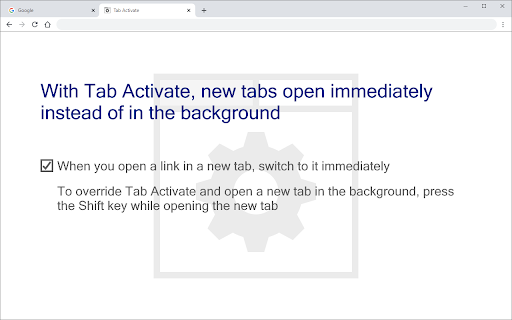
New tabs open immediately instead of in the background Please read the detailed description of required permissions (below) and why they are necessary. Without them, Tab Activate could not work as described. Absolutely no data is changed or collected. When you open a link in a new tab, Chrome opens the new tab in the background and provides no option to switch to it immediately. With Tab Activate, new tabs open immediately instead of in the background. To override Tab Activate and open a new tab in the background, press the Shift key while opening the new tab. Note: Override does not work for bookmarks. In other browsers, this setting is called: "When you open a link in a new tab, switch to it immediately." Read and change all your data on the websites you visit: Required to detect when the Shift key is pressed (no website data is read or changed) Due to limitations in the Chrome extension API, the only way to detect if the Shift key is being pressed is with the required permissions. Absolutely no data is changed or collected. Version 3.1 Improved Shift key detection when the window loses focus. Improved error handling. Fixed a console error. Version 2.1 New icon. Fixed issues created by Chrome 79 extension API changes. Version 1.2 New tabs open to the right of the previous tab and new background tabs open at the end. Version 1.1 Shift key overrides Tab Activate and opens new tabs in the background.

New Tab, New Window
It's not perfect, but it's the best approach for disabling tabbed browsing. When you open a new tab, that tab will automatically move into a new window. Click the extension icon in the toolbar to temporarily disable new window behavior.

Open Links in New Tab
Navigating the web can involve clicking through a myriad of links. Open Links in New Tab simplifies your browsing experience by automatically opening all links in new tabs. No more right-clicking or using keyboard shortcuts; let this extension do the work for you! 🌐 Universal Compatibility: Works on all websites. 🛠️ Simple Interface: Just one checkbox to enable or disable the feature. 🟢 Status Indicator: A badge on the extension icon shows whether the feature is currently ON or OFF. How to Use: Install the Extension: Add it to Chrome from the Chrome Web Store. Click the Icon: Find the extension icon in your toolbar and click it. Enable or Disable: Use the popup checkbox to turn the feature ON or OFF.

Link Blanker
When you click a link to open in a new tab. Anyway open in a new tab. (You can also open in the background. ) And you can close tabs cluttered together. The browser 'back' how to hate, why strangers.

Popup my Bookmarks
A more efficient way to view and manage your bookmarks menu. - Search bookmarks when you type - Do what Bookmark manager can do and more (e.g., Sort bookmarks by name, Add separator) - Save 24px of your vertical workspace (Rock on Chromebook!) - Take as few permissions as possible, we never put your privacy at risk - No background running application, save computer memory and your privacy!
