
jiemcgfaaankhcphdbfbilkldedojieb
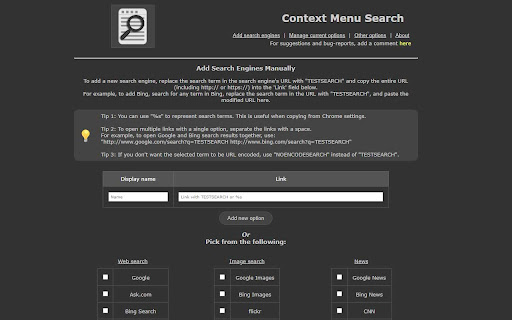

Use the right-click context menu to search selected text with different search engines instantly. Enhance your browsing experience with "Context Menu Search", a simple yet powerful extension that lets you search selected text quickly and efficiently using your right-click menu. Add your preferred search engines, easily reorder them, and customize how search results are displayed. ● Multiple Search Engines: Add and manage multiple search engines to the right-click context menu. ● Customizable Search Options: Configure the search results to open in a new tab, either as a focused tab or a background tab. ● Tab Placement: Set the location of the newly opened tab to be either next to the current tab or at the end of the tab list. ● Order Management: Arrange the order of the search engines in the context menu according to your preference. ● Predefined Search Engines: Choose from a list of more than 60 built-in search engine definitions for easy setup -- and customize them to your needs. ● Custom Search Engines: Add custom search engines that are not included in the predefined list. ● Handles Foreign-Language Searches: Supports non-english characters in search strings without issues. ● Chrome Sync Support: One configuration shared across all browsers synced to your Chrome account. Why install Right-Click Context Menu Search? ● Saves time and effort by searching directly from the context menu. ● Customize your search experience to suit your individual needs. Basic Usage: 1. Select the text you want to search for. 2. Right-click to open the context menu. 3. Choose your desired search engine from the list. 4. The search results will open in a new tab based on your configured options. Requires: Tested with Chrome 132 and later, but should work with older versions. Support: Your feedback is valuable! If you find this extension useful, please leave a review. For support or suggestions, please use the support link. Known Issues: ● Search engine icons cannot be displayed in the context menu. ● Chrome has some restrictions on where custom context menus can be placed. ● The extension is currently only available in English.

Context Menu Enterprise
Save time, drive SOP adherence, & boost productivity all from the convenience of the right click menu Context Menu Enterprise gives enterprise teams a powerful productivity suite built directly into the right-click menu — no extra tabs, no context switching, no wasted time. Save 30–60 Minutes Per Agent, Per Day: Our users across support, sales, engineering, and operations consistently report saving 30–60 minutes per day. At 100 agents saving just 30 minutes daily, that's 50,000+ hours recovered every year — time that goes back into serving customers, closing deals, and moving work forward. Quick Search — Your Team's Most Powerful Tool: Highlight any text — an account number, error code, ticket ID, or customer name — right-click, and instantly launch a dynamic search in any tool you configure. CRM, ticketing system, knowledge base, internal wiki, data warehouse — if it has a URL, you can search it from the context menu. No copying, no tab juggling, no manual navigation. Bundled Search — Drive Best Practice Adherence: Configure multi-step searches that open every relevant resource in one click. Ensure your team checks every KB article, database, and documentation page before escalation — automatically, every time. Leadership sets the process; the tool enforces it. Quick Playbook — Runnable SOPs in the Side Panel: Build step-by-step standard operating procedures that run directly in the Chrome side panel. Each step can be manual or automatically fire any CME product — Quick Search, Response Repo, Context AI, or Note Clipper. Attach a context key like a ticket ID or case number to every run, track progress with checkboxes, and pick up where you left off. Managed playbooks can be pushed to your entire team via Team Config. Autolinker — Stop Searching, Start Clicking: Configure text patterns like account numbers or ticket IDs and Autolinker will automatically hyperlink them on every page your team visits. Instead of highlighting and searching, agents simply click the link and land exactly where they need to be. Context AI — AI Where Your Team Already Works: Give your team AI-powered assistance without leaving their workflow. Configure your own API key (OpenAI, Anthropic, or custom), build a library of saved prompts, then highlight text or use clipboard contents and invoke any prompt from the right-click menu. The response appears in a popup — no new tabs, no switching apps. Response Repo — Consistent Messaging at Scale: Build a library of approved response templates and send them from the right-click menu in seconds. Drive consistent messaging across your team for common questions, incident communications, and standardized customer interactions. Note Clipper — Capture Everything Without Breaking Flow: Highlight content on any page and clip it directly to Notion, Slack, Microsoft Teams, or a custom webhook from the right-click menu. Perfect for case notes, knowledge capture, and team documentation. Built for Enterprise - 100% local — no data collection, no external servers - Manifest V3 compliant — fully supported as Chrome phases out MV2 - Secure architecture with no third-party data exposure - 24-hour email support SLA for paying customers - Actively developed with new features shipping regularly Context Menu Enterprise is not optional for enterprises serious about agent productivity and process consistency. Try it free and see the difference in your team's workflow from day one. v2.1.3 - Team config separators now load properly and do not render as clickable items. - Quick Playbook side panel now automatically checks the checkbox when a search or snippet is run. v2.1.2 - Updated Context AI overlay to appear on Gmail and other pages with strict content security policies when fired from a Quick Playbook step. - Playbook runs now save step titles at creation time, so runs remain readable even if the original playbook is deleted. - Added a warning when deleting a playbook that has active runs in progress. v2.1.1 - Fixed Quick Search groups/subgroups not displaying searches inside folders. Legacy groups are automatically migrated to the new folder format on first load. - Updated Quick Playbook to open side panel from the context menu. - Updated login and upgrade flow — upgrade buttons now open the plan selection page instead of going directly to checkout. - Separator labels — separators in Quick Search can now have an optional text label that displays as a section header in the context menu. - Updated documentation links on the Support options page. - Removed hardcoded pricing from upgrade prompts. v2.1.0 — Quick Playbook + Critical Fixes • Quick Playbook — Build step-by-step SOPs that run in the Chrome side panel. Each step can be manual or fire any CME product (Quick Search, Response Repo, Context AI, Note Clipper). Track progress with checkboxes, attach a context key, and resume where you left off. Managed playbooks supported via Team Config. • Context AI now supports clipboard input — run any prompt on clipboard contents in addition to selected text. Each prompt offers both "Run on Selection" and "Run on Clipboard" in the context menu. • Series Search (Σ) now supports clipboard input — fire sigma searches from copied text, not just page selection. • Streamlined Quick Search export — removed the legacy raw JSON editor in favor of the file-based Export/Import added in v2.0.2. • Fixed an issue with the payment and subscription system that prevented upgrade on v2.0.2. • Fixed an issue where playbook and other background actions could silently fail due to an async message handler bug. • jQuery upgraded to 3.7.1. v2.0.2 • Fixed Quick Search failing on the first attempt after the browser had been idle, requiring a retry before searches would work. • Fixed Response Repo "Paste at Cursor" not preserving line breaks in rich-text editors like Zendesk and Gmail. • Added Export/Import for every product — share or transfer Quick Search, Response Repo, Autolinker, Context AI, and Note Clipper configurations individually. • Added Full Backup & Restore on the Home page — export your entire configuration as a single file to share with your team or move between machines. API keys and credentials are excluded for security. v2.0.1 — Hotfix • Fixed an issue where upgraded users briefly saw a reduced Quick Search list in the right-click menu after installing v2.0. Configurations were never lost — all saved searches now appear immediately without needing to re-save in the Options page. • Fixed Response Repo "Paste at Cursor" in Zendesk (both the reply composer and search fields) and other React or ProseMirror-based rich text editors where snippets previously failed to insert or disappeared on mouse movement. • Options page now reflects Pro subscription status immediately after upgrading, without needing to reopen the extension. v2.0 — Major Release: The Productivity Suite Five new products join Quick Search in the right-click menu, transforming the extension from a single search tool into a full agent productivity suite. • Autolinker — Define text patterns (account numbers, ticket IDs, error codes) and they automatically become clickable links on every page your team visits. Click instead of search. • Context AI — Bring your own API key (OpenAI, Anthropic, or a custom endpoint) and invoke saved prompts from the right-click menu. Selected text flows in as context; responses appear in a draggable overlay without leaving the page. • Response Repo — Build a library of approved response templates and paste them into any editor from the right-click menu. Supports template variables like {date} and {domain} for dynamic substitution. Drives consistent messaging at scale. • Note Clipper — Clip text, images, or videos from any page directly to Notion, Slack, Microsoft Teams, or a custom webhook — all without leaving the page or breaking flow. • Team Configuration — IT admins can publish a central config from a JSON URL. Quick Search lists, Response Repo templates, AI prompts, Autolinker rules, and Note Clipper targets sync automatically across the entire team. Optional lock mode prevents local overrides for standards critical items; optional additive mode lets individuals extend the org config with their own entries. • Pro and Free tiers introduced. Free users get Quick Search (up to 5 items) and Autolinker (up to 3 rules). Pro unlocks unlimited Quick Search and Autolinker plus Response Repo, Context AI, Note Clipper, and Team Configuration. • Refreshed Options UI with dedicated tabs per product, upgrade prompts on Pro-only features, and clearer free-tier limits. v1.8 — Maintenance Release • Bug fix: resolved a case where the context menu click handler could be registered twice, causing certain Quick Search items to open multiple times. • Bug fix: improved clipboard read reliability when the background service worker had been idle and restarted. • Internal cleanup and groundwork for the v2.0 product suite.

Multi Context Menu Search
Select text to search it on your favorite search engines. It adds many popular search engines to the context menu appearing on text selection. Users can also add their custom search engines.

Context Lookups
This extension adds configurable lookup options for the context menu of selected text. Quickly search information as you browse. Just select the text you want to look up, bring up the right-click/long-press context menu, and select the configured lookup option that you want. Need to quickly check the definition of "bi-weekly" when someone emails you about a meeting? Curious about the literal meaning of "je ne sais quoi" when it comes up in an article? Want to know who exactly "Robert Walpole" is when someone mentions them in a comment? Context Lookups has you covered! Get up to speed or satisfy your curiosity in no time at all, then be on your merry way. You can set the results to appear as regular webpages, or make things extra convenient with simplified popup windows. This much can already be done with just the default lookups, but the possibilities go far beyond that. Copy the search query URL base of whatever website you want to use, and create a context menu item for it in the extension popup, it's that simple. Just remember to save your changes! Unit Conversion - Use "https://www.google.com/search?q=convert+" as the URL base. Synonyms/Antonyms - Use "https://www.thesaurus.com/browse/" as the URL base. Rhymes - Use "https://www.rhymezone.com/r/rhyme.cgi?typeofrhyme=perfect&Word=" as the URL base. Note that ampersand characters (&) in context menu labels are used to assign shortcut keys. To make a letter within the label the shortcut key for the option (while it's shown), simply put an ampersand in front of it. For example, set the label as "Rh&ymes" to make a context menu option "Rhymes" with the shortcut key 'y'. To put an ampersand in the actual label, simply include it twice, as in "Synonyms && Antonyms" to get a label of "Synonyms & Antonyms". This is my first extension, so any feedback is appreciated. NOTE: Due to browser limitations, results displayed in a popup are unfortunately restricted to the primary display. If using multiple displays, try to keep the browser window using the extension on the primary display. Alternatively, you can set the results to display as normal pages instead. Version 3: Updated to use Manifest version 3. Apologies for any resultant issues I might have missed. After a couple revisions, I think I've got it working with pre-existing saved data, but if you still encounter issues, I recommend saving your loaded configurations from the extension popup to update the saved data. Opening as a regular window popup is now supported, by simply selecting the center of the slider. Changed the default definition lookup to a simple Google search query, as this has better fallback behavior when a definition isn't found in the primary source. Version 4: New features and quality of life improvements: - Import and Export from/to a file (remember to save after importing!). - A much larger number of menu items are supported than before (working around browser limitations). - Internal scrolling, for retaining easy access to button controls. - Now indicates when you have unsaved changes. - Encountered errors now get displayed, though hopefully this won't be needed. :) Added a link to my portfolio site with my other projects. Version 5: - Now available for multiple browsers! - Various updates and improvements. - Better accessibility support. - Dark mode, applied in accordance with the browser theme. - Updated the default translation lookup to work with the latest Google Translate URL structure. - You can now do configurations in an options page rather than the extension popup.

Context Menu Search
Right click highlighted text to search it with your favorite engines. When you spend most of your day reading online—whether it’s market research, academic papers, or troubleshooting guides—you eventually notice how often you copy a snippet of text, open a new tab, paste it into a search box, and hit Enter. It is such a common micro-task that you hardly register the wasted seconds—until you install Context Menu Search. With a single right-click the extension launches your query in the engine of your choice, shaving dozens of clicks every hour and hundreds over the course of a workweek. The core mechanic is delightfully simple: Highlight any text on a web page. Right-click to reveal a parent entry labelled “Search with ›”. Hover to see your personal list of search engines Click the engine, and a new tab opens with the query already populated. Out of the box the extension ships with a single entry—Google—so non-technical users can start immediately. Power users, however, can click Options and unleash a surprisingly rich editor: Unlimited engines. Add as many providers as you like by entering a display name and a URL template (https://example.com/search?q=%s). Drag-and-drop ordering. The sequence of rows determines the submenu order, letting you put your most-used engine under the cursor hotspot. JSON import/export. Copy your configuration as a JSON block, paste it into a different browser, or version-control it in a dotfile repo. Live preview. As soon as you hit Save, the service worker catches the storage change event and rebuilds the context menu, no reload required.
