
jicbaeklgoninplhmenhndnidnbfaohm
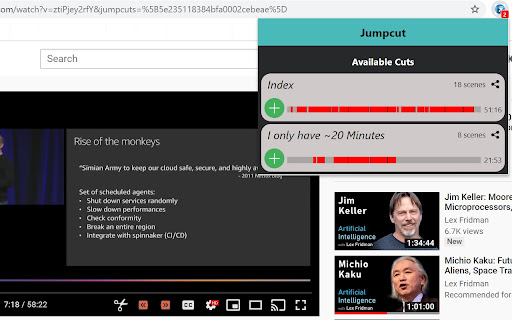
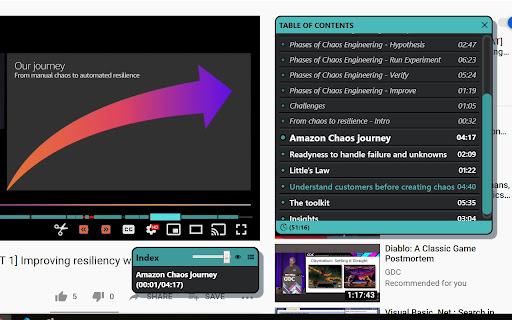
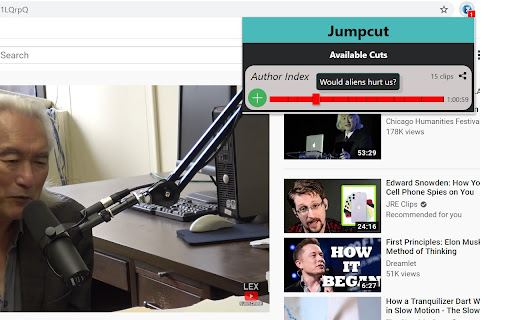

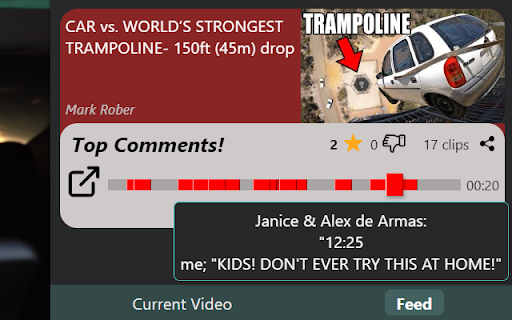
Navigate YouTube videos through description timestamps and comment chapters. Make YouTube more fun and productive! • New! Navigate YouTube Creator Timestamps by using the Jumpcut Next (shorcut: 'x') and Back (shortcut: 'z') buttons • Jumpcut loads author and comment timestamps to easily navigate the video • Watch only the parts people are talking about in the comments section! • An easy to use "Table of Contents" to quickly see if the video interests you • Play shorter Jumpcuts of videos that skip over the boring parts • Easily navigate by pressing 'x' to jump to the next clip and 'z' to jump back • Skip annoying sponsor segments and introductions • Skip non-music parts in music videos So why are you wasting time? Skip the boring parts, make time for more content! Edit: This will likely be the last release of Jumpcut. Jumpcut will only use local data to show the cuts, either Channel description cut, or comments. It was fun while it lasted, I hope you enjoyed it too!

Highlights for YouTube
View highlights on the video player, that are generated from timestamps found in the description and top comments. ✨ UPDATE: Added controls for navigating between highlights. 🎬 See chapters or interesting moments without the need to scroll to the comment/description section. You can toggle the highlights directly from the video player options. ⚠️ Not all videos will have highlights on them since they are generated from timestamps. 🔗 Open Source: View code and report issues on GitHub: https://github.com/Ermag/yt-highlights-chrome 💭 Feedback is greatly appreciated!

Tubestamps
The ultimate tool for video navigation Enhance your YouTube experience with the ultimate tool for video navigation. You know your time is valuable. Stop wasting it. Whether you are studying, listening to music, watching sports highlights, TED talks, esport tournaments or everything in between, we give you the structure your viewing experience desperately needs. Please leave a review if you enjoy this extension, or feel like there's something that could be improved. All feedback is welcome.

Tab Playlist for YouTube™
Lets you make a playlist by simply lining up tabs This extensions lets you use tabs to make a temporary video playlist. When active the extension will switch to the tab to the right when a video finishes. When that tab's video finishes it will switch to the next and so on. By using the middle mouse button you can very easily line up videos you want to watch. Note: This extension only works with the HTML5 player, make sure you have it at https://www.youtube.com/html5 . Videos featured in the screenshots and video were made by vlogbrothers (https://www.youtube.com/channel/UCGaVdbSav8xWuFWTadK6loA)

VideoSkip
VideoSkip allows you to filter out several types of objectionable content from video streams. It uses the same categories as the "Parents Guide" section of IMDB.com. It can skip sections entirely, or simply mute the sound or blank the video, at your discretion. Because it does not modify the videos in any way, but rather plays them selectively, it does not infringe media copyrights. 1. Load the video from a streaming service normally and begin play so it loads some data (not full-screen), then stop it and click the VideoSkip icon on the upper-right of the browser. A new window will appear next to the video. You can move it, or resize it like a regular page with Ctrl + or Ctrl -. 2. If you have a .skp file containing the skips, you can load it now with the "Load skip file" button. Once loaded, its contents will appear in a box on the "Edit" tab. There is a growing number of skip files for popular films at the VideoSkip Exchange, loaded by a button on the interface. 3. If the skip file has been previously synced with your video service, you will be taken to the "Filter" tab so you can set the filter strengths as described in the next step. Otherwise, you'll be taken to the "Sync" tab. There, you will be asked to scrub the video with the arrow buttons until it looks okay again. When the screenshot finally matches the video, click "Sync times" to sync everything for your service. A new version of the skip file will be made so the people you share it with can skip this step from now on. 4. Set the category filters using the sliders, according to the audience. The higher, the more stringent the filter. High = for children, Medium = for teens, Low = for adults. If a filter is Off, the flagged content will be shown. 5. Start the video from its own page, sit back, and enjoy. Skips will take place when their time arrives. A message will appear on the fullscreen video when you move the mouse, telling you which filters are engaged. You can make your own skip files and share them with your friends freely. They will work even if the videos being played are from a different source. The skip file exchange is located at https://videoskip.org/exchange There's also a standalone web app, which works with videos that you have saved to your computer. Get it at https://videoskip.org/app for computers, or https://videoskip.org/mobile for mobile devices. Legal Notice: Content copyright owners and distributors are hereby informed that users and developers of this software are exercising their right of free speech, guaranteed by law in many nations, by voluntarily refraining from seeing or hearing content without modifying said content in any way. Legal action that ignores this notice will be considered harassment and infringement of basic rights, and prosecuted according to the law.
