
jgpipfdenjjnedgceofooiegldbkhaki
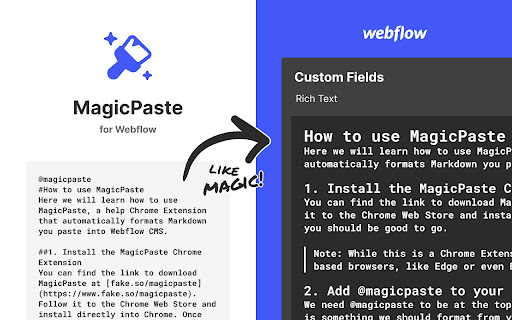
Have you tried using Webflow's rich text editor to build a website and found that you have to spend time formatting things like lists and blockquotes by hand? Do you wish you could just write markdown and not mess with the formatting? MagicPaste is an extension that makes it easy to paste Markdown content into Webflow's Rich Text Editor while already having the correct formatting applied. No longer will you need to painstakingly edit your blog posts and CMS pages. Simply begin your markdown content with "@magicpaste" on a new line, followed by the rest of the Markdown content you want formatted. Then, the extension will do the rest, modifying your clipboard to be compatible with Webflow's editor. You can write your Markdown in the Webflow editor or a file on your computer -- copy pasting from either will work as you expect! (TLDR: we know absolutely nothing about you or your data) The source code can also be found on Github at: https://github.com/evanfrawley/magicpaste

Codehub for Webflow
Adds a window to save and manage code snippets for Webflow projects. Codehub for Webflow help you manage your codesnippets. THE PROBLEM: If you often find yourself searching through multiple projects to find those handy code snippets you've used before, Codehub is here to simplify your life. THE SOLUTION: This extension provides a centralized hub where you can save, manage, and easily access all your frequently used code snippets. With Codehub, reusing code across your Webflow projects becomes a breeze, saving you time and effort. It's the perfect tool for developers looking to optimize their coding process and enhance productivity on Webflow. Simply copy the snippets that you have saved and paste them where you need them. Also enjoy the premade community snippets!

Finsweet Extension for Webflow
A suite of F'in sweet tools to improve your Webflow development experience. Important: Finsweet Extension has changed! Most features are now in our new native Webflow App. Only site settings remain in this Chrome Extension due to Webflow API limits. Unlock new and powerful tools and functionalities within Webflow's Dashboard, Editor and Designer. Functionalities include: - Bulk 301 redirects upload. - CSS styles sorting, editing and removal. - Interactions, Symbols and Color swatches reordering. - Breakpoints highlighting and removal. - Components marketplace to copy and paste directly in your project. - Direct integration with our Finsweet libraries like Cookie Consent or Attributes. - Vertical Canvas Resizing. - And much more!

Save Webflow CSS to File
Simplify your development flow by pre-select a destination CSS file and save Webflow CSS directly into it. Save Webflow CSS to File is a powerful and user-friendly Chrome extension that streamlines the syncing process between your Webflow project and your local CSS file. Now you can easily keep your your local CSS file up-to-date with Webflow project without the hassle of manual exporting, copying and pasting. Follow the extension developer’s work and journey here: https://build.typogram.co/ Key Features: - Select a destination CSS file: Choose a specific local CSS file to sync your Webflow project's styles with. - One-click CSS sync: With just one click of a button, keep your local files in sync with your Webflow project as you make changes in your design. - Easy-to-use: A simple and intuitive interface makes syncing your Webflow CSS a breeze. Whenever you update your Webflow project, just click the "Save Webflow CSS to File" button in the extension popup to update your local CSS file with the latest changes. Stay organized and save time with Save Webflow CSS to File. This extension is perfect for web designers, developers, and anyone who wants to streamline their workflow when working with Webflow projects.

Webflow Productivity Extension
A little extension to be more productive when developing on Webflow A little extension to be more productive when developing on Webflow - Quick access page settings (with shortcut too : SHIFT + S) - Quickly add script and style tag on custom code page settings
