
jficpbcohialffjjplkgifdoigjhnhim


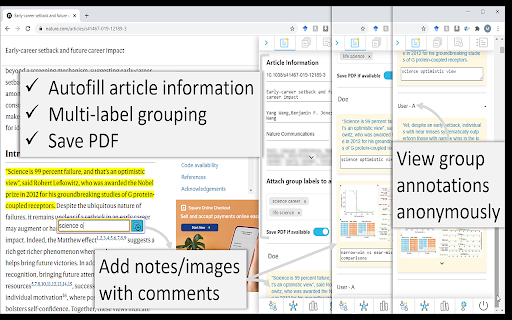
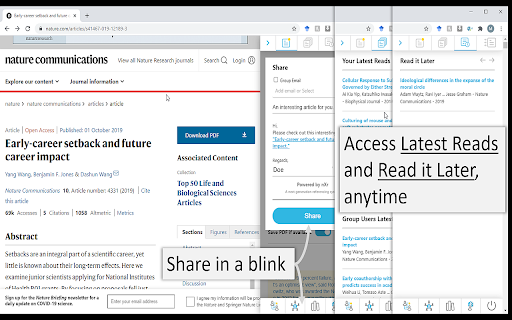
Annotate and store text/quotes/images in a quote/image searchable library for writing accurately cited paper based on quotes/images. nXr.iNote supports you to collect text/quotes and images/graphs with tags/notes from articles while browsing, which are automatically stored along with the articles in a quote/image searchable library (nXr.iLibrary). Then, you can write well-substantiated reports/writing assignments/research papers by referring/making citations based on the quotes and images besides article titles. Moreover, you can share the cited quotes/images/articles with your peers or reviewers (by nXr.iCite) to confirm that your writing is comprehensive and free from quotation/citation errors. Other key features: - support for making annotated bibliography - create topics that group together information on issues or questions from various sources - article information autofill, save PDF, multi-label article grouping. - view notes automatically in articles when they are visited again. - share articles while browsing without writing emails. - anonymous integration and viewing of articles and their annotations made by a research group members (in nXr group account). - access Read it later, Latest read while browsing. - access millions of research papers made freely available by funders (powered-by Unpaywall) Visit nxref.com to learn more on how to do things for better research through nXr.iNote integration with nXr.iLibrary and nXr.iCite, which can never be done with traditional reference managers and citation tools. Please rate us and leave feedback for making nXr more productive for you.

WordMapDictionary | A visual dictionary
It is a visual dictionary/thesaurus. It uses a mindmap like interface to show relationships between words and definitions. WordMapDictionary is a visual dictionary-cum-thesaurus. It uses a mindmap like interface to show relationships between words, definitions and other definitions. - It uses a unique mind-map style visual interface - While normal dictionaries show definitions of words in isolation. This app presents you with a holistic mindmap around the word. It shows meanings, and how those meanings relate to each other. It allows you to go deep, or broad, or sideways, to see things in different angles. See video for usage: https://www.youtube.com/watch?v=55RTcGoKqtE - Select a word on any page, right click, from the dropdown, click on "Open WM Dictionary". ("Open WM Dictionary" button is only shown if you actually selected the text). - This will open dictionary view on the side. - If dictionary view is already open, you can also select any word (and it will update dictionary view with newly selected word). - To export current word definition map as png: - From app bar, click on export icon. - To share current word definition url: - From app bar, click on share icon. - To search for a word: ## Extension Options From options page, you can configure: - size of dictionary view (in percent width of the page) - side, whether dictionary view is shown on the left or the right side.

hiper.cards - bookmarker, highlighter, tab manager
An app for managing tabs and bookmarks, sharing them, and highlighting text on the pages you visit. hiper.cards is an extension app that allows you to (1) bookmark web pages to read later, highlight text on those pages, and take notes, (2) manage your tabs, (3) save your browsing history, and (4) share bookmarks and highlights. Interacting with hiper.cards (formerly called vulog) - The pop-up - Press the app icon at the top of your browser and the hiper.cards pop-up appears. So you can bookmark the page you are on, take notes and view your inbox. You can also click on a link to view your bookmarks in a browser tab, and choose your highlighting color and edit mode. (You may first need to pin the button by pressing the extension icon) - Browser tab: View and search your bookmarks, or filter to see what you have bookmarked. (Use link under the popup.) - The webpage-box: Press CNTRL S (Mac: CMD S) on any web page and you will see a small box on the top right of the page where you can bookmark and take notes, and also change your highlighting options and edit mode. (see below) Press escape to close the web-page box. - Right-Click: When you highlight text, you can right click on it to highlight the text. If you right click on a web page link, you also have a choice to add it to your inbox for later reading. - 'Power Mode': If you turn on Power Mode (from the pop-up or webpage-box), then your cursor will turn into a giant highlighter and you can highlight text. When you press on a link in Power Mode, you get the option of adding it to you inbox (which means you don't have to go through the right-click menu) Highlighting text: You can highlight parts of any web page in different colours. Use the highlight palette in the pop-up or webpage-box to choose your highlight colour. For easier highlighting, turn on edit mode. Bookmarking: You can add any page to your favourites or your inbox using the pop-up or webpage-box. The 'inbox' tab in your pop-up automatically shows all the items marked with inbox, and not marked with archive. From there you can also see all your bookmarks in a browser tab. Data storage: Your bookmarks and browser history is kept in the chrome's local storage, which has limited space. After some weeks (or months depending on usage), hiper.cards automatically deletes older items. Privacy and CEPS hiper.cards doesn't send any of your data to any outside servers, and you can always delete your data from the "Settings" tab. If you want to store your data on your own server you will need to set up a Personal Data Store. hoper/cards was built to be able to accept CEPS-compatible data stores. (See here for more details https://www.salmanff.com/ppage/2020-3-15-Why-CEPS-Matters ) Having your data sit on your personal data store also means that you can publish your bookmarks and highlights and notes, and to share your bookemarks with your contacts. Acknowledgements Highlighting functionality was largely copied from Jérôme Parent-Lévesque. https://github.com/jeromepl/highlighter Rendering function (dgelements.js) was inspired by David Gilbertson (who never expected someone to actually implement his idea I think.) https://medium.com/hackernoon/how-i-converted-my-react-app-to-vanillajs-and-whether-or-not-it-was-a-terrible-idea-4b14b1b2faff

Research Notes
Bookmark, tag or add notes to pages, highlight and save quotes or images, save selected Google searches, filter out search results. KEEP NOTES AND ORGANIZE PAGES Bookmark, tag or add notes to pages. SAVE & HIGHLIGHT QUOTES Save quotes or other text snippets from pages (or PDFs), highlight quotes on the page. SAVE IMAGES Save images with pages - either pictures directly from the page or copy-pasted screenshots via a tool like Snipping Tool or Paint. TAGS WITH VALUE Advanced tagging: you can add values to the tags. For example, to record a page’s author, add a tag like “Author: ”. Or, when searching for products and comparing good websites with alternative offerings, add tags to pages such as “Product: ” or “Price: ”. You can group and sort by tags and values separately on the all notes -page. RESEARCH UNDER SEPARATE TOPICS All your pages and searches will be saved under topics that you define. This helps keep your different research topics - be it work, school or hobbies - separated from each other. SAVE YOUR GOOGLE OR GOOGLE SCHOLAR SEARCHES When studying a topic in-depth, save searches to remember what search terms you’ve used, which ones got great results and how far into the results you have looked. By default, search saving is turned off, it can be activated for each Google search tab separately. HELPFUL SEARCHING OPTIONS Cross out and hide search results that are not useful. Instantly add notes and tags to results straight in your Google search. OVERVIEW OF SAVED RESEARCH A special all notes -page gives a comprehensive overview of your topics, pages and searches. See your researched pages either in list or table format. Filter pages by text, tags, notes or bookmarks. PRIVATE The information that you create while working with the extension - addresses, searches, notes, tags, etc - is stored exclusively in your own browser and is not shared with anyone. We only collect anonymous analytics information about this products usage to get an overview of what features are used. DO YOU HAVE QUESTIONS OR RECOMMENDATIONS? We are open to feedback about this product, about existing features or new ideas - just send as an e-mail (feedback@onlineresearchnotes.com) or drop by in our Discord server (https://discord.gg/pE9BMg2m). And please do inform us also about any possible bugs that may be lurking. FREE This extension is free to use.

FRAMEndeley
Enrich Mendeley with Thematic Analysis functionality. FRAMEndeley extends Mendeley’s website with support for conducting Thematic Analysis in the small. This can be useful for scoping Research Questions in an iterative manner or for comparing different research articles (e.g. when writing the Related work section or discussing results). The extension is currently under development, so we appreciate your feedback.
