
jcamcakkifmbkjcfejgboieeliaomkab
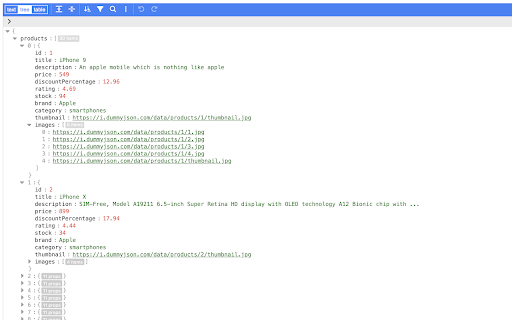
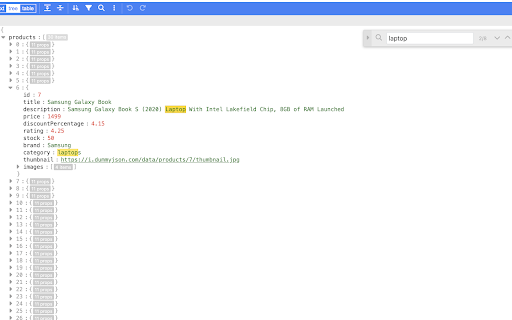


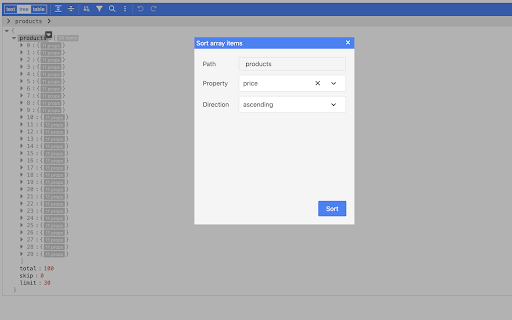
A tool to view, edit, format, repair, query, transform, and validate JSON Open web pages with JSON content or JSON files to view, edit, format, repair, query, transform, and validate JSON directly on the browser. Features: * View JSON as a tree. The JSON tree view utilizes right-click to open the context menu, and double-click to start editing a key or value. It supports copy/paste from and to the system clipboard. * View JSON as formatted text. * View JSON as a table, for top-level arrays or nested arrays. * Search and replace * Undo and redo actions * Edit the JSON keys, and values, copy, paste, duplicate, insert, or remove * JSON formatting and minifying * Query JSON with plain JavaScript or using the built-in form * Sort, filter, and transform JSON * Handle large JSON documents up to 512 MB It uses the powerful https://github.com/josdejong/svelte-jsoneditor/ and the Manifest V3 for enhanced security, privacy, and performance. Make sure to disable any other JSON viewing built-in into the browser or other JSON viewer extensions.

JSON Formatter and Viewer
Instantly transform raw JSON into a beautifully structured and color-coded format. Elevate Your JSON Workflow with the Powerful "JSON Formatter and Viewer" Chrome Extension As a developer, you know the importance of clean, organized code. But when it comes to working with JSON data, the raw, unformatted text can be a nightmare to parse. Enter the "JSON Formatter and Viewer" - a game-changing Chrome extension that transforms your JSON experience from frustrating to effortless. This extension is a must-have tool for any developer who regularly works with JSON. With its sleek, intuitive interface, you can easily convert raw JSON into beautifully formatted, color-coded code that's a pleasure to read and navigate. Say goodbye to squinting at a sea of indecipherable text and hello to a clear, structured view of your data. But the "JSON Formatter and Viewer" is more than just a pretty face. This powerful tool packs a host of features that will streamline your workflow and boost your productivity: Dark and light themes to suit your coding environment Automatic detection of data types and object sizes Alphabetical sorting of object keys for easier scanning Handy row counts for array visualization One-click data copying to your clipboard Seamless switching between formatted and raw JSON And the best part? You can manipulate the JSON data right within the extension, making changes, additions, and deletions with ease. No more jumping between your code editor and the browser - everything you need is right at your fingertips.

JSON Formatter 格式化
JSON格式化,可以多窗口多开,方便对比JSON入参和数据出参,现已支持粘贴图片到工作区。Makes JSON easy to read and compare, Image contrast is now supported. Right-click, Beautiful, fold, compare JSON, You deserve it. 右键选择JSON Formatter,好看的,可折叠,可比较JSO的工具,你值得拥有!

MIT Json Editor
A utility for viewing, editing, formatting, repairing, querying, transforming, and validating JSON data. Our tool is designed as a comprehensive solution for anyone working with JSON data, whether you're a developer, data analyst, or hobbyist. It's not just a viewer; it's a multifunctional platform that enhances your interaction with JSON data. Here’s why you should consider installing it: Viewing Capability: It presents JSON data in a clear, organized manner, making it easy to navigate through complex structures at a glance. Editing Functionality: Provides an intuitive interface for modifying JSON data, ensuring that changes can be made quickly and accurately. Formatting Options: Automatically formats JSON data into a readable and standardized form, saving you time and reducing errors in manual coding. Repair Tool: Identifies and fixes common errors in JSON files, which is essential for maintaining data integrity and speeding up the troubleshooting process. Query Feature: Allows you to query JSON data using a simple syntax, enabling fast and effective data retrieval without needing to sift through the entire dataset. Transformation Abilities: Offers the capability to transform JSON data into other formats or structures, facilitating seamless integration with various applications and services. Validation Service: Validates JSON data against schemas to ensure that it meets specific standards or requirements, which is crucial for data interoperability and quality assurance. By installing our tool, you're not just getting a utility; you're equipping yourself with a powerful ally in JSON data management. It's designed to make your work with JSON data more efficient, accurate, and enjoyable. Whether you're debugging a complex data structure, integrating JSON data with other services, or simply exploring data for insights, our tool provides the features and reliability you need to succeed.

JSON Beautifier and Editor
Display JSON objects by transforming them into Syntax editable highlighted HTML to validate, format, and save This extension monitors JSON pages and converts them into a human-readable object. You can view, edit, search through values and keys. You can even change the format of a key or drag it into a new place. There is no need to do anything after installation. Just open a JSON page and the extension automatically converts the page into the editor mode. As of version 0.2.0, the extension uses a dark theme if your browser's default theme is dark. FEATURES ► Supports both JSON & JSONP formats ► Has light and dark syntax highlighting themes ► Supports collapsible trees ► Converts text links into clickable URLs ► Supports raw, code, and parsed JSON views ► Keeps expanded structure when refreshing the JSON page ► Copy Object Path ► Copy Outer JSON ► Copy Inner JSON ► Open a new editor to write a new JSON object ► Open a new editor from selection text (right-click context menu) ► Supports large numbers (BigInt, BigFloat, ...) Change Logs: 0.1.3: 1. It is now possible to beautify local (file://) JSON files. 2. Extension now uses "persistent = false" background page (event page) to have no performance effect when it is not used. 0.1.6: 1. It is now possible to change the view mode to "Tree", "Code", and "Text" modes. The coding mode is useful to edit the raw JSON, and the text mode is useful to copy the raw data. The default view is the tree view which displays the JSON in a formatted and highlighted format.
