
ipeimmibpbandhbpndfdbjpdodcjdbdo

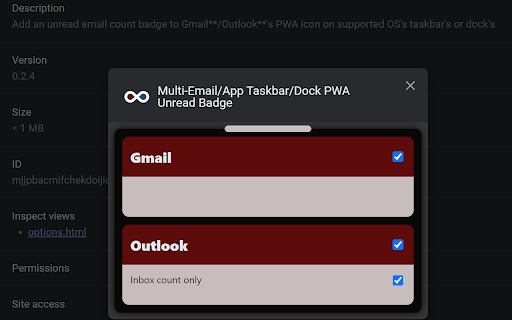

Disclaimer: The developer of this extension in no way claims to be affiliated with Google**/Gmail**/Microsoft**/Outlook**. I acknowledge that I do not own their respective trademarks. This extension was developed for personal use and shared for others to use, if they wish to. This extension adds an unread count badge to the taskbar/dock icon of a PWA* Gmail**/Outlook** app. The app supports multiple Gmail**/Outlook** PWA accounts. Multiple account badges only work when each PWA is installed using a unique Google** Chrome browser profile that is setup with the unique Google** Account that you wish to access Gmail**/Outlook** emails with. Please note: this extension does not work, as intended/expected, with multiple Gmail**/Outlook** accounts within the same Google** Chrome browser profile, if each PWA is installed using the same Chrome Profile, it will show the unread count of each account on the same PWA taskbar icon by cycling through each account dependant on when you opened the PWA account on your device. So, please ensure you install multiple instances in separate Chrome Profiles. (Windows) How to install a PWA in Google** Chrome: 1. Navigate to the Gmail**/Outlook** URL, i.e. go to your Gmail**/Outlook** Inbox. 2. Click on the Google** Chrome browser settings button, ⋮ . 3. Click on menu option, "More tools". 4. Click on sub-menu option, "Create shortcut..." 5. Name the shortcut, e.g. GMail**/Outlook**. 6. (NB!) Ensure that you check/tick the checkbox labelled, "Open as window". 7. Once the new GMail**/Outlook** window opens, remember to pin the PWA to your taskbar to ensure that the extension adds the unread count to the pinned icon on the taskbar. 8. In Windows** 10 and 11, ensure that the Taskbar setting, "Show badges on taskbar buttons", is toggled on (i.e. enabled) to allow the unread count badge to be shown on the Windows** Taskbar. Once you have successfully made use of the extension, could you please rate it, and if you have any feedback, it will be appreciated too. This will give me an indication on whether or not I should enhance this extension further. I hope that this small extension helps you in some way, enjoy. *PWA, Progressive Web Application. **The trademarks mentioned are owned by their respective owners and Ocfinity and/or this extension are not affiliated with these companies. Updates: 2025-03-01 (0.2.6.6) - Added URL match for *://outlook.cloud.microsoft/*. Enable or disable the URL match** supported list using the extension details Site Access list. The new URL has not been tested - added on request only. 2023-01-24 (0.2.6.5) - Added support for Slack** PWA. Enable or disable the Slack** support using the extension options. 2022-12-30 (0.2.4) - Merged the extensions that were created for Gmail** and Outlook** into a single extension with the ability to enable or disabled each through the extension's options. Please ensure that the apps are enabled in the options if you are experiencing issues with this extension displaying the unread counts on the taskbar/dock respective icons. Bug Fixes: 2023-01-24 (0.2.6.5) - Addressed issue with saving extension options. 2023-01-09 (0.2.5) - Fixed the storage of the extension options settings that prevented the unread count remaining after a single count update was done.

Badge Notifications for Gmail PWA
Show badge notifications in the dock/shelf when using Gmail as an app (PWA). PWA badge notifications are supported on Windows, macOS and ChromeOS:

Email Taskbar/Dock Unread Badge
Note: I have added a new extension that merges the first 2 together, the Gmail and Outlook unread counts all in one extension. Please view my other extensions or you can find it at https://chrome.google.com/webstore/detail/multi-emailapp-taskbardoc/ipeimmibpbandhbpndfdbjpdodcjdbdo Disclaimer: The developer of this extension in no way claims to be associated with Google/Microsoft/Outlook. I acknowlegde that I do not own their respective trademarks. This extension was developed for personal use and shared for others to use, if they wish to. This extension adds an unread count badge to the taskbar/dock icon of a PWA* Outlook** app. The extension is still in its infancy, so please consider it when rating it. (Windows) How to install a PWA in Google** Chrome: 1. Navigate to the Outlook** URL, i.e. go to your Outlook** Inbox. 2. Click on the Google Chrome browser settings button, ⋮ . 3. Click on menu option, "More tools". 4. Click on sub-menu option, "Create shortcut..." 5. Name the shortcut, e.g. Outlook**. 6. (NB!) Ensure that you check/tick the checkbox labelled, "Open as window". 7. Once the new Outlook** window opens, remember to pin the PWA to your taskbar to ensure that the extension adds the unread count to the pinned icon on the taskbar. 8. Windows 10 and 11, ensure that the Taskbar setting, "Show badges on taskbar buttons", is toggled on (i.e., enabled) to allow the unread count badge to be shown on the Windows Taskbar. Once you have successfully made use of the extension, could you please rate it, and if you have any feedback, it will be appreciated too. As mentioned, this is still in the alpha stage of the extension and may have issues with reflecting an accurate count. If you find any bugs with the count reflected, please do share the scenario that may have triggered the incorrect count. I hope that this small extension helps you in some way, enjoy. * PWA, Progressive Web Application. ** The developer acknowledges that the trademarks are owned by their respective owners and in no way is associated with the developer of this extension. Updates: 2022-11-26 (0.1.6) - The previously named extension was taken down by the Chrome Web Store, due to a complaint received, “The app uses the trademarks of Microsoft Corporation without authorization. In this instance, the app uses the trademarks in the app's Title.” 2022-07-11 (0.1.6) - Removed the previous Calendar feature from being default enabled. If this feature is wanted, there is a checkbox in the extensions options that will enable it again, "No Badge on Calendar PWA: (Experimental)". It is experimental, as it causes the count badge to flash on and off. 2022-07-10 (0.1.5) - When viewing the "Calendar" in the PWA, the count is cleared for that window icon, i.e. no count badge is shown on the icon. To see the click on "Mail" to view your emails and the badge will display the updated count on the icon again. 2022-06-24 (0.1.4) - Added support for Outlook**.office.com 2022-06-14 (0.1.3) - Fixed the Options page not displaying the options correctly due to the page's collapsed height. - Improved overall script performance. 2022-05-05 (0.1.2) - Added the option menu ("Inbox count only") -- [Default] If unchecked/not ticked, will show the count of the Inbox unless it is not found or zero, in which case the extension looks for the next available folder count to be displayed on the PWA icon badge. -- If checked/ticked, only the Inbox count will be shown on the PWA Icon Badge 2022-04-26 (0.1.1) - Added support for Outlook** live mail and Outlook** office365 mail

Outlook Web App Unread Count
Update the favicon and title with an unread count Update the favicon and title on the outlook web app with an unread count

Gmail app badge notification
Show badge notifications in the taskbar when using Gmail as an app 1. Install the extension 2. Add Gmail as an app. You can do so by following this guide: https://support.google.com/chrome_webstore/answer/3060053?hl=en - make sure to select the option "open as a window". 3. Open the newly installed app.
