
iohinadgijcpmclidcgalomljfabkpde
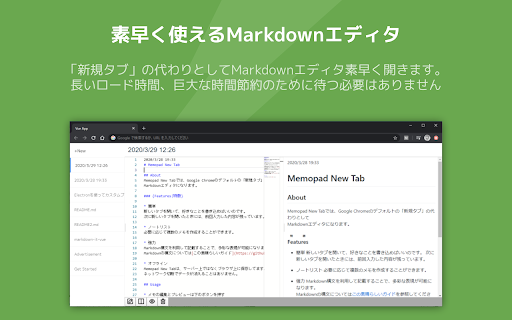
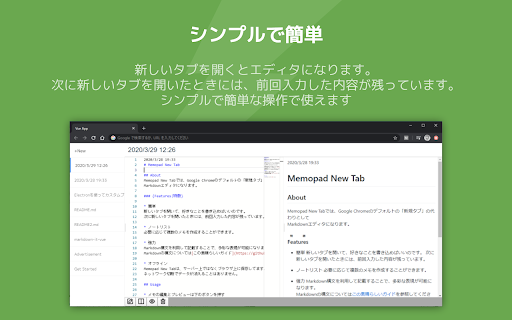


Memopad New Tab makes it a Markdown editor instead of the default [New Tab] in Google Chrome. Memopad New Tab is a Chrome extension that turns your new tab into a Markdown editor. Open a new tab to instantly 🗒️ take notes, save ⏰ reminders, 🔗 paste links, or create tables. Designed for those who want a quick, clean, and smart way to make the most of every new tab. * Simple and Easy to Use Just open a new tab and start writing. Your notes are automatically saved and ready the next time you open a tab. * Note List Create multiple notes for different purposes and switch between them with ease. * More Expressive with Markdown Use Markdown syntax to write with headings, lists, tables, code blocks, and more. See [the official guide](https://github.github.com/gfm/) for Markdown syntax. * Works Offline Memopad New Tab stores your data in the browser, not on any server. You can create and edit notes even without an internet connection. * Powered by Monaco Editor — the Same Editor as VS Code Enjoy a rich editing experience with Monaco Editor, the same editor used in VS Code. Syntax highlighting and autocompletion make writing Markdown smooth and comfortable. * Diagrams with Mermaid and PlantUML Memopad New Tab supports Mermaid and PlantUML, letting you create sequence diagrams, class diagrams, flowcharts, and more from plain text. Just write the code and your diagram appears instantly. * Real-time Preview Your content is reflected in the preview pane as you type. See the final result right alongside your writing for a seamless note-taking experience. v1.3.14 (2026/05/25) * Added bilingual (English/Japanese) text support for the Settings page The Settings page now follows your Language setting (en/ja), and section headings, descriptions, tab names, and sort options are displayed in the selected language. * Applied language changes instantly without reload You can now switch language while keeping the Settings page open, and all displayed text updates immediately. v1.3.11 (2026/05/22) * Added nested list conversion for full-width-space-prefixed "・" We revised Settings -> multibyte -> Enable convert rules so lines starting with ` ・` are now correctly converted into nested Markdown lists. * Changed the default breaks setting to ON The Markdown Settings breaks option is now enabled by default, so notes with line breaks are displayed more naturally. v1.3.10 (2026/05/22) * Moved the delete action to each note item in the list The delete action is now available directly on each note item, making it easier to remove the intended note. * Separated view switching and destructive actions We removed the delete action from the footer to avoid mixing it with view mode switching (F8/F9/F10). v1.3.9 (2026/05/22) * Visualized the selected view mode The currently selected mode (F8/F9/F10) is now highlighted by button color, making the current state easier to understand. * Saved and restored the selected view mode Your last selected view mode is now persisted and restored when you open the app again. v1.3.7 (2026/05/19) * Improved the timing of Markdown autocompletion popups Unintended suggestion popups are now suppressed so completions appear only when needed. * Show completion suggestions with Ctrl+Space Suggestions are now explicitly shown with Ctrl+Space to reduce interruption while typing. v1.3.6 (2026/05/12) * Added instant Privacy Blur activation with F6 When you need to hide the screen immediately, pressing F6 now enables Privacy Blur on the spot and switches to a blurred view right away. v1.3.5 (2026/05/11) * Fixed delayed note update reflection Resolved an issue where updates made in another tab could appear with a delay, so the latest content is now shown more smoothly. * Adjusted export reminder animation for new installations For new installations, the export reminder bounce animation is suppressed for the first 30 days to improve initial usability and visual comfort. v1.3.3 (2026/05/07) * Added idle timeout detection to Privacy Blur The screen will automatically blur after 5 minutes of inactivity, even while the window is focused. Click to instantly remove the blur. * Added hover tooltips and F8-F10 hotkey support for view toggle buttons Added descriptions to the edit/preview/column view toggle buttons and can now be controlled with F8, F9, and F10 keys. * Added export button to sidebar footer An export button is now permanently displayed at the bottom of the note list for easier backup. v1.3.0 (2026/05/07) * Mermaid diagram support You can now draw diagrams using Mermaid syntax — flowcharts, sequence diagrams, and more. Toggle it on or off in settings. v1.2.0 (2026/05/05) * Auto-reload when another tab updates your note When the same note is open in multiple tabs and updated elsewhere, it reloads automatically. If you are currently editing, a copy is created so you can continue without losing your work. * Improved sidebar usability Added a toggle button for the sidebar, and you can now switch between notes using the up/down arrow keys. * Added Unicode Highlight and Minimap editor settings New ON/OFF options for "Unicode Highlight (Ambiguous Characters)" and "Minimap" are now available in the editor settings. v1.1.5 (2026/05/04) * Updated internal libraries for improved security Internal libraries have been updated to their latest versions, enhancing overall security and stability. * Introduced Privacy Blur mode Added a new "Privacy Blur" feature that blurs the screen when the window becomes inactive, helping prevent others from seeing your notes. Enable it in settings to automatically hide your content whenever you step away.

Notes Tab
A fast notes editor on every new tab. Markdown, slash menu, checklists, dark mode. Keep notes local or share with an AI agent. Notes Tab replaces the New Tab page with a clean, fast notes editor, so the place you already open dozens of times a day becomes the place you capture ideas, todos, snippets, and rough drafts. WHY IT'S DIFFERENT • 100% local. Notes live in your browser. No accounts, no cloud, no telemetry. • Zero friction. Open a new tab → start typing. That's it. • Looks like a real editor, not a sticky note. Inter for prose, JetBrains Mono for code, light/dark themes that follow your OS. EDITOR • Live markdown. Type # for a heading, - for a list, > for a quote, and they render instantly without showing the raw syntax. • Slash menu. Press / to insert headings, bulleted/numbered lists, checklists, or a divider. • Bubble menu. Select text for bold, italic, strikethrough, inline code, or a link. • Checklists with the click of a box. • Paste markdown from anywhere, and it auto-formats. TABS • Multiple tabs across the top for separate notebooks, projects, or contexts. • Switch instantly with ⌘ + [ or ⌘ + ] (Ctrl on Windows/Linux). • Rename inline. Reorder by drag. KEYBOARD-FRIENDLY Block shortcuts in the slash menu PRIVACY Notes Tab does not collect, transmit, or sync any data. Everything is stored in your browser's local storage on your device.

NEW TAB NOTE
This extension allows you to use your new tab as a notepad! 📚 Features ・Use a new tab as your notebook ・Supports Markdown syntax ・Notes are saved automatically, even after reloading ・Filter mode blurs your notes to prevent peeking ・Create and switch between multiple notes ・Customize with different color themes ・Notes with sync enabled are shared across devices signed in with the same Chrome account ⚠️ Notes ・The sync storage capacity is limited to roughly 100 KB in total by chrome.storage.sync. If you exceed the quota, syncing stops until you clean up notes. ・The administrator (developer) does not store or manage your memo data. In case data is lost due to browser behavior, sync limitations, or other environmental factors, recovery is not possible. Please make sure to back up important information yourself. For feedback or bug reports, please visit https://github.com/deren2525/new-tab-note/issues/new/choose

Markdown Editor
A lite, free & flexible Markdown editor app for your browser. Markdown Editor, is an editor for markdown language (a lite markup language with plain text formatting syntax). With this app, you can open any ".md" file and edit the code via the built-in markdown editor. Moreover, you can compile the code and see the rendered document within the app (side or bottom sections depending on the window size). Once a markdown code is compiled you can click on the print button to print the document to .pdf format (via the print UI). Please note that this app uses CodeMirror (codemirror.net) and markdown-it (github.com/markdown-it/markdown-it) open-source JavaScript libraries. There are few settings to adjust for this app, simply open any markdown document, edit the code on the left side editor, then adjust desired options on the top toolbar, and then click on the compile button. Please note that the add-on also compiles the code on-the-fly as you type in the editor. Once you are done, you can download the final markdown code or get the PDF for the final result. If you have a feature in mind or found a bug to report, please fill the bug report form on the add-on's homepage (https://mybrowseraddon.com/markdown-editor.html).

TaggingNotes
This extension adds notes managed by tagging without Hierarchized tree to sidebar. * Manages data by tagging * Shown in sidebar * Imports notes from Vivaldi * Imports notes from Presto Opera * Backup and Restore data * Copy to notes by context menu of page * Add tag by context menu of page # Write anything to textarea of panel or copy to notes by context menu on selected text of page. # Add tags by input to bottom of textarea or context menu on selected text of page. # Click tags on top of panel to search notes, click again it to unchecked. # If you don't check any tags, then all notes are shown. # Click any note shown to edit it. # Click add here to create a new note tagged by selected tags on top of panel. # You can delete a note/tag by context menu or delete key on it. # Deleted note is tagged as "Trash", and delete it again, then it will be deleted completely.
