
inpocknlpmoamgegkfdpdjndefjopmmg
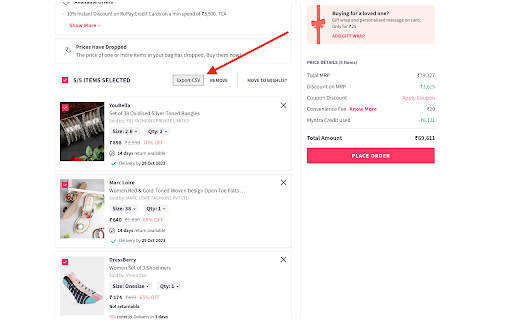
Streamline Your Shopping with Myntra Export Cart To CSV Extension - Effortless Export, Informed Choices! "Myntra Export Cart To CSV Extension" is a must-have tool designed to streamline your Myntra shopping experience. With its seamless functionality, this Chrome extension allows you to effortlessly export your Myntra shopping cart data to a convenient CSV format. No more tedious manual data entry or complex processes—simply click a button and have your data ready for analysis and organization. Gain a comprehensive overview of your shopping list, track your expenses, and make well-informed decisions about your purchases. Whether you're a meticulous budget planner or an enthusiastic shopaholic, this extension is tailored to enhance your shopping journey. The user-friendly interface ensures that the export process is smooth and intuitive, allowing you to focus on what really matters—finding the best products on Myntra without worrying about managing your cart data. Take charge of your shopping with the "Myntra Export Cart To CSV Extension" and enjoy a more organized and efficient shopping experience. Spend less time managing data and more time exploring the vast array of products on Myntra. Simplify your shopping today with this indispensable Chrome extension!

Buy Local Sunshine Coast
Boost your LinkedIn outreach with this tool. Initiate quality connections, track chats, and expand your network seamlessly. With an overwhelming number of LinkedIn connections and the rise of spam, bots, and fake profiles, business professionals on the Sunshine Coast struggle to cultivate authentic relationships. The time and effort spent sifting through superficial interactions is exhausting and unproductive. As the digital realm becomes increasingly impersonal, professionals miss out on genuine business opportunities. The core essence of networking—trust, reliability, and human connection—becomes lost amidst the noise. Without genuine connections, your business loses potential collaborations, client opportunities, and essential growth avenues. The B2B Sunshine Coast Chrome extension, in collaboration with My Most Trusted Network, is the answer. It’s tailor-made to filter out the noise and focus on what truly matters: authentic connections. Designed to bring together your trusted business community, it allows you to tap into each other’s networks, request referrals, and foster genuine collaborations. Say goodbye to spam and bots and welcome meaningful, human-centred business relationships.

WhoFundsWho
Instantly shows you who funds the experts, politicians, think tanks and other institutions you are reading about. WhoFundsWho is a browser extension that instantly shows you who funds the experts, politicians, think tanks and other organizations that you are reading about. We rely on experts and institutions to make sense of the world. But these experts and institutions have their own biases and interests. These are typically not disclosed to the reader even though they may have an influence on what the organization or person believes or says. While you usually could find such information if you did some research, who wants to have to do that research for every person or organization they are reading about? WhoFundsWho did this research for you and makes it instantly available to you exactly when it is most relevant to you. WhoFundsWho highlights on any webpage the names of organizations and people for who it has funding information in its database. Simply click on or hover over the highlighted name to open a popup that displays that information for you. And it is not just financial information that WhoFundsWho can provide you with. It can also tell you: - what other organizations a person has worked for - how an organization is related to other organizations - who their parent or child organizations are - who they partner with - what networks they are a member of and more. How to Use In the user menu there are several options you can choose from: - on / off - Use this to turn the extension on or off. The default is 'on'. - click / hover - By default the popup will open when you hover over a highlighted name but you can also choose 'click' which opens the popup when you click on the highlighted name. The potential issue with the 'click' option is that sometimes the names that the extension finds and highlights on the webpage were already hyperlinked on the original page. And the hyperlink applied by the extension may then override the original hyperlink so that the original link is no longer accessible. This conflict is avoided by choosing 'hover' to open the popup which leaves the webpage's original click action intact. - quick / full - The 'quick' option loads the popup with only the most important information, in text format, while the default 'full' shows all available information, and it uses both text and images. - first / all - When the default 'all' is selected, all instances of each matching name found on the webpage will be highlighted whereas 'first' will highlight + hyperlink only the first two instances. The reason for this option is that if the name of an organization or person is frequently mentioned on a webpage then it may become distracting or visually unappealing if each instance of that name is highlighted + hyperlinked. Note that on twitter.com the option to highlight only the first 2 instances is not available and all instances will be highlighted. - include people - The database contains records for both organizations and people. The extension will always highlight the names of matching organizations but by checking or unchecking 'include people' you can choose whether you also want it to find matching people. - category checkboxes - You can choose one or more of up to 11 different categories of organizations & people. If for example you are only interested in information about think tanks, then check that option. If you want the extension to alert you whenever the organizations or people you are reading about are funded by the Bill & Melinda Gates Foundation or have some affiliation with the - all websites / select - By default the extension runs on all webpages but you can also specify the websites that you want the extension to run, or not run, on. Click the 'select' link to open the input form where you can specify the specific URLs. Then check the 'select' radio button, and choose whether the extension should or should not run on the websites you specified. - highlight & text - Select the highlight and text color the extension uses. Or select 'none' to to select a text color without any highlighting applied to it. Privacy WhoFundsWho performs all privacy sensitive operations locally, on the user's local machine. Upon installation the extension downloads from two Google Sheets two lists of keywords (one for organization names and one for people names) together with the (encrypted) URLs of the Airtable records they are associated with. It uses these to locally build a Bloom filter data structure which in turn it uses to perform keyword searches of the text of webpages the user visits. This works as follows: After a webpage's text content has fully loaded, the content script captures all visible text and sends it to a local service worker that performs a Bloom filter keyword search on it and returns an array with the keywords it found. The content script then highlights and hyperlinks these keywords on the webpage. Up to this point all these processes are automatic and take place only on the user's local machine. No data about the websites the user visits or the text on those websites is ever transmitted to servers in this process. It is only when the user clicks on or hovers over a highlighted name to open a popup with funding data for that organization or person, that a record retrieval request is sent to a server. The request sent to the server consists only of the (encrypted) url and two backup urls where the Airtable records associated with the name are located. The only information sent to the server is a request to see a specific record of an organization or person. No user data (e.g. IP address) is collected or logged. For all this to work, WhoFundsWho requires three permissions: Host Permission By default WhoFundsWho runs on all webpages and it runs automatically, without requiring the user to manually start the keyword search of a webpage's text. The user can change these settings in the user menu by choosing the 'off' rather than 'on' setting and then manually re-activating the search on each webpage it wants the extension to run on. The user can also specify a list of websites that the extension should or should not run on. But the default is that the extension runs automatically and on all websites. For this to work, the extension requires the '' host permission, a powerful permission that could potentially be misused. That is why all privacy sensitive actions are only performed locally, as explained above. Storage Because the extension downloads the keywords data from the two Google Sheets in order to locally build the database that it uses for the keyword searches, it needs storage permission. This permission is also needed to store the selections the user makes in the user menu so that these selections can persist between different sessions. Unlimited Storage Because the number of keywords in the database that it needs to store locally is very large (75,000+) the extension requires more than 5MB storage space, which means it requires the Unlimited Storage permission. For an FAQ & troubleshooting, as well as more information about the project, visit www.whofundswho.com

Michael's Upgrade for TrakED
Upgraded features for TrakED in the THS. (This extension is not an official product of the THS or Intersystems TrakCare software.) Upgraded features for Trak ED in the LGH. Features: - Re-enable spell check in the triage page - Use the enter key when logging in - Handover sheet for ED Main Floor and EMU - ED Main Floor filters and persistent sort - Triage Summary print out - Filter and count results of an enquiry - Count patients currently breaching length of stay targets -- This extension is not an official product of the LGH or InterSystems Trak software.

CrecenTech Utilities
It's a simple chrome extension which will hide password showing method.It will also hide code inspection with all ways like short cut keys etc.
