
pfdecgjliclkncfaiciljlphfenigmno
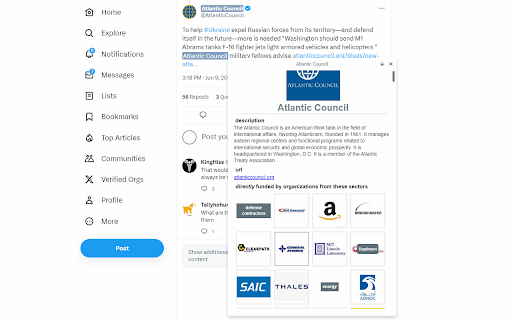


Instantly shows you who funds the experts, politicians, think tanks and other institutions you are reading about. WhoFundsWho is a browser extension that instantly shows you who funds the experts, politicians, think tanks and other organizations that you are reading about. We rely on experts and institutions to make sense of the world. But these experts and institutions have their own biases and interests. These are typically not disclosed to the reader even though they may have an influence on what the organization or person believes or says. While you usually could find such information if you did some research, who wants to have to do that research for every person or organization they are reading about? WhoFundsWho did this research for you and makes it instantly available to you exactly when it is most relevant to you. WhoFundsWho highlights on any webpage the names of organizations and people for who it has funding information in its database. Simply click on or hover over the highlighted name to open a popup that displays that information for you. And it is not just financial information that WhoFundsWho can provide you with. It can also tell you: - what other organizations a person has worked for - how an organization is related to other organizations - who their parent or child organizations are - who they partner with - what networks they are a member of and more. How to Use In the user menu there are several options you can choose from: - on / off - Use this to turn the extension on or off. The default is 'on'. - click / hover - By default the popup will open when you hover over a highlighted name but you can also choose 'click' which opens the popup when you click on the highlighted name. The potential issue with the 'click' option is that sometimes the names that the extension finds and highlights on the webpage were already hyperlinked on the original page. And the hyperlink applied by the extension may then override the original hyperlink so that the original link is no longer accessible. This conflict is avoided by choosing 'hover' to open the popup which leaves the webpage's original click action intact. - quick / full - The 'quick' option loads the popup with only the most important information, in text format, while the default 'full' shows all available information, and it uses both text and images. - first / all - When the default 'all' is selected, all instances of each matching name found on the webpage will be highlighted whereas 'first' will highlight + hyperlink only the first two instances. The reason for this option is that if the name of an organization or person is frequently mentioned on a webpage then it may become distracting or visually unappealing if each instance of that name is highlighted + hyperlinked. Note that on twitter.com the option to highlight only the first 2 instances is not available and all instances will be highlighted. - include people - The database contains records for both organizations and people. The extension will always highlight the names of matching organizations but by checking or unchecking 'include people' you can choose whether you also want it to find matching people. - category checkboxes - You can choose one or more of up to 11 different categories of organizations & people. If for example you are only interested in information about think tanks, then check that option. If you want the extension to alert you whenever the organizations or people you are reading about are funded by the Bill & Melinda Gates Foundation or have some affiliation with the - all websites / select - By default the extension runs on all webpages but you can also specify the websites that you want the extension to run, or not run, on. Click the 'select' link to open the input form where you can specify the specific URLs. Then check the 'select' radio button, and choose whether the extension should or should not run on the websites you specified. - highlight & text - Select the highlight and text color the extension uses. Or select 'none' to to select a text color without any highlighting applied to it. Privacy WhoFundsWho performs all privacy sensitive operations locally, on the user's local machine. Upon installation the extension downloads from two Google Sheets two lists of keywords (one for organization names and one for people names) together with the (encrypted) URLs of the Airtable records they are associated with. It uses these to locally build a Bloom filter data structure which in turn it uses to perform keyword searches of the text of webpages the user visits. This works as follows: After a webpage's text content has fully loaded, the content script captures all visible text and sends it to a local service worker that performs a Bloom filter keyword search on it and returns an array with the keywords it found. The content script then highlights and hyperlinks these keywords on the webpage. Up to this point all these processes are automatic and take place only on the user's local machine. No data about the websites the user visits or the text on those websites is ever transmitted to servers in this process. It is only when the user clicks on or hovers over a highlighted name to open a popup with funding data for that organization or person, that a record retrieval request is sent to a server. The request sent to the server consists only of the (encrypted) url and two backup urls where the Airtable records associated with the name are located. The only information sent to the server is a request to see a specific record of an organization or person. No user data (e.g. IP address) is collected or logged. For all this to work, WhoFundsWho requires three permissions: Host Permission By default WhoFundsWho runs on all webpages and it runs automatically, without requiring the user to manually start the keyword search of a webpage's text. The user can change these settings in the user menu by choosing the 'off' rather than 'on' setting and then manually re-activating the search on each webpage it wants the extension to run on. The user can also specify a list of websites that the extension should or should not run on. But the default is that the extension runs automatically and on all websites. For this to work, the extension requires the '' host permission, a powerful permission that could potentially be misused. That is why all privacy sensitive actions are only performed locally, as explained above. Storage Because the extension downloads the keywords data from the two Google Sheets in order to locally build the database that it uses for the keyword searches, it needs storage permission. This permission is also needed to store the selections the user makes in the user menu so that these selections can persist between different sessions. Unlimited Storage Because the number of keywords in the database that it needs to store locally is very large (75,000+) the extension requires more than 5MB storage space, which means it requires the Unlimited Storage permission. For an FAQ & troubleshooting, as well as more information about the project, visit www.whofundswho.com

PageTrail
This Extension tracks your daily surfing activity PageTrails is designed to enhance productivity by tracking time spent on various websites. It records active browsing time, aggregates it at the domain level, and provides a concise summary of web activity. This extension is ideal for users seeking to monitor their web usage patterns and optimize their online time.

TimeCrunch Tennis
AI-powered extension that removes non-playing time from tennis matches on Tennis TV and Tennis Channel Plus. The TimeCrunch browser extension is essential for anyone with an ATP Tennis TV or Tennis Channel Plus account. TimeCrunch uses AI to find and then skip over downtime during a tennis match. TimeCrunch is very light weight and will not increase your data usage. We also do not collect any of your browser data.

The Big Gift List
Easily add items to your 'The Big Gift List' lists Help friends and family take the guesswork out of buying you gifts with The Big Gift List. When it comes to a birthday, Christmas, wedding or any other special occasion, with your gift list you can show your friends and family what you really want, so they don't need to guess. Use the official browser extension to add items to your gift lists directly from any website.

FLOZABLE Tab Monitor
Boost focus with timers, block distractions, get study tips, and stay updated with group alerts using FLOZABLE. Supercharge your focus and productivity with the FLOZABLE Study Focus Chrome Extension. Seamlessly integrated with your browser, this extension is your go-to tool for cultivating efficient study habits and making the most out of your online learning experience. Time Management Mastery: Effortlessly track your study time with our intuitive timer. Set focused intervals, challenge yourself, and stay on top of your study goals. Distraction-Free Browsing: Activate the distraction-free mode to limit access to non-educational websites during your study sessions. Say goodbye to procrastination and hello to enhanced concentration. Personalized Study Plans: Receive AI-generated study suggestions based on your learning habits and preferences. Tailored recommendations to keep your study sessions engaging and effective. Group Study Alerts: Stay connected with study groups seamlessly. Receive instant notifications for group study invitations, challenges, and achievements directly through the Chrome Extension. Progress at a Glance: Get a quick overview of your study progress with a personalized dashboard. See your daily, weekly, and monthly study trends, empowering you to stay motivated and accountable.
