
ikfbkffbgkdghhnjfoomdkeifljlepah
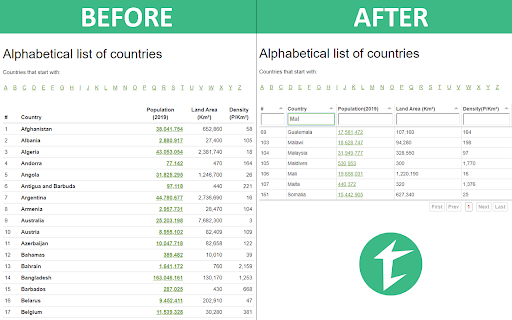
Filter, sort, page and style any existing HTML table using the Tabulator JS library. Do you work with websites featuring lots of HTML tables? Need to quickly filter, sort, page, copy or export data without touching the website code? Tabulazer turns any standard HTML table into a powerful interactive table (powered by Tabulator). You can “tabulaze” tables to get: ➤ Real-time column sorting (ascending/descending) ➤ Column filters (per-column filtering) ➤ Quick filter (global search across all columns, optional) ➤ Paging + rows-per-page selector (10 / 25 / 50 / 100 / 250 / 500) ➤ Resizable columns (mouse-driven) ➤ Column chooser (show/hide columns, optional) ➤ Remember layout per page (persist filters/sorting/columns for the same URL, optional) ➤ Visual modes: compact mode, zebra rows, font size scaling ➤ Export & copy tools (from the context menu): Copy Table to Clipboard: CSV / XLSX / XML Download Table as: CSV / XLSX / XML Export scope: (current view) or (all rows) Highly recommended if you deal with big tables and need to quickly extract relevant data. NEW UI (SIDE PANEL) Tabulazer now uses a modern Side Panel interface (instead of the old popup), so you can keep controls visible while browsing. From the Side Panel you can: ➤ Pick table (overlay picker) ➤ Toggle the last table ➤ Activate all / Deactivate all ➤ See a list of detected tables and toggle each one ➤ Select an active table (scroll + highlight) ➤ Manage settings (filters/sorting/paging/visuals) CONFIGURATION SETTINGS Open the Side Panel to access settings, including: ➤ Force table width to 100% ➤ Enable sorting ➤ Enable column filters ➤ Enable paging + choose rows per page ➤ Enable quick filter ➤ Enable column chooser ➤ Remember layout for this page (on/off) ➤ Compact mode / Zebra rows / Font size USAGE INFO Right-click anywhere on a page and use the Tabulazer context menu: ➤ Pick Table (overlay picker) ➤ Toggle Table (toggles the table you right-clicked; if used outside a table it falls back to Pick Table) The transformation is done using Tabulator (https://tabulator.info/), a great table management JS library by Oli Folkerd. ➤ Tabulazer official page: https://www.ryadel.com/en/tabulazer-chrome-extension-filter-sort-html-table-tables/ ➤ Fork me on GitHub: https://github.com/Darkseal/tabulazer

Copy Tables
Copying tables. 웹 페이지에 있는 table에서 특정 테이블 행이나 열, 특정 테이블 전체를 간편하게 선택해서 클립보드로 복사할 수 있는 프로그램입니다. 테이블 위에 마우스를 놓고 아래와 같은 단축키와 마우스 클릭을 사용합니다. 1번키 + 마우스 왼쪽 클릭: 테이블에 있는 특정 열을 클립보드로 복사. 2번키 + 마우스 왼쪽 클릭: 테이블에 있는 특정 행을 클립보드로 복사. 3번키 + 마우스 왼쪽 클릭: 테이블에 있는 전체 내용을 클립보드로 복사. 4번키 + 마우스 왼쪽 클릭: 테이블에 있는 전체 내용을 블록으로 선택만. 클립보드로 복사는 사용자가 직접 선택. 프로그램 단축키는 환경설정에서 켜고 끄거나 다른 키로 바꿀 수 있습니다.

Table Sorter
This make all your table sortable To utilize the extension, please follow these steps: 1) Install the extension on your browser. 2) Enable the extension once it has been successfully installed. 3) Refresh the website you would like to use the sorting feature on. And that's it! The website should now be sortable. If you have any questions or suggestions, please don't hesitate to send us an email. Thank you for using our extension.

Download table as CSV
Right click on the table, then select 'Download table as CSV' from the context menu. Alternatively you can click the icon and then click on the table to download The extension downloads the HTML tables in MS Excel style CSV format. It will save as TSV if tabs are selected as the delimiter. Images will be show in the CSV file as the source URL. Inputs and text-areas will be indicated in the CSV file with a '(i)' Support for UTF-8 with BOM - You can toggle this in the extensions popup. Can change the delimiter in the extension popup.

Table Extractor - Download any Table as a CSV
The extension downloads HTML tables in CSV format. Click the icon and then click on the table to download The extension downloads HTML tables in CSV format.
