
ihdckjmmfpfabbmfhipmjdojmbibopjj
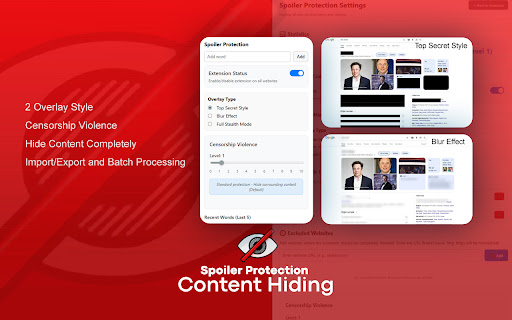
Advanced content protection extension that detects and hides sensitive words and spoilers with customizable overlay effects. Hide spoilers and unwanted content anywhere on the web. Add your own blocked words, choose blur/blackout/stealth modes, and tune how much of the surrounding section is hidden—globally or per site.

SpoilerCub – YouTube Spoiler Blocker for Movies, Shows & Games
Block YouTube videos containing spoilers for games, movies, or shows you specify Tired of YouTube spoilers ruining your favorite games, movies, and TV shows? SpoilerCub is the ultimate Chrome extension that automatically hides spoilers on YouTube, keeping your entertainment experience spoiler-free. • Smart Video Blocking - Automatically hides thumbnails and videos containing spoilers • Search Protection - Blocks spoiler-filled search suggestions and autocomplete • Comment Filtering - Hides comments with spoiler keywords • Custom Keyword Lists - Add any game, movie, or show name (e.g., "Elden Ring", "The Last of Us", "House of the Dragon") • Instant Warnings - Clear alerts when spoilers are detected • 100% Private - No data collection, no tracking, everything runs locally on your device • Lightweight & Fast - Minimal performance impact 1. Install - Add SpoilerCub from the Chrome Web Store 2. Configure - Add keywords for games, movies, or shows you want to protect 3. Browse Safely - SpoilerCub automatically blocks spoilers on YouTube Perfect For • Gamers - Protect yourself from game spoilers (Elden Ring, Starfield, Cyberpunk 2077) • Movie Fans - Avoid movie spoilers (Dune 2, Avatar, Marvel movies) • TV Show Enthusiasts - Stay spoiler-free for shows (Stranger Things, House of the Dragon, The Last of Us) Your privacy matters. SpoilerCub: • Runs entirely on your device - no data sent to servers • Keeps your keyword lists private and local • No ads, no tracking, no data collection • Open-source transparency • Gaming: Add "Cyberpunk 2077", "Starfield", "Baldur's Gate 3" • Movies: Add "Dune 2", "Avatar: The Way of Water", "Oppenheimer" • TV Shows: Add "Stranger Things S5", "House of the Dragon", "The Last of Us" • Instant Protection - Blocks spoilers as you browse • Easy Setup - Get started in seconds • Customizable - Add any keywords you want • Free Core Features - Essential spoiler blocking is free • Regular Updates - Continuously improved Install SpoilerCub now and enjoy YouTube without spoiler anxiety!

No Spoilers
This extension lets you add keywords based on which it blurs video cards from youtube. This helps you avoid spoilers and enjoy your youtube experience. You can still choose to watch the blurred video by changing toogling it's visibility.

ElementHider
ElementHider is a browser extension I built to help you hide or blur any part of a web page as easily as possible. I got tired of constant distractions from ads, spoilers, and irrelevant content, so I made this to create a cleaner, more focused browsing experience. Just type in the keywords you don't want yo see and ElementHider takes care of the rest. Features * Hide by Keyword: This is the main feature. You can automatically hide any content that contains specific words or phrases you define. It's a powerful way to filter out spoilers or topics you aren't interested in. * Hide Anything Else: If a keyword isn't enough, you can also use a point and click method to hide any individual element on the page, like a sidebar, an ad, or a "suggested for you" box. * Blur Instead of Hide: If you don't want to completely remove content, blur it instead. Just hover over the blurred area to reveal it when you're ready. * Extension is built to hide unwanted content, even on dynamic sites like social media feeds where new content loads as you scroll. * Customizable Site-Specific Rules: For more control, you can apply rules to specific websites only. Use a safe test mode to highlight what will be hidden before it disappears. You can also adjust hiding sensitivity and set keywords to be case-insensitive or exact match. ElementHider was designed to work on any website, including YouTube, X (Twitter), Facebook, news sites, and shopping sites. Extension permissions are required to read the sites to detect the elements and keywords on the site but no data is collected or sent to the developer or any 3rd party. All the data (keywords, settings) are saved into your Chrome sync storage so everything stays within Chrome and your Google account.

Bulk Url To Full Page Screenshot
Capture full‑page screenshots of single or multiple URLs (bulk) as JPG, PNG or PDF with compression and history. This extension captures full‑page screenshots (not just the visible viewport) of one or many URLs. It supports: Bulk mode: Paste multiple URLs and automatically open/capture each. Same‑tab mode: Reuse one tab to minimize resource usage. Formats: JPG (with adjustable quality), PNG, or PDF (real PDF assembly from the image). Dynamic content handling: Optional “Infinity Scroll” pre‑loading or continuous scroll‑to‑bottom to load lazy/infinite content before capture. Sticky header/footer handling: Detects and manages fixed/sticky elements to avoid duplicates. Watermarks: Optional URL and timestamp watermarks with a readable background. History & Resume: Saves recent captures and can resume an interrupted bulk run. Settings UI: Users can fine‑tune delays, quality, steps, and overlays. How to Use the Extension Install & Open: After installing, click the extension icon to open the popup. Capture Current Page: Leave the URL input empty and press “Capture This Page.” The current tab’s full page will be captured using stored settings. Bulk Capture: Paste or type multiple URLs into the textarea (one per line or comma‑separated). The parser auto‑formats them. Adjust format (JPG/PNG/PDF), scroll delay, quality, and Infinity Scroll settings. Click “Save All Pages.” Progress and status appear in the bar and log. Stop Process: Click “Stop” to cancel an ongoing bulk capture. View History: Recent captures appear in the popup; full history (with delete options) is available via Settings. Change Settings: Click “Settings” (options page) to configure default format, timeouts, scroll behavior, watermarks, and overlay. Changes are saved to storage. Context Menu: Right‑click a page and choose “Capture Full Page” or use the action menu “Save this page” for quick one‑off captures. Downloads: Files are saved automatically with a cleaned filename including a timestamp.
