
iccnjfgjkdodnhojijhmneglildgljde
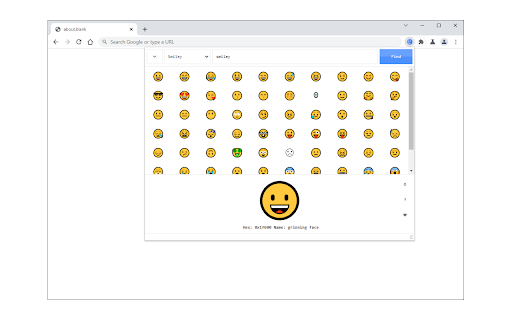
Easily find & copy any emoji(s) from your browser toolbar popup UI. Emoji Finder extension lets you find and copy desired emoji(s) from your browser's toolbar popup with just one click. Few features: 1. Over 1800 emojis to choose from. 2. Toolbar popup has a built-in finder to search and find the desired emojis. 3. Click on each emoji to see details and copy the icon to the clipboard. 4. No settings or options to adjust. Note 1: to copy each emoji icon, simply click on it. The emoji will be copied to the clipboard automatically. Note 2: depending on your browser's version and operating systems, some emoji icons may not render properly. To report bugs, please fill the bug report form on the addon's homepage (https://mybrowseraddon.com/easy-emoji.html).

Tab Manager
Easily organize all your open tabs in multiple windows from toolbar popup! This extension is designed to organize tabs from the toolbar popup. The UI for the extension can also be opened in a standalone popup window or a new tab (choose an item from the toolbar button context-menu). Tab Manager add-on supports multi-window and incognito mode. To work with this addon, just open the extension UI and start managing your tabs. Within the UI you can see a search bar at the bottom. Above that, there is the list of open tabs for window #1 (a new section is added for each new window). Within each row (tab item) in the list, there are several buttons. The first is the pin button which can be used to pin a desired tab(s). Next is the HTTP/HTTPS sign which shows if a website supports SSL protocol or not. The third icon is the tab icon which updates automatically depending on the tab URL. You can see the tab title right after the tab icon. There are also two buttons on the right side for editing or removing the current item. Please note that within the extension interface, all tab items are draggable. Once you drag an item, the actual tab will be re-positioned as well. Note: The extension interface supports dark mode. To switch the interface theme to dark, please press the moon icon in the bottom-right toolbar. To report bugs, please fill out the bug report form on the addon's homepage (https://mybrowseraddon.com/tab-manager.html).

Link Revealer
See the true URL for all links and improve your security! Link Revealer extension is designed to improve your online security. When you hover on any link element, the underlying - href - will be displayed as the link's title. Moreover, a colored footer will also be displayed at the bottom of the page showing the link href. If the underlying domain for the link is similar to the page's domain, this color will be BLUE. If the link is third-party the color is GREEN. For a situation where the displayed URL in the link's text content is different than the underlying href, the footer color will be RED. The toolbar icon color will also be updated according to the above rules. For any link, if you right-click and select - Scan link for threats, the add-on scans the link with the SafeBrowsing JavaScript API (https://safebrowsing.google.com/). When you first install the add-on, please visit the options page to activate the safe-browsing API. From the toolbar popup, you can also turn the add-on ON or OFF. Moreover, you can hide the page's footer if you find it inconvenient. Please note that you can still scan links for threats even if the page footer is hidden. If you have a feature request or found a bug to report, please fill out the bug report form on the add-on's homepage (https://mybrowseraddon.com/link-revealer.html).

PNG Optimizer
Optimize PNG images and reduce the file size right in your browser! PNG Optimizer is a browser extension that helps you optimize PNG images. It also reduces the file size depending on the optimization level. Simply drag & drop PNG file(s) to a designated area in the app interface (top section) and then wait for a few seconds for the optimization process to finish up. You can choose your desired optimization engine from the drop-down list as well. The first and last engines can optimize both PNG and JPEG files, but other engines are designed for PNG files only. All the info about the optimization process is displayed in the console area within the app UI. Once the optimization process is done, please click on the download button to download the optimized image. Please note that the download location is the default location in your browser. Note 1: PNG Optimizer add-on uses 5 different open-source optimization engines: optipng.js, pngcrush.js, pngquant.js, compressor.js and browser-image-compression.js. Optimizer engines have different performances and results. Please use the one that best matches your need. Note 2: because this is an ongoing project, you might see some bugs in optimizing image files. If you found a bug to report, or have a feature request, please fill out the bug report form on the add-on's homepage (https://mybrowseraddon.com/png-optimizer.html).

Take a Break
Reminds you to take a break at a customizable time frame. Take a Break is an extension that helps you easily set specific time frames to take a break. Before using the addon, please open the options page and adjust the settings. Then, click on the ON|OFF switch, and wait for the break to take effect. Once you see the notification (either in popup or desktop notifications) please click on the - START - button to initiate the break. If you want to finish this break and wait for the next break, please click on the - Finish - button. Alternatively, you can click on the - SKIP - button and wait for the next break. The default notification type is opening a new tab. If you want to change it to - Desktop - notifications, please visit the options page and mark the related option. Within the popup UI, there is an ON|OFF switch which enables you to activate or deactivate the addon. If you have a feature request or found a bug to report, please fill the bug report form on the addon's homepage (https://mybrowseraddon.com/take-a-break.html).
