
ibckhpijbdmdobhhhodkceffdngnglpk

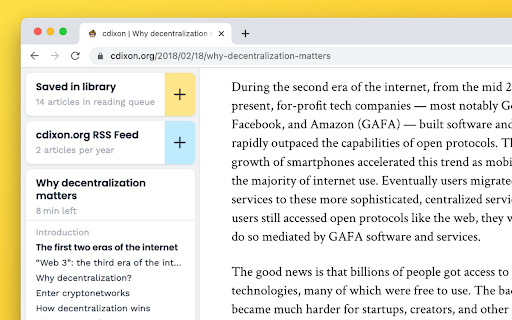

Read, bookmark, and highlight articles with style. Unclutter is a new kind of reader mode that keeps the visual style of articles intact. Plus it automatically saves articles for you. Instantly in your browser. ➤ Focus: Remove remove everything that's not text from a page. ➤ Customise: Change the text size or enable dark mode everywhere. ➤ Save for later: Manage your reading queue directly in your browser. ➤ Highlight: Select any text to save it. Then search across it later. This project is Open-Source! Follow the development, suggest features, or contribute at github.com/lindylearn/unclutter

Reader Mode - Natural Reader and dark mode
Distraction-free chrome reader view extension and dark mode for Chrome. ✅ Remove ads, popups, and sidebars ✅ Read long articles without distractions ✅ Works on news, blogs, and research sites ✅ Dark mode Advanced features: 📖 Reader Mode – clean, distraction-free layout for any article 💻 Offline Reader View – access saved articles without internet 🔊 Read Aloud (TTS) – listen to articles with natural-sounding voices 🌙 Dark Mode – comfortable reading day and night 📚 Read Later – save articles and read them anytime 🗂️ Export Articles – save cleaned content to Markdown, TXT, or PDF 🎨 Reader Layout Settings – customize font, size, and width Listen to articles with natural-sounding voices. Read aloud supports multiple languages for text to speech: 🇺🇸 English | 🇬🇧 English | 🇩🇪 Deutsch | 🇪🇸 Español | 🇫🇷 Français | 🇮🇳 हिंदी | 🇮🇩 Bahasa | 🇮🇹 Italiano | 🇯🇵 日本語 | 🇰🇷 한국어 | 🇳🇱 Nederlands | 🇵🇱 Polski | 🇧🇷 Português | 🇷🇺 Русский | 🇨🇳 中文 Why to use Chrome Reader View: - Print clean, formatted articles. - Ads-free reading. - Our ML model ensures only the main content is displayed, removing clutter. Unlike other “reader modes,” Reader View uses smart content detection to show only the article—no menus, footers, or ads. It’s fast, lightweight, and works great offline too. 🎹 Use hotkeys to open read view: Windows: “Shift + Alt + S” MacOS: “Shift + Command + S” And “Esc” to close Reader. Natural Reader Chrome extension offers both light and dark mode color schemes designed for eye comfort. It not only adjusts colors but also changes background and font colors to the best combinations. Dark reader chrome extension reduces strain on your eyes, making reading more comfortable, even on the most ad-heavy websites. It also removes all irrelevant content to enhance your reading experience. 💡 Chrome reader mode is perfect for: – Students researching online. – Professionals staying up-to-date in their field. – News enthusiasts who want a cleaner reading experience. – Anyone who loves to read but hates online distractions. 🔒 Privacy Focused: We respect your privacy. Reader View works locally in your browser and doesn't collect any personal data. 🆕 Regular Updates: We're constantly improving! Expect new features and optimizations regularly based on user feedback. 📥 How to get reader view in Chrome: Click "Add to Chrome" to add Reader View extension to Chrome. 📥 How to turn on reader mode in Chrome: Open any webpage. Click the Reader view icon. Enjoy distraction-free reading! Reader View - your personal reading assistant! 🚀📚

Reeader - Minimal reader with speed reading
A simple and minimal way to read articles faster. Reeader is a minimal, distraction-free reader extension for Chrome that helps you read any article faster and with better focus. One click turns any cluttered webpage into a clean reading view with no ads, no sidebars, no popups, just the content you came for. What makes Reeader different from other reader extensions is the combination of two speed reading tools built into the same extension. Stop word fading dims the filler words in the text so your eyes skip them naturally. Margin fading pulls your eyes toward the center of each line so they travel less distance as you read. Both features work together to give you a noticeably faster reading pace without losing the natural feel of reading full sentences at your own speed. Most reader mode extensions do one thing: strip out the ads and change the background. That helps, but it doesn't make you a faster reader. Reeader is built around the idea that a clean layout is just the starting point. The real gains come from reducing how much effort each line of text demands from your eyes and brain. If you're a student getting through research papers, a professional keeping up with a lot of reading, or just someone who reads online every day, Reeader gives you a practical way to get through more in less time. Stop words are the small filler words that show up constantly in written English. Words like "the", "a", "an", "is", "are", "was", "of", "in", "on", "to", "for". They're grammatically necessary but your brain doesn't need to fully land on each one to understand a sentence. Reeader fades these words visually so they become less prominent on the page. As you read, your eyes are drawn to the high-information words, the nouns, verbs, and adjectives that carry the actual meaning of each sentence. You still read full sentences, you still read at your own pace, but the filler stops slowing you down. Once you get used to reading with stop word fading on, going back to plain text feels noticeably slower. When you read a line of text, your eyes start at the left edge and travel all the way to the right edge before jumping back to start the next line. That sweep happens hundreds of times in a single article. It adds up. Reeader's speed reading mode fades the words near the left and right margins of each line. This keeps your eyes closer to the center of the text. Your peripheral vision still picks up the faded edge words, but your eyes don't need to travel out to meet them. The sweep gets shorter and faster. Combined with stop word fading, the two features cover different parts of the same problem. Stop word fading reduces how many words need your full attention. Margin fading reduces how far your eyes travel to reach the words that do. Together they make a real difference to reading speed in a way that still feels natural, unlike tools that flash one word at a time and take all control away from you. Click the Reeader icon and the article opens in a clean, centered reading view on top of the page. Ads are gone. The sidebar is gone. Popups, banners, autoplay videos, social share buttons, all of it stripped away. Just the text, formatted properly with comfortable line width and good spacing. This is useful on almost every major news site and blog at this point, because web pages have gotten genuinely hard to read. Reeader works on top of the current page so you can close it anytime and go back to the original without losing your place. Three themes to pick from depending on your environment and preference. White theme is clean and high contrast, good for daytime reading or a well-lit room. Yellow sepia theme has a warm, paper-like tone that cuts down on blue light and is easier on the eyes for long sessions or evening reading. Dark theme puts light text on a dark background, which works well at night and for anyone who runs dark mode across their browser. Your theme choice is saved so you don't have to reset it every time you open Reeader. ★ ADJUSTABLE FONT SIZE AND LINE HEIGHT Font size and line spacing both affect how fast and comfortably you can read. Lines that are too tight make it hard to track where you are. Text that's too small makes your eyes work harder than they need to. Reeader lets you adjust both. Set them once and they stay that way. The adjustments also make Reeader more usable for people with dyslexia or visual sensitivity, where more spacing and a larger font can make a real practical difference. Reeader is fully open source. The complete code is on GitHub and you can look at exactly what it does. There's no data collection, no background tracking, no surprises. If you're a developer and want to add something or fix a bug, pull requests are open. If you have a feature request, open an issue or reach out directly. ──────────────────────────────────────── WHO IS REEADER FOR? ──────────────────────────────────────── Students and researchers who need to get through a lot of reading quickly without losing comprehension. The stop word fading feature is particularly useful when you're pushing through dense material and need your reading pace to keep up with your workload. Professionals who read as part of their job, whether that's following industry news, reading reports, or keeping up with technical content. The time spent reading accumulates fast, and even a modest improvement in reading speed has a compounding effect across a week. People who read a lot of articles daily and find inconsistent website layouts exhausting. Reeader gives everything the same clean format regardless of which site it came from. Anyone who reads at night and wants to cut down on screen glare and eye strain. The dark and sepia themes handle this better than most extensions. People with dyslexia or reading difficulties who benefit from clean layouts, adjustable spacing, and reduced visual noise on the page. Developers and people who like tools that do exactly what they say with no clutter. Reeader is open source, minimal, and focused on one job. 1. Install Reeader from the Chrome Web Store 2. Go to any article you want to read 3. Click the Reeader icon in your Chrome toolbar 4. The reading view opens immediately 5. Adjust the theme, font size, and features to your preference 6. Enable stop word fading or speed reading mode from inside the reader 7. Close the reader anytime to return to the original page Does Reeader work on all websites? It works on the large majority of article and blog pages. Some highly dynamic sites or paywalled content may not parse correctly. If you find a site that doesn't work, you can report it and it may be fixed in a future update. Does Reeader collect any data? No. Reeader does not collect, store, or transmit personal data or browsing history. The source code is public so you can verify this yourself. Is Reeader free? Yes, completely free with no paid tiers or subscriptions. What exactly is stop word fading? Stop words are common filler words like "the", "a", "is", "of" that appear constantly in text. Reeader dims these words visually so your eyes skip them and focus on the words that carry meaning. You still read full sentences but your pace picks up naturally. What is margin fading and how is it different from RSVP? Margin fading dims the words near the edges of each line so your eyes stay closer to the center and travel a shorter distance per line. RSVP tools flash one word at a time in a fixed spot, which removes your control over reading pace entirely. Margin fading keeps the natural reading experience intact and just makes each line more efficient. Will Reeader slow down my browser? No. Reeader only activates when you click the icon. It does not run in the background on every page you visit. Can I change the font family? Font size and line height are adjustable. Custom font family selection is something being considered for a future update. Is the source code available? Yes, the full code is on GitHub and open to contributions. Chrome doesn't have a native reader mode. Firefox has one built in, but it has no speed reading tools, no stop word fading, and limited customization. Safari's reader view is limited to Apple devices. Reeader fills that gap for Chrome users and goes beyond what any browser's native reader offers by including active reading tools on top of the clean layout. If you've been looking for a Chrome reader mode, a distraction-free reading extension, a speed reading tool for Chrome, or just a way to strip ads while reading articles, Reeader covers all of it in one lightweight extension. ──────────────────────────────────────── FEEDBACK AND CONTRIBUTIONS ──────────────────────────────────────── Reeader is actively developed and feedback from users directly shapes what gets built. If you have a feature request, found a bug, or want to contribute to the code, you can open an issue or pull request on GitHub or reach out on Twitter at @paritosh_pundir. If Reeader has been useful to you, leaving a review on the Chrome Web Store helps other readers find it and helps the project grow. It takes thirty seconds and makes a genuine difference. Thank you for using Reeader.

Omni - Bookmark, History, & Tab Manager
Supercharge Chrome with commands, shortcuts, and more With Omni you can use Chrome like a pro. Manage tabs, bookmarks, your browser history, perform all sorts of actions and more with a simple command interface. FEATURES 🗄 Switch, open, close, and search your tabs 📚 Browse and manage your bookmarks 🔍 Search your browsing history ⚡️ 50+ actions to improve your productivity 🔮 Special commands to filter and perform more actions 🧩 Integrations with Notion, Figma, Docs, Asana... ⌨️ Shortcuts for actions such as muting, pinning, bookmarking... ⚙️ Advanced settings to help troubleshoot browsing issues 🌙 Dark mode ...and much more - all for free & no sign in needed! Want to self-host, add new features to Omni, or even make your own omnisearch extension? Feel free to check out the code on GitHub! 👉 https://github.com/alyssaxuu/omni Omni is built and maintained by Alyssa X (https://alyssax.com)

Modern for Wikipedia
Enhance your Wikipedia experience with a beautiful, clean, modern design that's fully customizable. Once installed, Modern will simply apply the new look and features to existing Wikipedia article pages, without you having to do anything. All current features on Wikipedia are supported, this extension simply builds upon the existing interface to offer many improvements, including: ✔ Themes (light, dark, sepia, slate, black) ✔ Fonts (sans, serif, change font size) ✔ Styles (column width, line height) ✔ Languages (menu to switch, fully translated interface) ✔ User accounts (all wikipedia account features accessible from menu) ✔ History (quickly jump to articles you've previously viewed) ✔ Search (powerful autocomplete with preview text & images) ✔ Trending (see today's most read articles) ✔ Contents (fixed to left side for easy navigation, can be hidden) ✔ Editing (full editing controls, history, watch etc) ✔ Switch back to the old design (if needed) with one click ✔ More improvements planned for upcoming releases! If you have any questions, need help or have any suggestions, please get in touch: support@modernwiki.app Note: If you're logged into Wikipedia, you must use the default skin for the extension to work. ---------- Wikipedia™ is a registered trademark of the Wikimedia Foundation, Inc. This extension is not endorsed by, affiliated with, or sponsored by Wikipedia™. v1.40 - Listen to articles with new text-to-speech feature - Fixed redirect bug on wikipedia home page v1.23 - Fix for mobile wikipedia pages (redirect to non-mobile version) - Fixes for image viewer - Style fixes for Italian articles - Scrollbar style fixes for dark themes on mac - New icon v1.22 - Contents sidebar settings (set font size, line height & width) - Better support for large screens (more width settings) - New settings --- Auto dark theme (changes to your last used light/dark theme) --- Fixed header (turn off to hide when scrolled down) --- Open links in new tab --- Hide article links --- Justify text --- Show bullet points on contents - Fixed bugs with article width / centering - Brought back red links for articles that don't exist v1.20 - Search box for languages menu - Nicer scrollbar styles - Centered article text when contents hidden (removed left padding) - Added left padding to article text when contents visible - Fixed french dark theme + languages menu - Fixed user menu for non-english languages - Fixed font size not changeable for Chinese, Japanese, and Korean - Removed system-ui font (fix for east-asian windows fonts) - Fixed display of math equations in dark mode - Made search box usable at narrow widths
