
iaigceaehdihlnolehbapjfbbfpnlngg
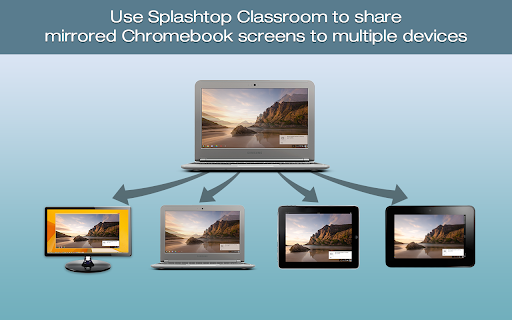


Cast your Chromebook or Computer Screen to Another Computer (PC or MAC) Mirroring360 is a collaboration tool suite for your 1:1 or BYOD classrooms and boardrooms. Mirroring360 Sender Chrome App enables any presenter to cast his/her Chromebook or computer screen to another PC or Mac, wirelessly; You will need install a separate Mirroring360 Receiver software on the receiving computer, available at www.mirroring360.com Mirroring360 is designed for teachers,students, and business presenters with ease-of-use and fast-to-share as the top design goals. Setup in 2 easy steps: 1. Add this Mirroring360 Sender Chrome App to your Chromebook or Chrome browser on your computer 2. Install the Mirroring360 (receiver) software on the receiving computer (www.mirroring360.com). Mirroring360 Sender Chrome App allows you to: * Cast your Chromebook or computer to another computer, instantly and wirelessly! * Up to 4 Chromebook or computer screens can be casted simultaneously * Real-time share ANY application, files, or multi-media content from your Chromebook or computer * Complementary Mirroring Assist capability enables you to cross subnets and VLANs, even if the computers are on different VLANs “Using Mirroring360 in an instructional setting has shown a direct increase in engagement among our students.” – Matt Penner, Director of Information and Instructional Technology, Val Verde Unified School District

NetSupport School Student
The #1 choice for IT educators worldwide, NetSupport School delivers the tools you need to help maximize the effectiveness of… The #1 choice for IT educators worldwide, NetSupport School delivers the tools you need to help maximize the effectiveness of computer-led teaching and now you can utilize the power of NetSupport School in a Google Chrome environment. For use in your existing NetSupport-managed classroom, the NetSupport School Student extension can be installed on each student machine running the Google Chrome OS. From the teacher's machine (Chrome OS or Windows) you can then connect to each system enabling you to monitor and interact with each student quickly and efficiently. KEY FEATURES: - View a crystal clear thumbnail of each student device in a single view and zoom in to view a larger thumbnail of any selected student Chromebook. - Open a separate view session to discreetly monitor a selected student’s screen and take a closer look at activity – perfect for ensuring students are on task with their learning activities. (The open Browser activity can be viewed in Thumbnail and View modes along with the option to view the full desktop if required.) - The teacher can set objectives and expected outcomes for the current lesson. - Ask students to register at the start of each lesson. - The teacher can show their desktop to students’ Chromebooks to help demonstrate a point or show students how to do a particular task. - Lock the student's mouse and keyboard when instructing. - The teacher can send an instant survey to students during or at the end of a session, helping to instantly capture students’ understanding of a topic. - The Feedback and Wellbeing feature can be used by teachers to gauge how students feel, their confidence with a topic and whether they need extra support. - The teacher can open a discussion session that all or selected students can join, enter their comments and share with the rest of the class. - Send an attention-grabbing message or instruction to each student machine. - Request Help facility - students can send a request for help to the teacher. - Block unauthorized websites. - Use approved websites only. - Block all Internet access. - Launch a website on the student Chromebook. - Block FTP Access. - See details of the website that students are currently viewing. CHROME INCOGNITO MODE: To ensure you retain full visibility of your students' internet use, it is recommended that you ‘disallow’ Incognito Mode in the Chrome OS User Settings via Google Apps for Education. INSTALLATION and PRE-REQUISITES: For a teacher to be able to monitor and interact with their students using Google Chromebooks, the NetSupport Name & Connectivity Server must be installed on a Windows Server; the NetSupport School Tutor app for Google Chrome must be installed on the teacher's Chrome OS machine or for mixed platform classrooms, the NetSupport School Windows Tutor application can also connect to student Chromebooks; and the NetSupport School Student extension installed onto each of the students' Chromebooks. An IT Admin can centrally manage the configuration and deployment of the Student extension within the Google Admin Console. The NetSupport School student for Chrome OS can be used with the existing NetSupport School licences you have already purchased (as long as you have sufficient unused licences). Please visit www.netsupportschool.com/chrome for more information and a simple step-by-step guide to managing your Chrome OS students in the classroom. - Performance and operability enhancements.

AirMedia Sender
Mirror your device to any computer screen any time Crestron AirMedia® Wireless Presentation solutions enable seamless collaboration in any space. Share audio and video content from the Google Chrome® browser to an in-room Crestron collaboration system. * Connect to AirMedia® receiver devices on the network. * Share a particular Chrome® browser tab (audio and video), or your complete desktop (video only). * Multiple users can connect and present screens simultaneously. The Crestron AirMedia Sender for Chrome requires a compatible AirMedia device (such as AirMedia Series 3 receivers, AirMedia 2.0 receivers, or a device with integrated AirMedia functionality (Crestron Mercury® conference system and Crestron DMPS).

QPush - Push Text and Links to iPhone
The easiest way to push text and links to iPhone! Copy, send SMS, open links and maps right away! No need to email yourself anymore. Very easy to use! Beautiful UI and helpful! – Vie C Exactly what I have been looking for – Meowoooooo ✔ SUPER FAST From PC to iPhone, in just a second! Receive the push notification immediately. ✔ SUPER SMART QPush iPhone app automatically detects the type of data received and provides the appropriate default actions. It's even smarter if the "Auto Actions" mode is ON. ✔ SUPER SIMPLE - iPhone: Download QPush iPhone app. - PC: Install Chrome extension. Push with 1 click! Any feedback and suggestions are appreciated. Please contact us at: service@qpush.me The QPush Team ≈ QPush is made with ♥ in Taiwan ≈

Smart LG TV Remote Controller
This extension provides remote controller for LG Smart TVs. Remote controller extension for LG Smart TV. This is an excelent Remote control application on Chrome Browser.
