
hpigbcfkeekdfkbabcohgljkgiggehag

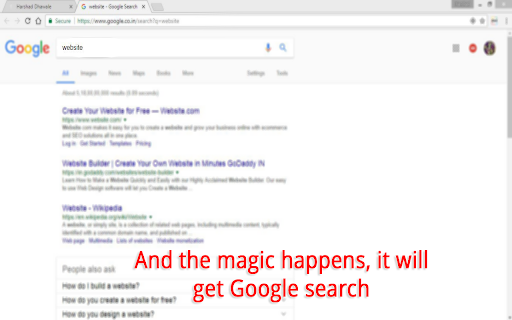
Select text and press CTRL+G on any page to Google Do you do Google search a lot? Of course you do!! I found a great way to Google, a shortcut way to Google and that's control +G on selected text. And that's it !!!. Just download this extension and press CTRL+G on selected text. Now you would be able to google just like that from now onwards Ctrl+g, a shortcut key that is making possible a way doing not just Google, but every search separately and in one place.Install and find out how. We found in last 2 years that this product is greatly appreciated by researcher, scholar and business intelligence people, as it is helping them to increase their productivity and focus on subject. So now, Bluenest Technologies (www.bluenest.xyz) have integrated Eaglesearch with CTRL+G for more productivity. In this google era, everything is becoming more and more accessible. Our question is Why not to make googling itself more accessible on chrome? why not keep it at your fingertips even when you are on a desktop? You all know old school methods they are lengthier and some like me may find it complex too. So here I present Ctrl+g a new and smarter way to Google. Let it be any text or new search just press ctrl+g to google • It is so simple just select text, press ctrl+g and magic happens • Or for new search press ctrl+g without selecting text, a new window with google search page will be available for you. Its true keyboard shortcut is more used over right clicking. Hence, now time is to have shortcut key for Google too. If you are keyboard ninja then this is really for you. Don’t worry even if you are not, this is still for you :) A salutary warning guys - your time is precious, save it even if you can save a second of it. No hassle just install it and do google with Ctrl+g. A new and Faster approach is for you. Exploit it. • v.3 more functionality to increase your accessibility. • Integrated a super search engine ie EagleSearch.xyz with CTRL+G to do more than just GOOGLE. • Multi search engine is added to the shortcut with limits of search. Contact us https://www.bluenest.xyz/contact/ for customise solution. Version 1.1 • Support for mac devices both CMD+g and Ctrl +g. Version 2 • Search was redirected to Eaglesearch.XYZ for comparative results. Version 3 • This is the fallback version to Google search itself for results that world needs. #######Support and Suggestion######

Googleで検索をショートカットキー
「Googleで検索」をショートカットキーに登録して実行できます。 テキストを選択してショートカットキーを入力してください。 ショートカットキーはオプションから変更可能です。 ※アドオンの動作テストは設定ページ以外で行ってください。 マウスのボタンにショートカットキーを割り当てて使用する事を想定しています。 デフォルトでは"Ctrl+Alt+G"がショートカットキーに割り当てられています。 ショートカットキーはブラウザで割り当てられていないキーか、他のアドオンと競合しないキーを登録してください。

Super Drag for Google Chrome
Super Drag enables Google Chrome to easily search and open links just using drag & drop. Super Drag is an amazing extension for Chrome and Chromium-based browser users. It's an extremely enhanced feature for Chrome. With Super Drag, you can never be more easily open links or searches in one web page. Just hold on your left mouse button, performing a drag-n-drop, yeah, links open in the new tab. Default new tab opened in background tab, with SHIFT button holding on, drag-n-drop, your web page will be opened in an active state. The drag-to-search feature is also useful and friendly to use. Selecting the key words, then drag-n-drop the selection, it'll search them by your customized search engine. You can change the search engine by the extension popup settings. It's the minimal and simplest Chrome extension ever. Don't wait for any more, just try it right now. If you like it, please make an review 5 star, thank you! :P I create a Github project to track your requests and bugs: https://github.com/universeroc/super-drag/issues You can give me a reward if you find it helpful: https://github.com/universeroc/super-drag/blob/main/README.md add you.com Support drag direction recognition and using dedicated search engine to search keyword * 0.4.2 * update settings ui fix some warnings add installation & issues page to collect information * 0.3.2 * fix open more than one link/search page after 0.3.1 upgrade * 0.3.1 * fix drag file into page * 0.1.30 * fix conflicts with Gmail or others input even handler * 0.0.30 * * Add DuckDuckGo in the search engine list * Add domain whitelist * 0.0.24 * * Add toggle button to enable/disable on current page :) * 0.0.22 * * Fix bug: Not work until setting page opened :(. * 0.0.18 * * Fix undefined search queries with more lines selected. * 0.0.17 * * Fix bad tab index opened with multi-browser window

ShortcutKey2URL
ShortcutKey2URL for Chrome is an extension for Google Chrome that allows you to open, and move url using shortcut keys. You can also run JavaScript. Display the action list with the startup key and execute the action with the next key. The startup key default is Ctrl+Period(on mac, Command+Comma). You can change this key later. Characters that can be used as keys are not limited to one character. It can be set as multiple characters. ShrotcutKey2URL executes its action from the characters entered consecutively as keys when the target is narrowed down to one. The items that can be set as actions are as follows. * Jump to URL. For already opened URL, go to that tab. Open it as a new tab if it is not already open. * Open URL in new tab. * Open URL in current tab. * Execute the JavaScript on the current tab. * Open URL as a new tab and then execute the JavaScript. * Open specified URL in incognito window. * Open same URL as the current tab in incognito window.

Selection Search
Search for the selected text in search engines With this extension you can easily search for text you have selected. When some text is selected you can left click the selected text to get a popup where you can choose a search engine to search with. In the options page you can customize the look of the menu, which mouse button that should activate the menu, which search engines to show, and a lot of other things. When you install this extension you will get a warning that this extension can: "Access your data on all websites." This is needed because the code for the popup-menu needs to be added to every website for it to work. If you want to report a bug/issue, please use the following site: https://github.com/Pitmairen/selection-search/issues Alternatively you can use the support section on this site (chrome web store), but I get no notifications about new posts, so I may not notice the message. Some people have asked for ways to make donations to the project. If you want to make a donation you can do so by buying me a coffee: https://www.buymeacoffee.com/pitmairen 0.9.7 - Improve support for IME input in toolbar popup (See issue #173) - Change to use a html class to shown/hidden the popup menu to make it easier to override the display property of the popup with custom CSS. 0.9.6 - Fix issue where icons in some cases could fail to load because the fallback icon loading did not work. This may improve the icon loading for some users. 0.9.5 - Add option to trigger "open all" feature on submenus with middle click only. - Make back button in toolbar button go back only one level at the time - Fix issue where "open all" on sub menus could crash if the submenu contained separators - Change default search engines on new installs to use https 0.9.4 - Add ability to customize the toolbar popup with css - Include separators in the toolbar popup. Hidden by default, but can be made visible with custom css. 0.9.3 - Fix issue where some icons failing to load could trigger a loop in the image loading, which could cause high CPU usage and pages failing to load. 0.9.2 - Improvements to icon loading. The icons are now loaded in the background worker, similar to how it was done in the 0.8.* versions of the extensions. This should make the icons load faster and with less chance of icons failing to load. Note: The icons are cached in the sessions store provided by the browser. This storage has limited capacity. If you have a lot of search engines or have many large custom icons, you can hit the limit. This will cause some icons to fail to load. If this happens try to use smaller icons if you have custom icons. If that does not help report the issue as it may be possible to make the usage of the storage more efficient if necessary. You can also hit the limit if you make a lot of changes to your search engines in one go, but this should be fixable by just restarting the browser as this will cleanup old entries in the storage. 0.9.1 - Fix issue with context menu items requiring two clicks to work - Fix issue where the context menu items was not added properly - Fix issue where hitting enter in the toolbar search box would not open the first search engine - Changed icon loading to use the icon urls directly, instead of loading the icons in the background, as the background loading does not work properly with manifest v3. This will probably also fix some issues where custom svg images would not load. 0.9.0 - Major rewrite of internals to migrate the extension to manifest V3, as required by Chrome for the extension to continue to work. - No new features or bug fixes in this release. 0.8.63 - Added new buttons to allow adding new search engines/separators/submenus at specific positions in the search engine list 0.8.61 - Added option to enable the search engine popup blacklist/whitelist to also affect the search engine hotkeys. The options is located under Popup menu -> Advanced -> Blacklist/whitelist. 0.5.58 - Fix issue where the popup could be partially positioned outside the top of the browser window and become unreachable. Mostly an issue for very large popup menus with many search engines. 0.8.57 - Fix mycroft integration. - Add an additional source for search engine icons that is used if the default source does not have an icon. 0.8.56 - Added special search engine marker for sites requiring encodings other than UTF-8. Simply append {SPECIALENCODING} to the end of the search engine url. This enables the feature and the browser should be able to auto detect the correct encoding. 0.8.55: - Possible fix for freezing tabs for searches opened in new foreground tab 0.8.53: - Added option to open search in new window - Make it possible to add search url to the submenu root item. If a search url is added it will open when clicking the submenu root item, unless the openall on click option is checked. - Improved replacement of bracket placeholders ({%s}). If "}" must be used inside the placeholder it can now be escaped using "}". - Improved regexp placeholder replace converter. The old "re:" converter still works for backwards compatibility. The new improved converter is called "replace:", and is documented under "More Variables" at the top of the options page. 0.8.51: - Fix issue with saving changed settings on options page For full changelog see:
