
hkoaejiklnmjhjeodoadnfjmbijffaol


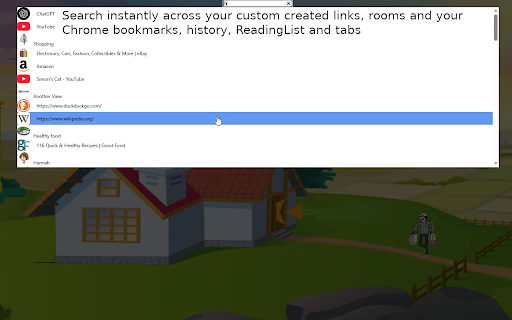
Visually organize links with icons,GIFs and backgrounds to boost clarity, usability and make your collection fun and easy to explore Tired of drowning in Chrome tabs and messy bookmarks? Visualinks is a visual bookmark manager and tab organizer that turns your browser into a customizable workspace. Instead of scrolling through endless text lists, you can navigate your bookmarks and links visually, intuitively, and memorably. Transform your browser into a visually organized hub of your favorite links using custom backgrounds, icons, and GIFs. This Chrome extension allows you to build personalized, memorable “Rooms” where each category or group of links is clearly distinguished by visuals that make navigation fast, intuitive, and enjoyable. Instead of sifting through endless bookmarks or tabs, you can create interactive spaces: Items hold your individual links. Stations act as portals to new views or categories. Dummies are decorative image holders to personalize your space. 🎨 Visual Organization: Assign unique icons, images, or GIFs to links and categories to easily recognize and recall their purpose. 🧠 Memory-Based Navigation: Create link groups in ways that align with how you naturally remember information—visually and spatially. 🔍Smart Search: Instantly search across your saved links, Chrome bookmarks, history, and reading list—even by typing just a few letters or keywords. 🗂 Hierarchical Structure: Group related links under categories (e.g., shopping 🛒, projects, research) and navigate through a multi-level system of rooms and stations. 🧱 Customizable Layout: Change backgrounds, assign transparent icons, and visually design each space to your liking. 📁 Supports Local Files: Link to local PDF files (when using Adobe Acrobat extension). 🔐 Privacy-First: No Google account required. No data is sent to the cloud. Everything is stored locally in your browser and can be exported/imported for backup. 🗑 Trash System: Deleted items go to trash and can be reviewed before permanent removal. Why Visualinks? One late night, I was juggling a work project, gift shopping, and a random documentary binge. My Chrome looked like a battlefield of tiny favicons. That’s when I realized: my brain doesn’t work in lists — it works in visual spaces. Visualinks was built to make Chrome match that way of thinking. Perfect For: ✔ Power users managing dozens of tabs ✔ Visual thinkers who prefer icons over text ✔ Anyone tired of Chrome’s default bookmark manager ✔ Productivity enthusiasts and digital minimalists 📌 Get Started: Install Visualinks today and turn your browser into a visual hub for everything you do online. Usage Instructions (Watch the video for step by step instructions): Right-click on any view to access actions like opening bookmarks, history, tabs, or reading list. Add links to items manually or by dragging from other Chrome dialogs. Hover over items to preview saved links. Assign icons individually to distinguish between similar links, even from the same domain. Customize every object (Item, Station, Dummy) with a title and a public image URL. Use search across all views to quickly access a link or jump to a specific room (available unless a dialog/context menu is open). Stations cannot be deleted without removing their children first. Objects and links are removed permanently once deleted from trash. Export your workspace from the options menu for backup or transfer to another device. Note: If the extension is uninstalled without exporting, your data will be lost. If you have any questions or issues, feel free to send an email or leave a comment on the YouTube video. We’d love to hear your feedback! The code is here: https://github.com/farahamir/my-links

Splash
Organize and preview your websites Key features - Organise your bookmarks in folders: copy-paste, drag and drop. - Make Splash your personal start page to have your most useful websites always at hand. - Quickly export a selection of your bookmarks to share with a friend. - Privacy: No ads, no collection of information. - Highly customisable: Themes, colours, sizes. - Synchronised: splash uses the bookmarks of chrome, so they are automatically synchronised across devices. - Optional: put your mouse over any bookmark to see a live preview of its website. - See only the headlines (RSS-feeds) with a click. Daily usage: - You have the bookmarks you check often in folders called Newspapers, Technology, Social, Sports, Entertainment, Work, MyOwnBusiness, etc. - Click on the name of a folder and move your mouse over each bookmark to see what is new in your world. Documentation: how it works: 1. Previews Put your mouse over any bookmark to see a live preview of its website Typical / frequent usage: You organised your bookmarks, e.g. you put the papers websites you examine daily in a folders called Newspapers, Technology, Social, Sports, EntertainmentNews Papers. Then you need an overview of the contents today. You don't want to open them unless the headlines interest you. Click on the name of a folder and move your mouse over each bookmark to see what is new in your world. Then Splash gives you the Preview button (vertical tab on the right)! Turn Preview on and it makes Splash present any bookmark you put your mouse over in a small window at the side. It appears on the left of your browser window. You can also set it to appear on the right. By turning Preview on (vertical tab on the right) makes Splash present any bookmark you put your mouse over in a small, vertical window at the side. It appears on the left of your browser window. You can also set it to appear on the right. (Splash is intended make better use of 16:9 screen space when it comes to reading. Your browser must not be in full screen mode, in order to accommodate a second window which displays the instant previews of your bookmarks.) 2. Icons A bookmark is presented as a big icon. You can set this to be smaller. The big icon is fetched from the website the bookmark is pointing to. Most websites offer a special big icon for mobile devices that's called apple-touch-icon. If this is not found, the smaller favicon is used. If you would rather have another icon, you can copy another image on the interne, then paste it into the bookmark. Steps: - right click on any image in your browser - Copy image link - back in Splash: click the 3 dots on your bookmark - Edit icon and paste the link 3. Export/import You can export all or part of your bookmarks to a json file. Send the json file to a friend and share your tree of bookmarks or just a branch of it. Or keep it as a backup on your local drive. You may also export your custom icons. 4. Favourite folders Have always at hand the folders you use the most. Right click a folder > Favourite. They appear as vertical tabs on the left side of the window. Give them different colours if you like. 5. Copy/paste Bookmarks and folders can be copied/cut and pasted to other folders. 6. Drag/drop Bookmarks and folders can be dragged and copy-dragged to other places. You can even drag bookmarks from the bookmark bar into another location in Splash. 7. Skin Choose an appearance from Dark, Light or System. System follows your operating system settings, this works on MacOS and Windows. 8. Language The language you choose in your browser will be the language Splash uses. Momentarily only Dutch and English are supported. Default is English. 9. Compatibility Splash has been tested on MacOS, Windows, Linux and Chromebook. Installable in these browsers: Chrome, Microsoft Edge.

Visual Bookmark Manager with Thumbnail Previews
- Turn your Chrome bookmarks into a visual gallery of screenshot previews "Visual Bookmark Manager with Thumbnail Previews" replaces Chrome's plain-text bookmark list with a grid of live screenshot thumbnails. Every saved page gets a preview so you recognize it at a glance, like a modern speed dial or Safari's Tab Overview. It works with your existing Chrome bookmark folders automatically - no migration, no setup, just install and open. - Screenshot capture that doesn't get in your way Previews are generated in a hidden background window so your browsing is never interrupted. For pages that need to be fully loaded to look right - like Reddit, GitHub, or single-page apps - there's an Active Tab Capture option that grabs the page you already have open. Right-click any thumbnail to regenerate it if the page has changed. - Browse, sort, and find bookmarks the way you want Switch between a visual grid view and a compact list view. Sort by title, domain, or date added. Use real-time search and folder filtering to find any bookmark in seconds. Your full Chrome folder structure is preserved, so navigating feels exactly like it always has. - AI-powered organization (optional, bring your own AI key) a) Auto-Tag reads your bookmarks and assigns descriptive topic tags automatically. You can give it a list of preferred tags and it will bias results toward your vocabulary. b) Smart Search lets you find bookmarks in plain English — "design tools I saved last year" or "articles about React performance" — instead of hunting for exact titles or URLs. c) Duplicate Finder scans your entire bookmark library, shows you where each duplicate lives and when it was saved, and merges them in one click with your choice of keeping the oldest or newest entry. All three features run on Chrome's built-in Gemini Nano by default, fully on-device with nothing sent anywhere. If you want more powerful results, connect your own API key. All major players are supported from OpenAI to Groq to DeepSeek to OpenRouter. It also supports local / self-hosted LLMs such as Ollama or LM Studio. - Everything else you'd expect from a polished extension Dark mode follows your system theme automatically, or you can lock it to light or dark. Export all thumbnails and settings to a JSON backup file and restore them on any machine. Incognito mode is fully supported once you enable "Allow in Incognito" from the Chrome extensions page. - Privacy you can actually verify All thumbnail screenshots and bookmark data are stored in your browser's local storage. No analytics, no telemetry, no accounts required. This extension is open source so you can read every line of it. The only time any bookmark data leaves your device is if you choose to use an optional cloud AI provider - and that goes directly to the provider you pick, under your own API key. The default on-device Gemini Nano mode sends nothing anywhere. The extension requests only what it needs: bookmarks access to read your library, tabs and scripting to capture screenshots, and storage to save thumbnails locally. Free for personal and open-source use under AGPL-3.0. A commercial license with a flat fee or royalty option is available for proprietary and business deployments.

Axle: New Tab Dashboard & Bookmark Manager
Transform your new tab page into a beautiful customizable dashboard and easy-to-use bookmark manager. Say hello to your new beautiful new tab page! Axle is a bookmark manager that also transforms your new tab page into your personal landing and takeoff spot for Google Chrome. It has been carefully designed to be simple, clean, and easy to use. Give it a spin! Features: • Create, edit, and re-order bookmarks on your New Tab page. • Organize your bookmarks into folders. • Take notes. • Customize your background image. • Quickly add a bookmark from any web page. Questions / suggestions / comments / anything else? • I'd love to hear from you! Feel free to leave a comment under "Reviews" or "Support", or email me directly at ericchen098@gmail.com. About the Permissions: We do *not* collect any personal information or data you store within Axle. 🔒Replace the page you see when opening a new tab • This is why you installed this chrome extension, right? :) 🔒Read your browsing history • This is required to fetch information about the tabs you have currently open, so you can conveniently add bookmarks from the new tab page. • How is this related to browsing history? Being able to see which tabs you have open means we can theoretically save all of your tab information all the time, so we could theoretically begin recording your browsing history. But rest assured, we don't!

Bookmark List in New Tab
Shows bookmark list in new tab page This extension shows bookmark list in new tab page.
