
hffpkobhcahdmmafhahfoljjaiccpjek
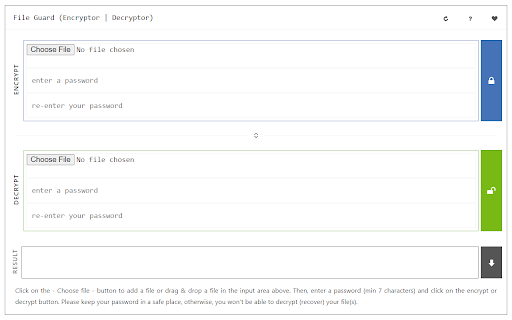

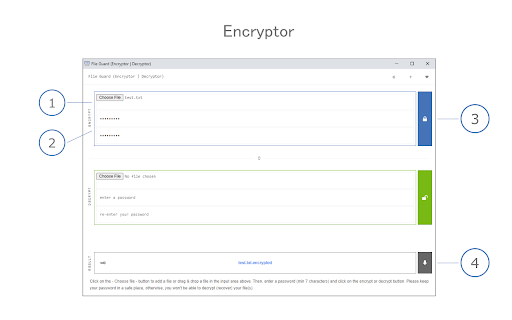

Encrypt or decrypt any file with just one click inside your browser! File Guard (Encryptor | Decryptor) is an extension that helps you easily secure your file(s) with the browser's built-in crypto API. This add-on has a simple and easy-to-use UI. Simply add it to your browser and start using it without any additional plugins. (1) load your file, (2) set a password, and (3) press on the encrypt/decrypt button. File Guard uses the new encryption API (WebCryptoAPI) which is built-in to your browser by default. If you want to encrypt a file, please first browser your file (drag & drop or use the file selector), then enter a password (2 times) and finally click on the - Encrypt - button. The add-on starts the encryption process and downloads the encrypted file to your machine automatically. Please do the same procedure for decryption purposes. Note: this addon is only designed for encrypting a "single" file. If you have a folder with multiple files or folders in it, please first "compress" your files to a single ".zip" file and then encrypt the compressed file with this add-on. Please note that File Guard can encrypt any file format with any size. Note: if you forget the encryption password, you will not be able to recover (decrypt) your file with this add-on. Therefore, it is very important to keep your password in a safe place. If you see any bug or have a feature request, please fill the bug report form on the addon's homepage (https://mybrowseraddon.com/file-encryptor.html).

ZIP Writer
Create zip files via an easy-to-use UI right in your browser! ZIP Writer extension helps you easily convert your file(s) to a single compressed file (.zip). Simply drag & drop files to a designated area in the app UI (top section). All the uploaded files will be listed in the UI. You can now click on the - Zip & Download - button to download the ZIP file to your system (default download location). There is also a reload button at the top-right corner in the app UI. Clicking on this button will reload the app and reset all active operations. If you want to zip multiple files, please drag & drop them altogether in the app (top section). It is also recommended to reload the UI after each zip operation. Note 1: this add-on is only designed to make compressed zip files. If you want to extract a zip folder (unzip), please install my other add-on: ZIP Reader (https://chrome.google.com/webstore/detail/zip-reader/hppjaadfhhgadeokjndmbnjnegagcadd) Note 2: this add-on is using an open-source JavaScript library for the zip operation. You can get more info about this library here: https://github.com/gildas-lormeau/zip.js If you found a bug to report, or have a feature request, please fill the bug report form on the addon's homepage (https://mybrowseraddon.com/zip-maker.html).

Ping Blocker
Prevents sites from tracking you by blocking the PING request! Ping Blocker helps you prevent websites from tracking you by blocking ping requests. Ping requests can be generated via a few methods on websites. The most famous one is the navigator.sendBeacon() API. Another method is to use the "ping" attribute for anchor elements. The last method is via a tag with a "report-to" URL. This addon, when enabled, can successfully block all ping requests. Toolbar icon changes color when you click on it. The red color is when the addon is active and the grey color is for the inactive state. Within the add-on options page, there are several settings to adjust. You can choose which type of ping request to block via the first three options. Next, there is a console log error checkbox (to log blocked URLs to the browser's console). The last setting is for adding domains to be whitelisted. All entries should be comma-separated. If you have a feature request or found a bug to report, please fill the bug report form on the addon's homepage (https://mybrowseraddon.com/ping-blocker.html).

Policy Control
Policy Control is an extension that helps you easily adjust all content settings (via contentSettings API) from the toolbar popup UI. These settings are adjusted on a website (domain) basis. Once you open the toolbar popup UI, the tab URL will appear at the top section in the UI as a pattern (i.e. http://example.com/*). Adjust what you need for this pattern and then reload the webpage. Please note, all changes are auto-saved to the memory. If you want to reset the content setting changes to the default values, please press the reset button at the top toolbar. Note: The extension interface supports dark mode. To switch the interface theme to dark, please press the moon icon in the top-right toolbar. To report bugs, please fill out the bug report form on the addon's homepage (https://mybrowseraddon.com/policy-control-wext.html).

Link Revealer
See the true URL for all links and improve your security! Link Revealer extension is designed to improve your online security. When you hover on any link element, the underlying - href - will be displayed as the link's title. Moreover, a colored footer will also be displayed at the bottom of the page showing the link href. If the underlying domain for the link is similar to the page's domain, this color will be BLUE. If the link is third-party the color is GREEN. For a situation where the displayed URL in the link's text content is different than the underlying href, the footer color will be RED. The toolbar icon color will also be updated according to the above rules. For any link, if you right-click and select - Scan link for threats, the add-on scans the link with the SafeBrowsing JavaScript API (https://safebrowsing.google.com/). When you first install the add-on, please visit the options page to activate the safe-browsing API. From the toolbar popup, you can also turn the add-on ON or OFF. Moreover, you can hide the page's footer if you find it inconvenient. Please note that you can still scan links for threats even if the page footer is hidden. If you have a feature request or found a bug to report, please fill out the bug report form on the add-on's homepage (https://mybrowseraddon.com/link-revealer.html).
