
hffmjijnkfndfcgffejlgjfhojbaclhc
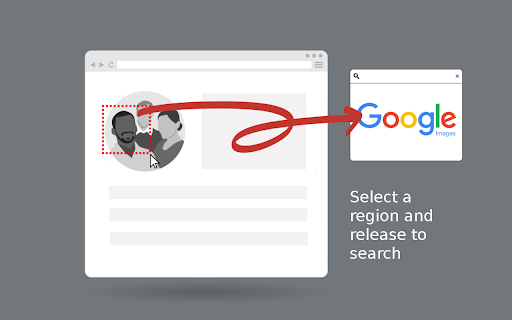
select and capture any area on a web page, then effortlessly perform reverse image searches on Google Images With a single click on the extension icon, effortlessly capture any region of a webpage that piques your interest. No need to save or download images – just select and release. The extension offers two capture modes: - Auto-detect mode: Automatically identifies and highlights webpage elements as you hover over them. Simply click when the desired element is highlighted. - Manual selection mode: Click and drag to select any custom region on the page. Toggle between modes by pressing the Alt key during selection, or set your preferred default in the options page (right-click the extension icon). Watch the magic happen as your captured image is instantly sent to Google Images for a seamless visual search experience. Discover similar images, the origin of your captured image and get more information about the image. Why not rely on Chrome's default 'Search image with Google' feature? Because conducting a direct search on Google Images often yields distinct results. There are instances where navigating through Google Lens and selecting 'find image source' fails to provide any results whatsoever. - Celebrity Name Discovery: Easily uncover the name of a celebrity by capturing their face. - Online Video Item Identification (people, locations, objects): Identify and locate an item that caught your eye while watching an online video by pausing then capturing its image. - Selective Capture for Precision Search: Refine your search by capturing only the specific part you're interested in while excluding the rest, ensuring precise and focused results. - Search Inaccessible Web Images: Seamlessly search images that are otherwise difficult to access on web pages like backgrounds and programmatically restricted images using the mouse capture feature. - Online Shopping: Shoppers can capture product images they like and quickly find similar items or better deals across different websites. - Skip The Google Lens Step: Eliminate the need to go through google lens "Search image with Google" option each time you want to make a search on Google Images.

SmartLens AI - Alternative of Google Lens For PC
Free Google Lens alternative for PC, Windows & Mac. AI image analysis, OCR text extraction, QR/barcode scanner,Right-click any image SmartLens AI - The Best Free Alternative of Google Lens for PC, Windows & Mac Looking for Google Lens on your desktop? SmartLens AI brings powerful AI image analysis directly to your Chrome browser! This is a simple, easy-to-use Chrome extension that lets you search, detect, and analyze images with a single click. ✨ Why Choose SmartLens AI? SmartLens AI is the perfect Google Lens alternative for PC users. Whether you're on Windows or Mac, you can now enjoy Google Lens-like features right in your Chrome browser - completely FREE! 🤖 AI Image Analysis (Detect Image) - Analyze any image using advanced AI (powered by GPT-4 Vision) - Get detailed descriptions of what's in the image - Identify objects, people, places, and more - Works with any image on any website 📝 OCR Text Extraction - Extract text from images instantly - Copy text from screenshots, photos, documents - Supports multiple languages - Perfect for copying text from images 📱 QR Code & Barcode Scanner - Scan QR codes from any image - Read barcodes instantly - Get links, text, and data from QR codes ⬇️ One-Click Image Download - Download any image with a single click - No need to "Save As" - just click and download - Fast and easy image saving 📷 Webcam Capture Support - Capture images directly from your webcam - Analyze captured photos instantly - Perfect for scanning documents or QR codes 📤 Image Upload Support - Upload images from your computer - Drag and drop support - Paste images from clipboard - Analyze any image file (JPG, PNG, GIF, WebP) 🔎 Visual Search (Search Similar Images) - Find similar images on the web - Reverse image search functionality - Discover where an image appears online 📌 Method 1: Right-Click Context Menu Step 1: Install "SmartLens AI" extension in your Chrome browser Step 2: Right-click on any image on any website Step 3: Select "SmartLens AI" from the menu Step 4: Choose your desired option: • Analyze with AI - Get AI-powered image analysis • Extract Text (OCR) - Copy text from the image • Scan QR/Barcode - Read QR codes and barcodes • Search Similar Images - Find similar images online • Download Image - Save the image instantly • Copy Image URL - Copy the image link 📌 Method 2: Extension Popup Step 1: Click the SmartLens AI icon in your Chrome toolbar Step 2: Choose one of three tabs: • Upload - Upload an image from your computer or paste URL • Camera - Capture image using your webcam • History - View your previous analyses Step 3: Select analysis mode (Analyze, Extract Text, or QR Code) Step 4: Click "Search with SmartLens" and enjoy the results! 🎯 PERFECT FOR: ✅ Students - Extract text from textbook images ✅ Researchers - Analyze and identify images ✅ Shoppers - Scan QR codes and barcodes ✅ Content Creators - Quick image downloads ✅ Developers - OCR and image analysis ✅ Everyone - Google Lens features on desktop! 🔒 PRIVACY & SECURITY: - No data collection or tracking - Images are processed securely - No account required - Your data stays private 📋 SUPPORTED PLATFORMS: ✅ Windows PC (Windows 10, 11) ✅ Mac (macOS) ✅ Linux ✅ Chromebook ✅ Any device with Chrome browser 📧 SUPPORT: Having issues? We're here to help! - Click 👎 to report problems - We continuously improve based on your feedback ⭐ If you find SmartLens AI useful, please leave a 5-star review! Your support helps us improve and add more features.

ScreenScan - Instant Screenshot Search
Instantly capture, search, and explore any image, video or text on the web with a click and discover more with Google Lens. ScreenScan enhances the browsing experience by providing users with a swift, one-click solution to capture any visual content on their screen—be it text, images, or video stills—and seamlessly search for it using Google Lens and image search. ▸ Click the ScreenScan icon in your browser. ▸ Press "Select Area to Search". ▸ Drag the cursor over the content you want to explore. ▸ Release, and voilà! A new Google Images tab opens with your results, ready for discovery. 🔍 A Perfect Match for: ▸ Movie lovers identifying actors and uncovering film insights. ▸ Language learners translating text from images on the fly. ▸ E-shoppers comparing prices to snag the best deals. ▸ Students and educators enhancing their learning and teaching resources. ▸ Design aficionados validating design inspirations and sources. ▸ Knowledge explorers delving into detailed visuals for more information. 1️⃣ Select and Search to identify products, translate texts, and dive deep into the visual web with Google Lens integration. 2️⃣ Discover the best deals by comparing product prices across different websites. Spot a must-have item on Amazon? Use ScreenScan to ensure you're getting the best price available anywhere. 3️⃣ Stumble upon a complex math equation? Select, search, and study it with ScreenScan. Whether it's calculus or historical art, an instant search sets the stage for quick learning. 4️⃣ Works flawlessly at any zoom level and on any display scale, ensuring your selections are accurate on screens big and small. 💡 Engage and Empower: Your voice matters. Have a feature in your mind to make the extension even more versatile? Share your experience in the comments or email us directly at screen.scan.org@gmail.com. Your insights inspire our innovation. Enhance your browsing, redefine discovery, and capture the essence of the web with ScreenScan today!

Screen Lens - Search Screen with Google Lens
Search your screen with Google Lens in a single click! Screen Lens – Google Lens for PC Screen Lens brings the power of Google Lens to your desktop. With one click, search your screen’s content—text, images, objects, and more—using Google Lens, without needing to upload anything. Consider it the ‘circle to search’ feature, typically exclusive to Android phones, now available for your PC. Unlock the power of Google Lens to enhance your browsing experience and boost your productivity effortlessly. Key Features: 1. Screen Search: Instantly search the entire content of your screen with Google Lens. 2. Search Area Feature: Select a specific area of your screen to capture and search, allowing for targeted queries. 3. Text Translation & Object Identification: Identify text, products, landmarks, and more. 4. Local Image Search: Easily search local images saved on your PC using Google Lens with the 'Local Search' button. 5. Right-Click Image Search: Right-click on any image on the web and select 'Search with Google Lens' from the context menu for quick access. 6. Keyboard Shortcut: Quickly search your screen content with Google Lens using keyboard shortcuts, without needing to open the extension. Press Alt+Q to instantly capture and search your full screen, or use Alt+W to select and search a specific area, allowing you to focus your search with ease and save time. 7. YouTube Frame Search: A search button near YouTube's toolbar, allows you to search the current video frame with Google Lens. This feature can be toggled on/off in the options page. 8. Privacy-Focused: No data is collected or stored. Everything happens locally. Note: Some features of Screen Lens may not work in browsers like Opera, Arc and Vivaldi, which modify Chromium’s standard behavior and can override certain extension functionalities. Screen Lens works best with Google Chrome, Microsoft Edge, and Brave. Install Screen Lens and easily search what’s on your screen today!

Disable Google Lens
Redirects Google Lens to the normal image results This extension bypasses "Google Lens" results and takes you to the normal image results like how it used to be. It also adds a "Search Google for image" context menu item that will open the image results in a new tab. Post-installation instructions for manually removing the old "Search image with Google Lens" context menu item (the one that opens results in the Side Bar) can be found at https://github.com/fanfare/disablegooglelens/blob/master/CHROME.md
