
hbnmehpggmbpiackncinpnlgkgbgmpjk
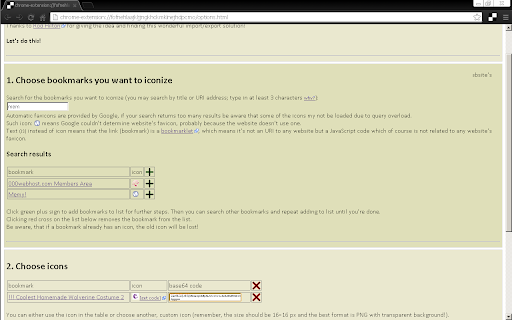

Set your icons for bookmarks which came without it! Some of your bookmarks don't have any favicon (icon)? Well, then add one! Google Chrome doesn't let you do this natively ¯\_(°∩°)_/¯ So this extension uses a hack on Google Chrome, that works ;) FEATURES: → If your bookmark doesn't have an icon (or has a blank icon) this will let you set it a favicon! → This is permanent, so favicons stay even if you turn off or uninstall this extension :D Unlike in every other extension I saw! (That's why I made this one.) → If you leave it, though, it will provide you a simple quick and dynamic search through your bookmarks :) → This extension allows you also to set favicons also for bookmarklets (=scripts)! \o/ INCOVENIENCES: → Google Chrome doesn't let extensions managing favicons. The only way to do this is to import bookmarks (one or more) from a backup file with a fixed favicon stored in it. This extension will let you choose bookmarks, choose favicons, create such backup file automatically and then you'll have to export it and import it again. There's no other way ¯\_(°∩°)_/¯ → And while it's importing bookmarks which you already have, it results in duplication of them. No worries, the duplicates are all in one directory (folder) at the end of Bookmarks Bar. → In Google Chrome favicon is related to a bookmark's address (URL) and is permanent (when set in this way). So if *you* change favicon once, you can't change it again. The workaround is to change the URL of bookmark a little (e.g. add "#" or "/" at the end, or empty parameter "?sth" or "&sth") – for Chrome it will be a new bookmark. → While you can set a favicon for bookmarklets (scripts) it's probably not possible to set if for bookmarklets with only anonymous function, like: "javascript:(function(){…})()". Sorry. I also had to edit half of my bookmarklets. → It is not possible in Google Chrome to change icons of folders. Sorry. I'm sad, too. ANY PROBLEMS WITH THIS EXTENSION? Questions, problems, requests – report on GitHub: → https://github.com/Kaligula0/bookmark-iconizer/issues If you like it then please buy me a beer 🍺 (donate me on PayPal: karol.paypal@o2.pl) ;) = Version history = 1.7.6 – updated png2base64 tools and popup description 1.7.5 – fix dealing with bookmarklets that include double quote (") 1.7.3 – fix dealing with bookmarklets that include number sign (#) 1.7.2 – update manifest to v3 1.7.1 – minor text modification in popup 1.7.0 – more detailed Store description, more detailed instructions, fixed dead links 1.6.0 – fix: auto-remove newly imported duplicates; more instructions 1.5.6 – added data policy (extension doesn't collect/send *any* data), icon bug fix 1.5.3 – scroll fix, disabled some useless functions 1.5.2 – scroll fix 1.5.1 – minor fixes 1.5.0 – fixed importing URIs with quotes, added info about manual import (because Google has removed automatic import feature from Chrome extensions) 1.4.0 – debugging options included 1.3.1 – minor fixes 1.3.0 – iconized bookmarks code in form of a link 1.2.0 – iconized bookmarks code enveloped in an iframe 1.1.0 – added [get code] link for default favicons in table 1.0.0 – first deployment

Minimal Bookmarks Tree
Display a tree of bookmarks under a toolbar button, and search your bookmarks in the omnibox using the keyword 'bm'. This extension adds a button to Chrome in the top right corner (next to the "three-dot" settings button). When you click the button you get a tree of your bookmarks with folders that you can open and close by clicking them. A simple -non obtrusive- sliding animation is applied to the opening and closing of folders. You can open bookmarks in the following ways: - click: open in current tab - middle-click (scrollwheel): open in new tab and close minimal bookmarks tree - ctrl+click: open in new tab and keep minimal bookmarks tree open You can also right click a folder and click "Open all" to open all bookmarks in that folder in tabs. Right click also let's you edit/delete bookmarks and folders. The tree uses simple folder icons that show their state (open/close) and also shows the favicons for the websites you've bookmarked. The extension remembers which folders were open, so you can leave your favorite folders open at all times. Additionally the extension enables you to search through your bookmarks and bookmark folders easily by entering 'bm' into the URL bar (or "omnibox" as chrome calls it) and then type your search terms. It is not and will not be possible to search in the popup window itself because this wouldn't add anything to the extension; it would just duplicate behaviour. The extension needs permission to view and edit your bookmarks, but will only ever edit bookmarks if you instruct it to, it will never change bookmarks on its own. Minimal bookmarks tree is completely open source and available on github: https://github.com/rpkamp/chrome-minimal-bookmarks-tree Any and all suggestions are welcome!

Favicon Detector
Click the extension button to detect current website's icons.

Extentie - extension manager
A simple and elegant Chrome extension manager allows you manage your extensions in a popup window. Extentie is a simple and beautiful tool that allows you to toggle and manage Chrome extensions in a popup. Latest update: - Now you can create your own groups to manage your extensions - Revamped from ground up, added more features

Bookmark Manager and Viewer
An elegant bookmark manager with fuzzy search and more The "Bookmarks Manager and Viewer" extension provides a panel view to modify your bookmarks. The panel is equipped with fuzzy search (like Google search) to help you find the matching bookmarks. You have a set of tools to edit your bookmarks on the fly. It is even possible to drag a bookmark to a new position in the tree or create a new directory and place the bookmark inside it. Features: 1. Fuzzy Search: Use to find matching items even if you are not sure what the exact title or URL of the stored bookmark is. 2. Validation Button: Delete broken bookmarks or find duplicated bookmarks recursively. 3. Edit Properties: Modify the title or address of a bookmark 4. Toolbar Color: Detect if the current page is bookmarked or not 5. Sort Bookmarks 6. Supports Live Bookmarks 7. Opening Mode: Open in a browser tab or popup view 8. Keyboard Navigation and Operation
