
gljjiokipgajokbgfmoekcdmfceoijjh
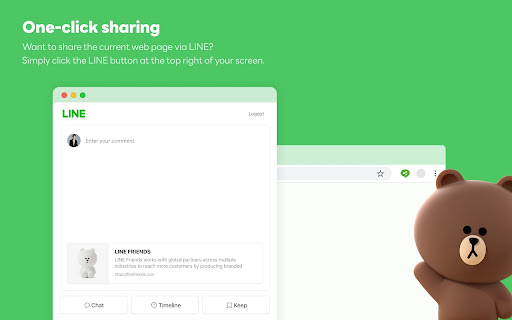
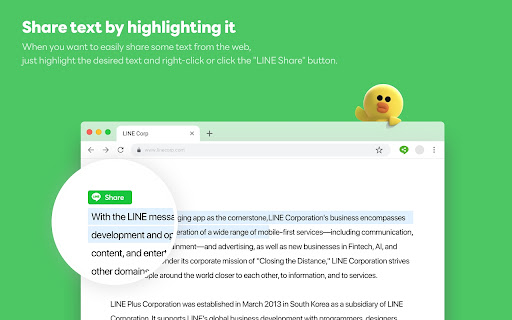

Get more out of LINE by using its Chrome extension With just one click, you can share web pages and text with your LINE friends or save them in Keep. Want to share the current web page via LINE? Simply click the LINE button at the top right of your screen. You can easily share it in chat or Timeline, or save it to Keep to view later on your mobile device. When you want to easily share some text from the web, just highlight the desired text and right-click or click the "LINE Share" button. Note that you can enable or disable the "LINE Share" button by right-clicking the app's icon at the top right of your screen. You can easily see shared or saved web content from anywhere using the mobile version of LINE.

Extensions Syncer
Sync and manage your Chrome extensions 1. Purpose of the Plugin In daily work, many people use multiple Google accounts for different projects and often face the following problem: If you want to install all the extensions from your main account into a new account on the same browser, you have to search and install them one by one, which is time-consuming and inconvenient. That’s why Extensions Syncer was created. It can quickly export all the extensions installed under your main account as a JSON file and then let you import that file into a new account in one click—no more repetitive searching and installing. With this extension, you can: - Quickly view and export all Chrome extensions installed under your current account. - Share or back up the exported extensions list as a JSON file. - Restore and install the needed extensions from the same JSON file in any new account. As a result, when switching among or collaborating with multiple Google accounts, you won't have to repeatedly search the Chrome Web Store for the same extensions. Everything can be done with a single click, significantly saving time and effort. 2. Feature Description This plugin provides the following core features: 2.1. Export Button When clicked, it automatically collects information on all extensions installed under the current account and generates a JSON file. This file contains essential details such as the extension name, description, and installation link. You can save the JSON file locally, share it with colleagues/friends, or keep it as a backup. 2.2. Import Button When clicked, you can select the previously exported JSON file. The plugin will read the list of extensions from the file and display them in the interface, one by one. Each extension will show its name and brief information, and the plugin will automatically distinguish whether it is already installed: - Installed: Displays “Installed” to indicate that this extension is already in your current account. - Not Installed: Displays a “Go Install” button. Clicking this button will redirect you to the corresponding Chrome Web Store page for installation. By combining these two core features, Extensions Syncer offers a convenient way to bulk install and sync extensions across multiple accounts. 3.1. Export the Extension List from the Main Account - In the Chrome browser of your main account, click on the Extensions Syncer icon. - In the plugin interface, click Export, and once the JSON file is generated, save it locally. 3.2. Switch to the New Account and Import the Extension List - In the Chrome browser of your new account, install and open Extensions Syncer as well. - Click Import and select the JSON file you saved from the main account. 3.3. View and Install Missing Extensions - Extensions Syncer will automatically read the file and list all extensions in the interface: - Extensions that are already installed will directly show Installed. - Extensions that are not installed will show a Go Install button. - For any extensions you need to install, click Go Install to jump to the respective installation page. Complete the installation as usual. 3.4. Complete the Bulk Synchronization - Repeat step 3.3 as needed to install all missing extensions. - This quickly allows your new account to have all the same extensions as your main account. 4. Frequently Asked Questions (FAQ) 4.1. Can I use the same JSON file across multiple different accounts? Yes. Simply save the exported JSON file, install Extensions Syncer in any Chrome account environment, and import that file. 4.2. What information is included in the exported file? Are there any privacy concerns? It only contains public extension information—such as the name, short description, and Chrome Web Store links. It does not include any login credentials or other sensitive data, so there is no privacy risk. 4.3. What happens if an extension has been removed from the store? If the extension is no longer available in the store, the import list will indicate that it cannot be installed, or the link won’t open after clicking Go Install. In this scenario, you would have to find an alternative extension or install it from another source if available. 5. Precautions and Recommendations - Ensure Extensions Syncer is installed in both accounts’ browser environments; otherwise, you won’t be able to perform import or export. - Make it a habit to regularly back up your extension list—especially if you frequently add or remove extensions in one account—so you can keep everything up to date when syncing with another account. - For extensions requiring payment or login authorization, be aware that you may need to pay again or reauthorize. Different extensions handle authorization in different ways.

Poster
A Chrome Extension for sharing your online surfing with your friends Reddit without the website. Browser-native Pinterest. A completely different way to share the sites you love. Poster is a social network that sits on top of the web as a browser extension, allowing you to share sites with your followers in a single click. Your home feed stays up-to-date with pages your friends and family are interested in, and when you stumble on a link that a followee has liked, we send you an unobtrusive notification letting you know. We never spam your email, blast you with ads or track your browsing activity. It’s completely free to use. The days of copying and pasting URLs into messaging applications are over. Poster is here. Poster is a product of Loomis Technologies, Inc., a St. Louis, Missouri based development studio. If you have feature requests and/or bug alerts, send a note to hello@loomistechnologies.com. We are actively working on Poster and would love to get your feedback.

Elevate by GrowthX
Elevate Chrome Extension by GrowthX Elevate by GrowthX offers two companion Chrome extensions that focus on a single goal each—either keeping you inspired every time you open a new tab *or* helping you finish job applications faster. Install whichever version matches your workflow. Elevate — New-Tab - Shows one concise, practical insight from proven business builders every time you open a tab. - Clean, distraction-free layout; optimized for all screen sizes. - Works offline; no ads and no tracking scripts. Elevate — Job Assistant - Detects standard form fields on leading career sites and fills them with details from your GrowthX profile when you click Start Autofill. - Lets you save interesting roles and track application status in one place. - Runs only on supported job pages or when you invoke it. The extension never submits an application without your review. How to get started 1. Install the extension that meets your need. 2. (Job Assistant only) Sign in once with your GrowthX credentials to sync profile data. 3. Begin using the feature—no extra setup for the New-Tab version; on job pages click Start Autofill to complete forms in seconds. Data & privacy - Personal data (quotes cache, saved jobs, profile fields, settings) is stored locally or in your GrowthX account and is never sold or shared with third parties. - The extensions do not read your browsing history, inject ads, or collect analytics unrelated to their core features. - Full policy: https://growthx.club/privacy-policy

Visualping
Visualping Chrome Extension Visualping is a simple service for monitoring websites for changes. You'll receive an email notification when it detects any change in the content of the page. Use the service for competition monitoring, price checks, ticket availability tracking and more using the server service and email alerts or browser tab (free as your computer does the job) You can either choose to monitor the whole website or just an area of a website. To select the area, just drag a selection on the screenshot shown within the extension. New element selector allows to track changes on a specific element of the webpage. The app also allows to compare changes in text in addition to visual changes.
