
gkaklngeompajajhjkklnkdgiffjlopl
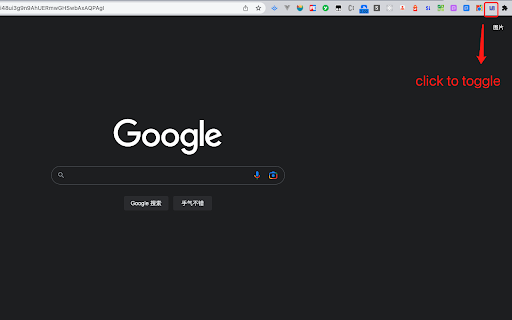
Used to quickly examine the layout of web elements Just click on the icon and you can easily switch between elements.

Impeccable
Detect common UI anti-patterns in any web page Impeccable detects 41 common UI anti-patterns directly in your browser. Open DevTools on any page and overlays instantly highlight issues, from AI-generated design tells to accessibility and quality problems. AI slop (design tells that scream "AI made this"): - Cream and beige "AI default" backgrounds - Purple/violet AI color palettes - Gradient text on headings - Side-tab and rounded-border accent stripes - Nested cards, monotonous spacing, icon-tile stacks - Bounce and elastic easing, hover image zoom - Dark mode with glowing accents - Overused or single-family fonts, flat type hierarchy - Oversized H1s, extreme negative letter-spacing, italic-serif heroes - Uppercase eyebrows, repeated kickers, numbered section markers - Em-dash overuse, marketing buzzwords, "not just X, it's Y" cadence - Thin borders with wide drop shadows, repeating-stripe backgrounds Quality issues (general design and accessibility): - Low contrast text (WCAG AA), gray text on colored backgrounds - Cramped padding, tight line height - Skipped heading levels - Line length too long, text running to the viewport edge - Tiny body text, justified text, all-caps body copy, wide letter-spacing - Layout-property animations, clipped overflow containers, text overflow - Broken images 1. Install the extension 2. Open DevTools on any page (Cmd+Opt+I / F12) 3. Overlays appear automatically, highlighting issues 4. Click the "Impeccable" panel tab for a structured list of all findings 5. Click any finding to jump to the element in the Elements panel - Auto-scans when DevTools opens, no manual step needed - Grouped findings: AI tells vs. quality issues - Click-to-inspect: jump from a finding to the element - Toggle overlays on/off from the panel or toolbar popup - Per-rule settings: disable detections you don't care about - Re-scans on navigation, including SPA route changes - Works on any website - Runs 100% locally, no data sent anywhere

Visual Inspect UI
Advanced Visual Inspector for Editing Web Page Elements. Visual Inspect UI is a powerful tool for interactive web element inspection. It enables users to modify styles and text content with ease while providing access to media resources and page elements through a modern, user-friendly interface. ✔ View and modify styles in real-time ✔ Edit text content directly on the page ✔ Interactive element highlighting ✔ Fixed sidebar panel for quick access ✔ Image Scraper: Find and access page images (works with non-CORS protected images) ✔ Video Scraper: Locate video sources (works with non-CORS protected videos) ✔ One-click media file access 📄 Page Tools ✔ Export Source: Save page HTML with one click ✔ Reset Interface: Clear the panel and UI elements for a fresh workspace Featuring a sleek translucent design and a user-friendly interface, Visual Inspect UI is the perfect extension for developers, designers, and content creators looking to inspect and extract web content efficiently. ➡ Download now and take web inspection to the next level! 🚀

Guide lines
Easily check the visual alignment of the page elements. Get a vertical guide (line) and a horizontal guide that follow your mouse and go across the entire viewport. Useful to quickly check the alignment of elements in a page.

Better Ruler
A page ruler which can snaps around web elements for easier measurement. Provide convenience for front-end development and ui design **A smart web ruler with element snapping for easier frontend development and UI design.** - **Smart Snapping**: Hold `Alt` (or `Option` on Mac) while moving the cursor to automatically detect and snap to web elements. Supports snapping to **edges, 4 corners, and 4 edge midpoints**, displaying dimensions instantly. The snap preview uses a contrasting color to distinguish from measurement boxes. - **Easy Measurement**: Click and drag to create a measurement layer that snaps to element edges automatically. - **Flexible Editing**: Double-click any layer to enter edit mode: move, resize, or fine-tune. - **Esc**: Exit edit mode - **Backspace**: Delete the selected layer - **Status Indicator**: The extension icon changes based on status (colored = active, gray = inactive) for easy identification. - **Shortcuts Help**: Hover over the `?` button in the toolbar to view all available shortcuts. - **Customization**: - **Individual Colors & Opacity**: Each measurement box can have its own color and opacity; editing when selected only affects the current item - **Global Mode**: When enabled, changing color or opacity affects all existing measurement boxes simultaneously - **Single Mode**: When enabled, only one measurement box can exist at a time; new boxes automatically clear old ones - **Size Position**: Configure where dimension labels appear (center, corners, etc.) - **Dashed Background**: Choose between solid or dashed background for measurement boxes - **Reference Lines**: Automatic horizontal and vertical reference lines with X, Y coordinate labels - **Crosshair Display**: Configure mouse crosshair display mode - **Quick Controls**: - Press `f` (configurable): Toggle toolbar visibility - Press `r` (configurable): Toggle reference lines - Press `s` (configurable): Toggle snap mode (when on, snapping is always active without holding Alt; Alt temporarily disables snapping) - Press `Shift`: Toggle dimension labels - `Ctrl+Z` / `Cmd+Z`: Undo (supports draw, delete, move, resize operations) - `Ctrl+Shift+Z` / `Cmd+Shift+Z`: Redo - `Alt + z` (customizable): Global shortcut to toggle the extension - Double-press `z` (configurable): Quickly activate/deactivate within the page (after first launch) - **Copy Dimensions**: Click the dimension label on any measurement box to copy its size (e.g., `320 x 180`) to clipboard. - **Toolbar Hint**: A toast notification shows how to restore the toolbar after hiding it. - **Shadow Color**: The snap preview color is independently configurable, no longer derived from the measurement box color. - **Local File Support**: Enable "Allow access to file URLs" in `chrome://extensions` to measure local HTML files. - **Mobile Simulation**: Works in DevTools mobile simulation mode (ensure `device type` is set to `no touch`).
