
giipgokghleeoadckjmafibodecfgmeo

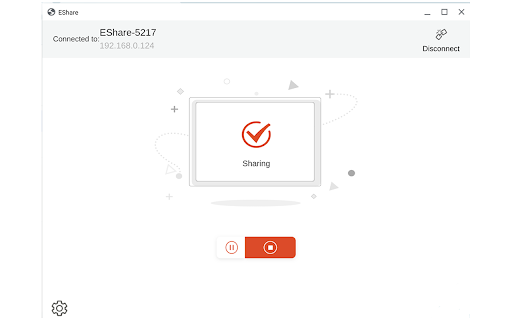


EShare Chrome Extension - Professional Wireless Screen Mirroring Solution Transform your screen sharing experience with EShare, a powerful Chrome extension that enables seamless wireless screen mirroring and content sharing across devices. Whether you're presenting in meetings, delivering educational presentations, or extending your workspace, EShare provides a reliable and intuitive solution. Compatibility: Works seamlessly with EShare-enabled devices including IFPDs, smart TVs, projectors, and wireless display terminals. Requires ESharePro receiver version 7.6.1010 or later (please update your receiver if needed). Experience the future of wireless connectivity with EShare Chrome Extension - where sharing content is as simple as clicking a button.

Brisk Teaching – AI Assistant for Teachers
More than 1 million teachers have installed Brisk. Here's what they use it for: More than 1 million teachers have installed Brisk. Here's what they use it for: Create Build lesson plans, quizzes, Google Docs, Forms, and Slides in 30+ languages. Everything saves straight to your Google Drive. Give Feedback Write personalized, rubric-aligned feedback on student work for one student or the whole class at once. Inspect Writing See how students built their work. Replay their writing process to understand their thinking beyond the final draft. Boost Student Activities Create interactive, standards-aligned activities with AI guardrails you set. You monitor progress while students work. Brisk reads the page you're on and works with what's there. Nothing to export, copy, or paste. Why teachers stick with Brisk It fits how you already teach. You don't have to learn a new platform or rework your process. Creating a quiz from a slide deck takes minutes. So does turning a YouTube video into a lesson plan, or writing feedback for 30 students. You stay in control. You set the rubric, the standards, the guardrails. 1. Add the Brisk extension to Chrome and pin it to your toolbar. 2. Open any Google Doc, Slide, or webpage. 3. Click the Brisk icon and start building. Ready to save time and boost your teaching game? Visit www.briskteaching.com and join the 1 million+ teachers who’ve made teaching Brisk!

Wayground AI
Create interactive activities, presentations, videos, flashcards, and passages from a website or generative AI in one click. Wayground (formerly Quizizz) helps you turn websites, articles, YouTube videos, Google Docs, and even your ChatGPT conversations into ready-to-use learning activities. No more copying and pasting or starting from scratch. See an article your students would benefit from? Highlight a passage and generate questions based on that text. Watching a YouTube video for class? Add comprehension checks at key moments to keep students accountable. Generated great content in ChatGPT or Gemini? Import it directly into Wayground with one click. Have existing lesson plans in Google Docs or Slides? Turn them into interactive practice without rebuilding anything. Once your content lands in Wayground, you can edit, customize, and assign it however you want. Auto-grading, built-in accommodations, and actionable reports come standard. Getting started takes about 30 seconds: 1. Download the extension 2. Pin it to your browser (click the puzzle icon in the top right, find Wayground, and pin it) 3. Visit any website, article, or video 4. Click the extension and generate Formative assessments, bell ringers, exit tickets, review activities—whatever you need, create it from the content you're already using.

Epson iProjection Extension
This extension allows you to mirror your Chromebook's screen to an Epson projector when used with the Epson iProjection app. [Requirements] - This extension only works with ChromeOS. - You need to install the Epson iProjection app (Ver.4.1.0 or later). Get the latest app from Google Play. https://play.google.com/store/apps/details?id=com.epson.iprojection [How to] 1. Open the Epson iProjection app installed from Google Play. 2. Connect to your Epson projector. 3. Turn on [Mirror device screen]. 4. Select the contents and turn on [Also share system audio] if needed. 5. Click [Share] to start mirroring. By using this extension, you accept and agree to be bound by the terms of use. https://support.epson.net/eula/ We welcome any feedback you have that could help us to improve this extension. You can contact us through "Developer". Please note that we cannot reply to individual inquiries. For inquiries regarding personal information, please contact your regional branch described in the Privacy Statement. All images are examples and may differ from the actual screens. ChromeOS and Google Play are trademarks of Google LLC.

Hancom Docs
Intuitive Interface at a Glance Stay focused with a home screen designed to streamline your workflow. Instant Document Editing Open and edit any office document immediately after signing up. AI-Powered Smart Search Get fast and accurate results with integrated cross-platform data. Customizable Tabs Filter documents by type, date, owner, or whatever fits your way of organizing.
